> For the complete documentation index, see [llms.txt](https://help.tellius.com/llms.txt). Markdown versions of documentation pages are available by appending `.md` to page URLs; this page is available as [Markdown](https://help.tellius.com/tellius-6.4/feed/actions-done-on-a-tracking-feed.md).
# Actions done on a tracking Feed
Learn how to view, manage, share, pin, or delete tracked metrics in your Feed. Understand Feed details, actions, and permissions for efficient metric tracking.
### View the metrics being tracked
1. Select **More › Feed** in the left navigation. The Feed page opens with a card for each tracked metric. In releases before Tellius 6.4, Feed was a tab on the left pane.
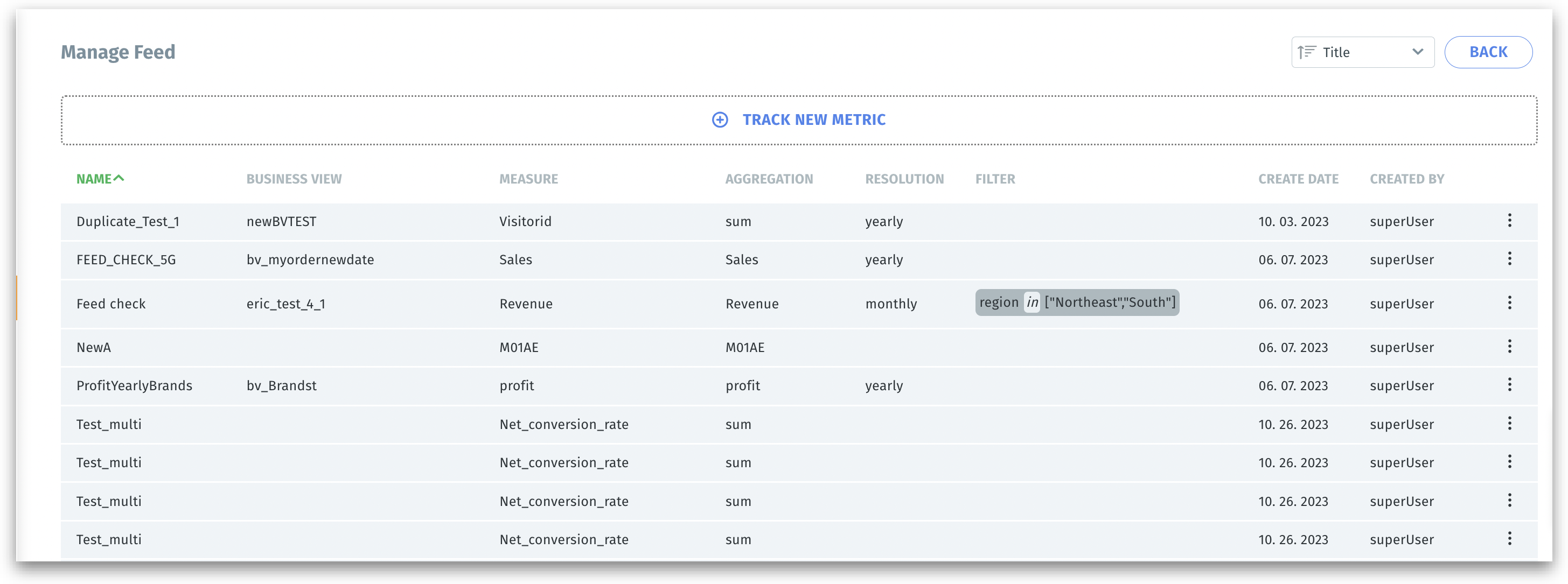
2. Select **MANAGE FEED** in the top right corner. The **Manage Feeds** list opens with the following details:
List of metrics being tracked
* **Feed Name** - name of the Feed
* **Business View** - Business View associated with the Feed
* **Measure** - metric being tracked
* **Aggregation** - aggregation followed for the measure
* **Date Column** - the date column the metric is tracked over
* **Granularity** - the frequency by which the metric is monitored (named **Resolution** in releases before Tellius 6.4)
* **Filter** - filters applied (if any)
* **Create date** - the date when the Feed was created
* **Created by** - the creator of the Feed
Above the list:
* **Search:** find a Feed by name.
* **Track New Metric:** start a new Feed. See [Track a new metric](/tellius-6.4/feed/track-a-new-metric.md).
* **Sorting:** order the list. By default it shows the newest Feeds first, by **Creation Date**.
* **Reset:** clear the sorting you chose and return to the default order.
* **All**, **Created by me** and **Shared with me:** show every Feed you can see, only your own, or only the ones others shared with you.
* **Go to feed:** go back to the Feed page.
### Actions that can be done to a Feed being tracked
1. Navigate to **More › Feed › MANAGE FEED**.
2. A list of metrics that are currently being tracked will be displayed.
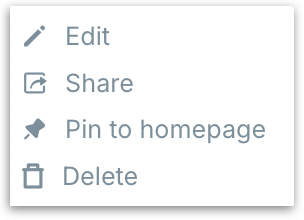
3. Click on the three-dot (kebab) menu, and you will find the following options:
Feed actions
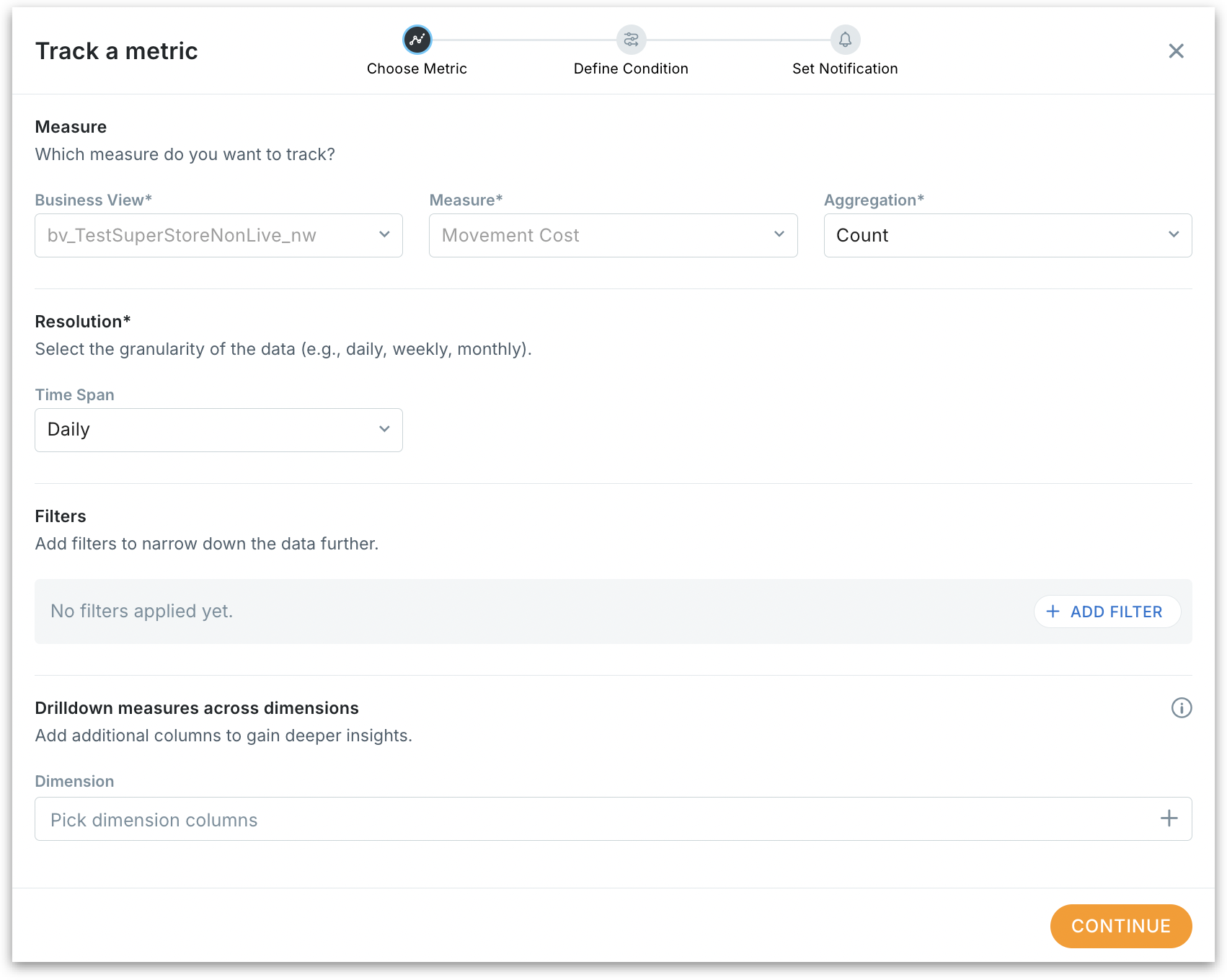
* **Edit:** To edit a Feed being tracked, click on **Edit** and the following **Track a metric** window appears where you can make the intended changes.
Edit Feed
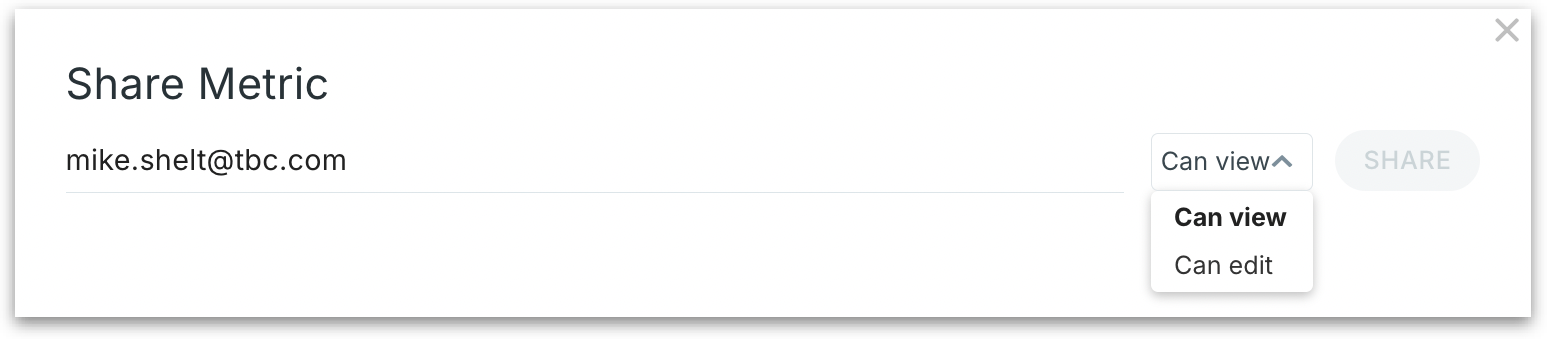
* **Share**: Click on **Share**, then enter the name, username, or email address of the people you want to share the Feed with. Mention whether the users can view or edit.
Share Feed
{% hint style="danger" %}
Shared Feed alerts fully honor **Row-Level Policies**: people only get alerts for data they’re allowed to see. You can share a Feed with distribution lists or access-controlled user groups; Tellius evaluates the alert **per recipient at runtime**.\
\
For example, if a shared Feed tracks a 20% drop across brands:
* **Group A (Brand X access)** → gets alert only if **Brand X** drops 20%.
* **Group B (Brand Y access)** → gets alert only if **Brand Y** drops 20%.
* Users in both groups get alerts for either brand.
{% endhint %}
* **Pin to homepage:** Pins the Feed to the homepage so that you can track the KPI metric under **"Tracked Metrics"** right when you log in.
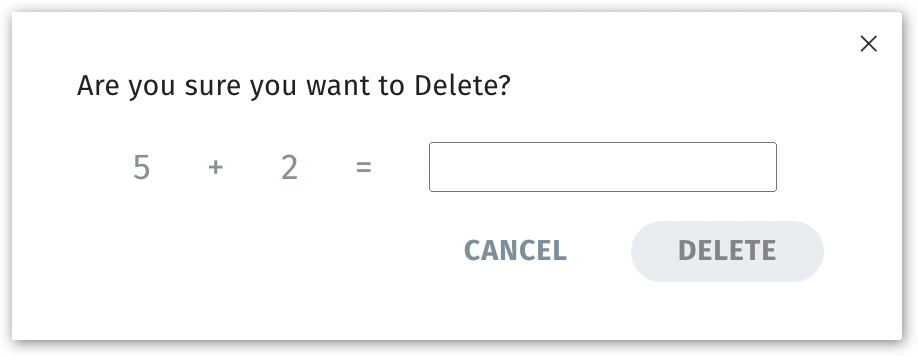
* **Delete:** Click on **Delete** and the following will be displayed. In the confirmation window, provide the correct answer for the given question.
Confirmation window
---
# Agent Instructions
This documentation is published with GitBook. GitBook is the documentation platform designed so that both humans and AI agents can read, navigate, and reason over technical content effectively. Learn more at gitbook.com.
## Querying This Documentation
If you need additional information that is not directly available in this page, you can query the documentation by asking a question.
Perform an HTTP GET request on the following URL with the `ask` and `goal` query parameters:
```
GET https://help.tellius.com/tellius-6.4/feed/actions-done-on-a-tracking-feed.md?ask=&goal=
```
`ask` is the immediate question: it should be specific, self-contained, and written in natural language.
`goal` is what the user is ultimately trying to achieve, the reason they need the answer. Sharing it helps GitBook give you a better, more relevant answer. A goal is most helpful when it describes the outcome the user wants rather than restating the question. For example, with `ask=how do I create an API token`, a goal like `automate deployments from our CI pipeline` lets GitBook tailor the answer to that use case.
The response will contain a direct answer to the question and relevant excerpts and sources from the documentation.
Use this mechanism when the answer is not explicitly present in the current page, you need clarification or additional context, or you want to retrieve related documentation sections.