> For the complete documentation index, see [llms.txt](https://help.tellius.com/llms.txt). Markdown versions of documentation pages are available by appending `.md` to page URLs; this page is available as [Markdown](https://help.tellius.com/tellius-6.4/getting-started/universal-search.md).
# Universal Search
Find any resource instantly with Tellius Universal Search. Use Ctrl+K to access fast, intelligent, keyboard-driven search across all artifacts and insights.
The Universal Search feature in Tellius 5.4 helps users locate and interact with resources across the platform. It is designed for fast, centralized, keyboard-driven access—letting you instantly find artifacts across Tellius with just a few keystrokes.
### How to access Universal Search?
You can invoke Universal Search from anywhere in Tellius.
1. Press **Ctrl + K** (Windows/Linux) or **Cmd + K** (Mac). Once triggered, a search bar will appear, ready for input.
2. Start typing a keyword related to the artifact name, metric, or topic.
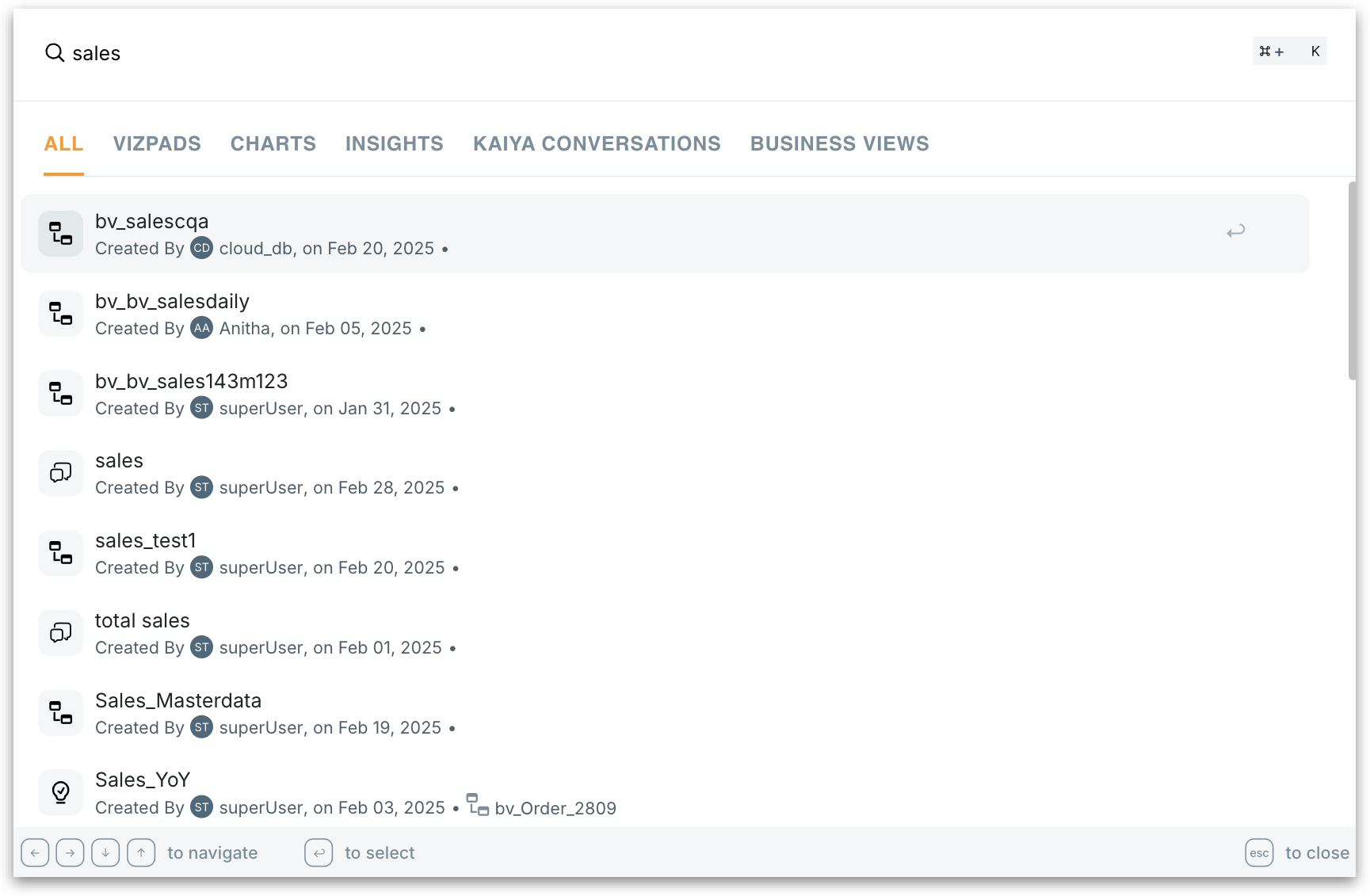
3. As you type, search results will auto-populate, grouped by artifact type (e.g., Vizpads, Insights).
4. Use the arrow keys to navigate through the results.
5. Press **Enter** to open the selected artifact directly.
{% hint style="success" %}
* **Autocomplete suggestions:** Tellius predicts what you're searching for based on frequently accessed items and recent queries. Frequent queries are cached for faster retrieval.
* **Fuzzy search:** Supports minor spelling errors and partial matches. For example, typing "sals report" will still suggest "Sales Report".
{% endhint %}
### What can you search?
Universal Search indexes metadata across various artifact types. Below are the supported artifacts:
* Vizpads
* Insights
* Business Views
* Kaiya Conversations
* Predictive Models
{% hint style="danger" %}
You will only see artifacts that your user role and permissions allow. Restricted or sensitive artifacts will not appear in your search results.
{% endhint %}
### Searching from the home page in Tellius 6.4
On the home page, select the magnifier icon in the ask box to switch it to search. The box then reads **Search across vizpads, insights, conversations, Business Views…**. Select the Kaiya icon beside it to go back to asking Kaiya.
* **Results as you type.** Results appear below the box, with tabs that show how many results each type has: **All**, **Kaiya Conversations**, **Vizpads**, **Charts**, **Insights**, **Business Views** and **Settings**.
* **Each result** shows who created it and when.
* **Open a result** by selecting it, or by pressing Enter on the highlighted result.
* **Keyboard.** Use the up and down arrows to move through the results, **Alt** + **Tab** to switch between the type tabs, and **Esc** to clear the search. The **⌘ + K** label in the box shows the shortcut for search.
### Searching from any page in Tellius 6.4
You don't need to go back to the home page to search. Press **⌘ + K** (**Ctrl + K** on Windows) on any page, including inside a Kaiya conversation or an App. The search box opens over the page, with the same type tabs as on the home page. The footer of the search box reminds you of the keys: the arrow keys to move, Enter to select and **esc** to close.
* **Settings results.** A setting shows its full path, for example **Settings > Modules > Vizpad > Vizpad Settings > Vizpad Excel Export > Maximum sheets in a workbook**. Select **Open**, or press Enter, to go to that settings page. Tellius scrolls to the setting, so you don't have to look for it.
* **What you can see.** Results follow your access. Search lists only the items you can open and only the settings and modules your role gives you access to.
{% hint style="info" %}
**Find a setting by name.** If you know what a setting does but not where it lives, type a few words from its name, such as *maximum sheets*, and open the **Settings** tab. This is faster than opening each settings page in turn.
{% endhint %}
### Keyboard Shortcuts
| **Function** | **Shortcut** |
| ---------------- | ------------------ |
| Open Search Bar | Ctrl + K / Cmd + K |
| Navigate Results | ↑ / ↓ |
| Select & Open | Enter |
| Close Search | Esc |
{% hint style="warning" %}
If the intended artifact doesn't appear, please review the search terms or contact admin for indexing status.
{% endhint %}
---
# Agent Instructions
This documentation is published with GitBook. GitBook is the documentation platform designed so that both humans and AI agents can read, navigate, and reason over technical content effectively. Learn more at gitbook.com.
## Querying This Documentation
If you need additional information that is not directly available in this page, you can query the documentation by asking a question.
Perform an HTTP GET request on the following URL with the `ask` and `goal` query parameters:
```
GET https://help.tellius.com/tellius-6.4/getting-started/universal-search.md?ask=&goal=
```
`ask` is the immediate question: it should be specific, self-contained, and written in natural language.
`goal` is what the user is ultimately trying to achieve, the reason they need the answer. Sharing it helps GitBook give you a better, more relevant answer. A goal is most helpful when it describes the outcome the user wants rather than restating the question. For example, with `ask=how do I create an API token`, a goal like `automate deployments from our CI pipeline` lets GitBook tailor the answer to that use case.
The response will contain a direct answer to the question and relevant excerpts and sources from the documentation.
Use this mechanism when the answer is not explicitly present in the current page, you need clarification or additional context, or you want to retrieve related documentation sections.