> For the complete documentation index, see [llms.txt](https://help.tellius.com/llms.txt). Markdown versions of documentation pages are available by appending `.md` to page URLs; this page is available as [Markdown](https://help.tellius.com/tellius-6.4/insights-discover/get-familiar-with-our-insights.md).

# Get familiar with our Insights

Explore how to search, sort, create, share, and organize data for deeper business understanding in Tellius.

In Tellius, open Insights by selecting **Insight** in the left navigation. It sits under **More** unless your administrator made it a primary module in [Enabled Modules](/tellius-6.4/settings/enabled-modules.md). In releases before Tellius 6.4, it was the **Discover** tab. All the existing Insights that were created by you or shared with you can be found here. Your journey with Insights begins with curiosity and leads to a deeper understanding of your business's data-driven narrative. Happy discovering!

### The Insight page in Tellius 6.4

<figure><img src="https://1702728550-files.gitbook.io/~/files/v0/b/gitbook-x-prod.appspot.com/o/spaces%2FC5PhRxmOjkQZJEO6F9Zw%2Fuploads%2FHsPqtvZoYz8UBrTcaEqz%2Finsight-landing-64.png?alt=media&amp;token=5a139aff-6e07-4c6c-b7e7-6370c3eae400" alt="The Insight page in Tellius 6.4, with the All Projects breadcrumb, Search, Create New Insight, Import Insight, the Sorting and User filters with Reset, the All, Favorites, Recently used and Shared with me tabs, and the List toggle highlighted" width="563"><figcaption><p>The Insight page in Tellius 6.4</p></figcaption></figure>

* **All Projects › Insights (n):** the breadcrumb at the top shows how many Insights you can see. Select the arrow next to **All Projects** to pick a project.
* **Search:** finds an Insight by its name.
* **Create New Insight:** opens a list of Business Views, with its own search box and sort control. Pick the Business View to start a new Insight. See [How to create new Insights](/tellius-6.4/insights-discover/how-to-create-new-insights.md).
* **Import Insight:** brings an Insight into this workspace.
* **Sorting:** under **Sort By**, choose **Creation Date**, **Last Updated Date**, **Name**, **Owner** or **Business View**; under **Order**, choose **Newest First** or **Oldest First**. The list opens sorted by last updated date, newest first.
* **User:** shows only the Insights created by the users you pick. **Reset** returns the filters to their defaults.
* **All**, **Favorites**, **Recently used** and **Shared with me:** tabs that show every Insight you can access, the ones you marked as favorite, the ones you opened recently, or the ones other users shared with you.
* **List:** switches between the card grid and a list.
* **Insight cards:** each card shows the Insight type (for example **Segment Insight**, **Comparison Insight** or **Trend Insight**), its name, the Business View it uses and the measure or column it analyzes, with a three-dot menu at the top right.

{% hint style="info" %}
**Tabs, sorting or User?** Use **Recently used** to get back to an Insight you were just working on, and **Favorites** for the ones you return to often. Sort by **Business View** to see every Insight built on one Business View together. Use **User** when you look after other people's content and need the Insights one person created.
{% endhint %}

{% hint style="info" %}
The numbered breakdown below describes the Insights page in releases before Tellius 6.4. In Tellius 6.4, **Last Created**, **Last Modified**, **Title**, **Saved** and **Favorite** are no longer sort options, and the filter dropdown is replaced by the tabs above.
{% endhint %}

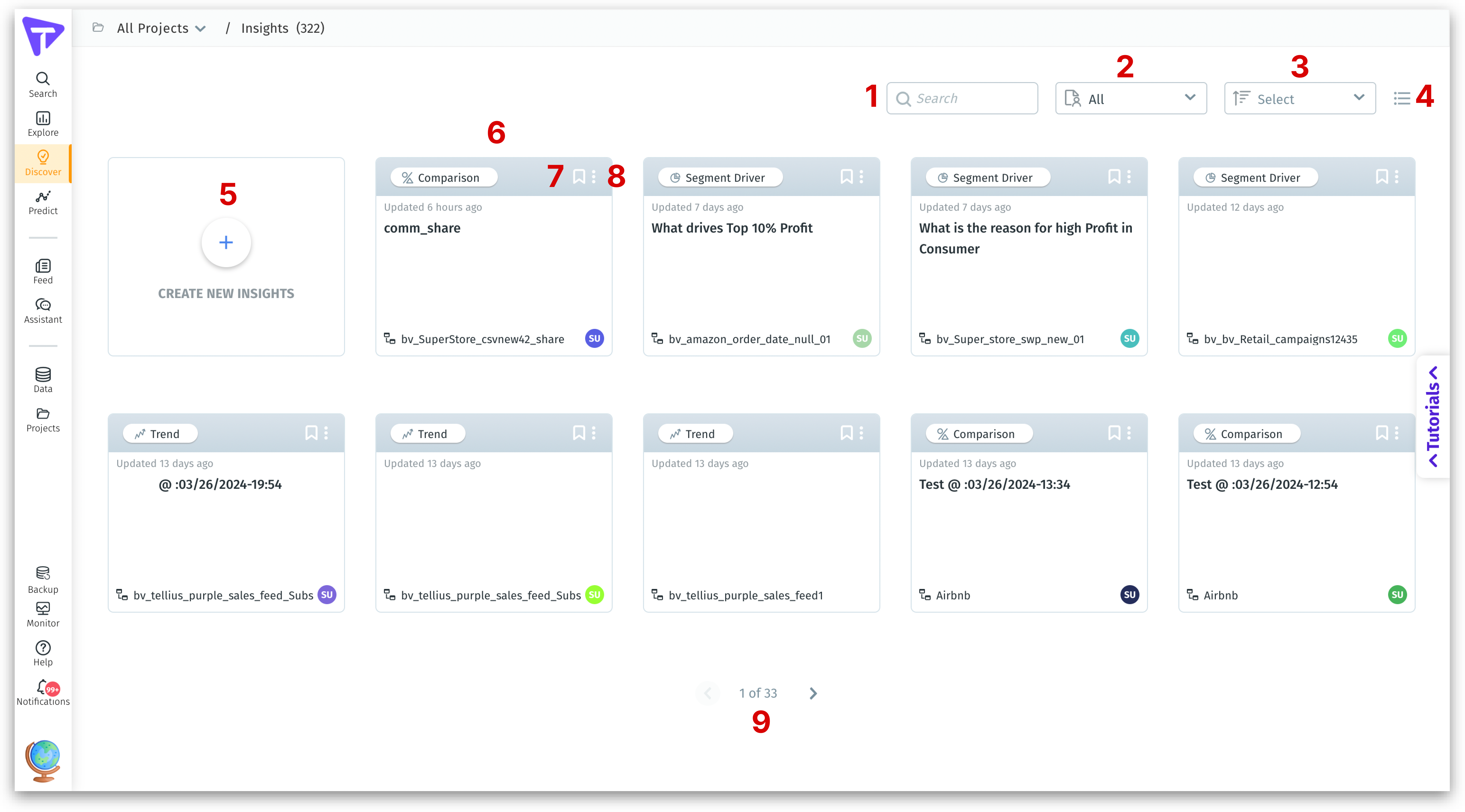
Let's break down the components of the following interface.

<figure><img src="https://content.gitbook.com/content/C5PhRxmOjkQZJEO6F9Zw/blobs/8KBAwnYI1B9bmJbmp8xU/Frame%20419.png" alt=""><figcaption><p>Discover (Insights)</p></figcaption></figure>

1. **Search**

Use this search bar to find any required Insight by its name.

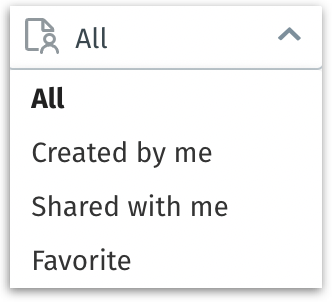
2. **Filter dropdown**

Choose if you want to view only the Insights created by you or shared with you or all the existing Insights or the Insights marked favorite.

<figure><img src="https://content.gitbook.com/content/C5PhRxmOjkQZJEO6F9Zw/blobs/OHML9FXKyma5yNcO6X25/image.png" alt="" width="166"><figcaption><p>Filter dropdown</p></figcaption></figure>

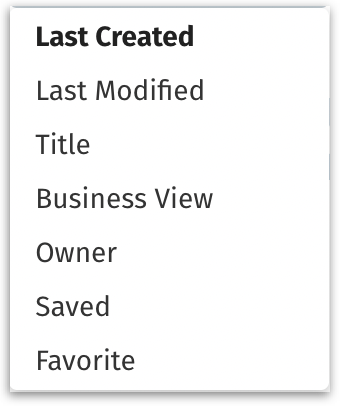
3. **Sorting dropdown**

Select the order in which you want the Insights to be displayed. Sort by last created, last modified, title, Business View, Owner, Saved, and Favorite.

<figure><img src="https://content.gitbook.com/content/C5PhRxmOjkQZJEO6F9Zw/blobs/P8wDzUTdbsEIrHc20rId/image.png" alt="" width="170"><figcaption><p>Sorting dropdown</p></figcaption></figure>

* **Last Created**: Sorts Insights based on the most recent creation date, showing the newest ones first.
* **Last Modified**: Displays Insights in order of their most recent modification, with the latest updates at the top.
* **Title**: Organizes Insights alphabetically by their title names.
* **Business View**: Sorts Insights according to the Business View they are associated with.
* **Owner**: Displays Insights in an order based on the creator's name.
* **Saved:** Displays Insights in the order they are saved.
* **Favorite**: Places Insights marked as favorites at the forefront, prioritizing your most preferred Insights.

4. **View**

**Grid view -** Every Insight will be displayed as an individual grid.\
**List view** - The Insights will be displayed in a list format.

5. **Create new Insights**

Click on the plus icon to create a new Insight. The list of Business Views will be displayed which can be sorted or searched as required. Select the relevant Business View.

6. **Insight**

Each Insight is displayed with its name, the date it was last updated, the creator’s name, and the Business View used. Hovering over a Insight reveals additional details such as creation time and the columns used in the Insight.

7. **Favorite**

Mark an Insight as a favorite for quick access by clicking on the ribbon icon.

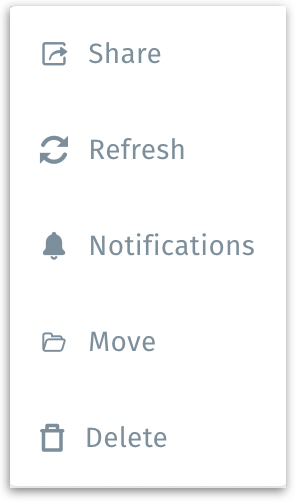
8. **Three-dot menu**

<figure><img src="https://content.gitbook.com/content/C5PhRxmOjkQZJEO6F9Zw/blobs/aPILKz3a5Y2ntnPLJoju/image.png" alt="" width="148"><figcaption><p>Options for every Insight</p></figcaption></figure>

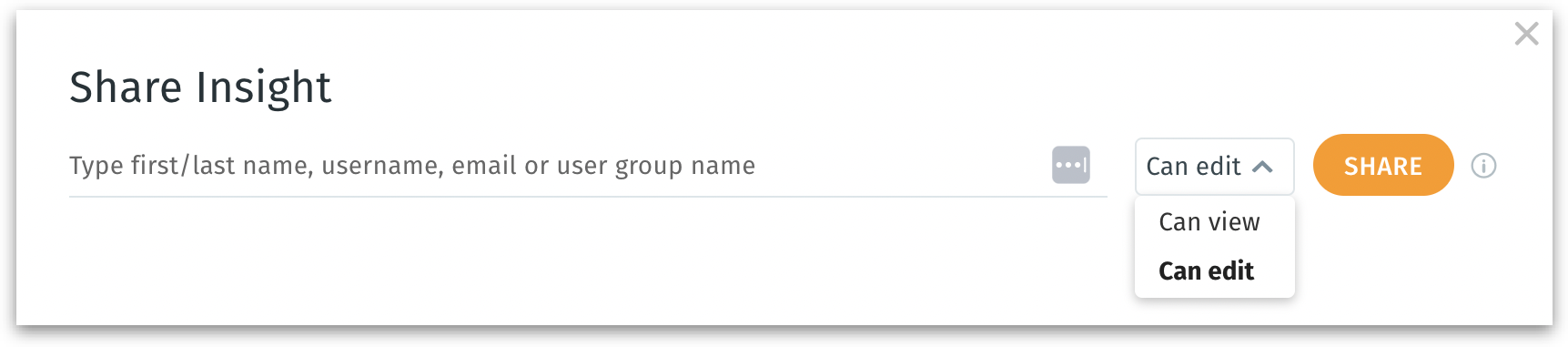
**a. Share -** To share the Insight with relevant permissions. The following window will be displayed where you can search for the required username, email, or user group, and provide view or edit permissions.

<figure><img src="https://content.gitbook.com/content/C5PhRxmOjkQZJEO6F9Zw/blobs/m07Bp9Le3HZr42cPIUYM/image.png" alt="" width="563"><figcaption><p>Sharing an Insight</p></figcaption></figure>

{% hint style="warning" %}
When shared in edit mode, the Insight will be available to edit, whereas the associated Business View, datasources, and datasets will be shared in read-only mode.
{% endhint %}

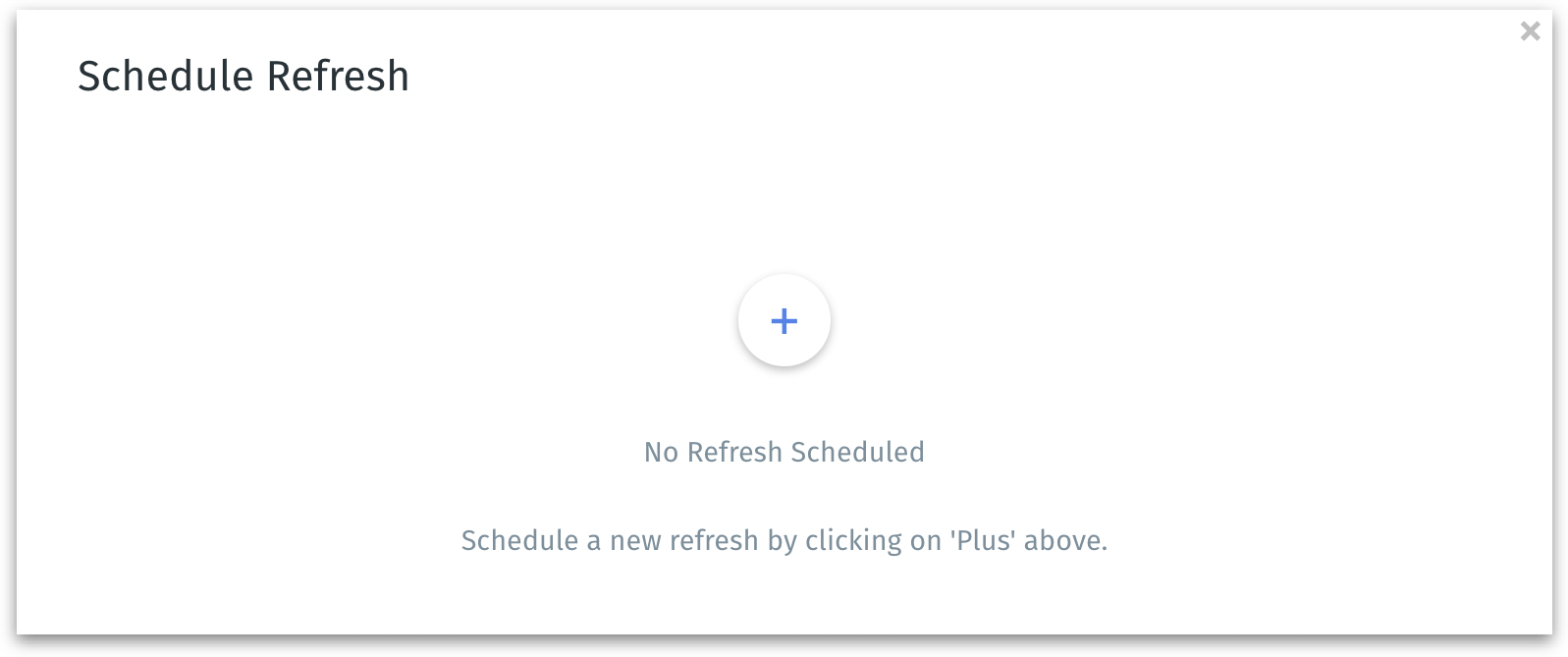
**b. Refresh -** Refreshing the Insight to its latest update. The list of refreshes already scheduled will be displayed.

<figure><img src="https://content.gitbook.com/content/C5PhRxmOjkQZJEO6F9Zw/blobs/KbtVMQyrSYf43On6Iakw/image.png" alt="" width="375"><figcaption><p>Scheduled refresh</p></figcaption></figure>

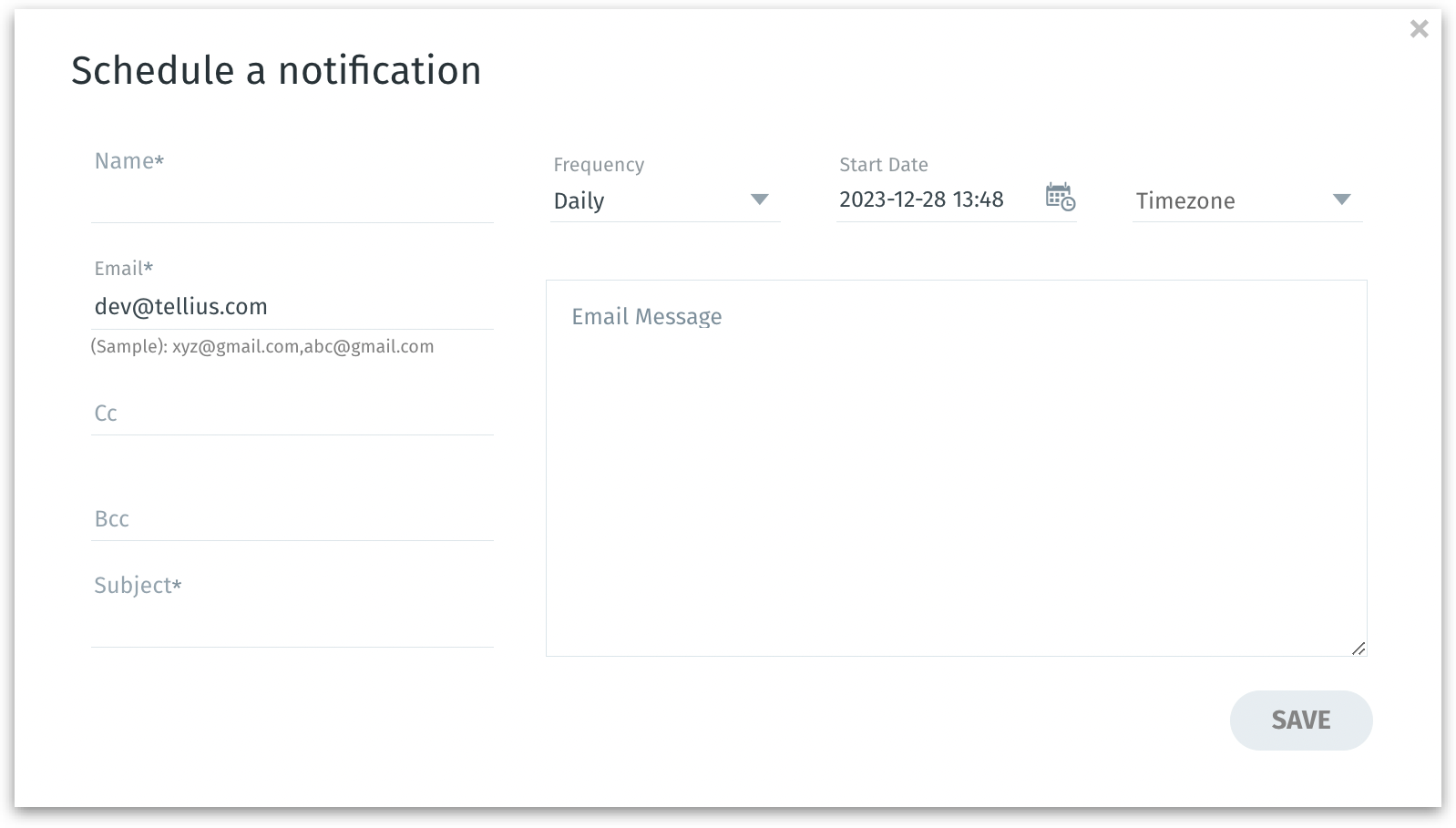
Click on the plus icon to schedule a new refresh. The following window appears. Provide the following details:

<figure><img src="https://content.gitbook.com/content/C5PhRxmOjkQZJEO6F9Zw/blobs/NdZle1cQvGg1HHuTxSBa/image.png" alt="" width="375"><figcaption><p>Scheduling notifications</p></figcaption></figure>

* The name of the refresh to be scheduled
* Frequency at which you want to refresh the Insight (monthly, weekly, hourly, daily)
* Relevant start date and time zone
* The recipient's email address with cc and bcc (if any)
* The subject and body of the email to be received

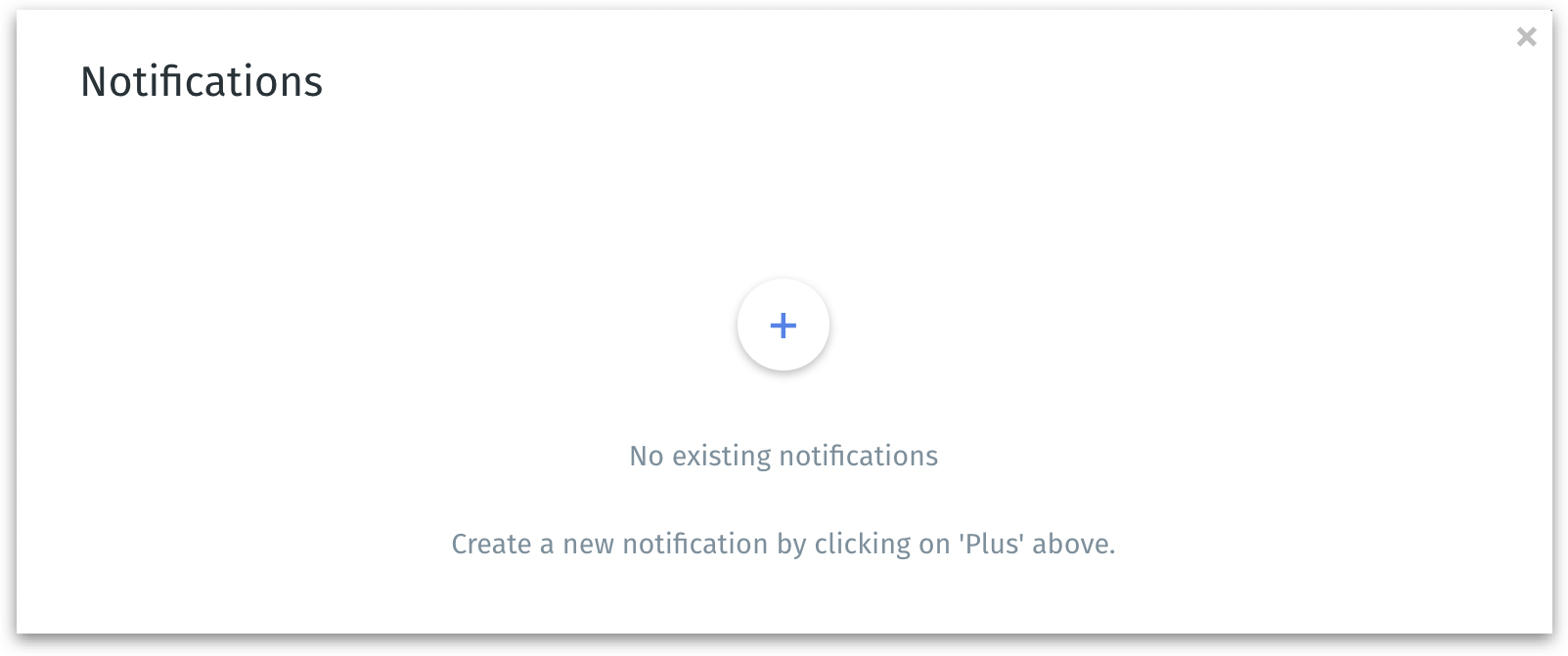
**c. Notifications -** Set up notifications for the particular Insight. The list of notifications already set up will be displayed.

<figure><img src="https://content.gitbook.com/content/C5PhRxmOjkQZJEO6F9Zw/blobs/UG5Ww3yeHASEmpeLZeoV/image.png" alt="" width="375"><figcaption><p>Notifications window</p></figcaption></figure>

Click on the plus icon to schedule a new notification. The following window appears. Provide the following details:

<figure><img src="https://content.gitbook.com/content/C5PhRxmOjkQZJEO6F9Zw/blobs/NdZle1cQvGg1HHuTxSBa/image.png" alt="" width="375"><figcaption><p>Scheduling notifications</p></figcaption></figure>

* The name of the notification
* Frequency at which you want to receive the email notification (monthly, weekly, hourly, daily, immediate)
* Relevant start date and time zone
* The recipient's email address with cc and bcc (if any)
* The subject and body of the email to be received

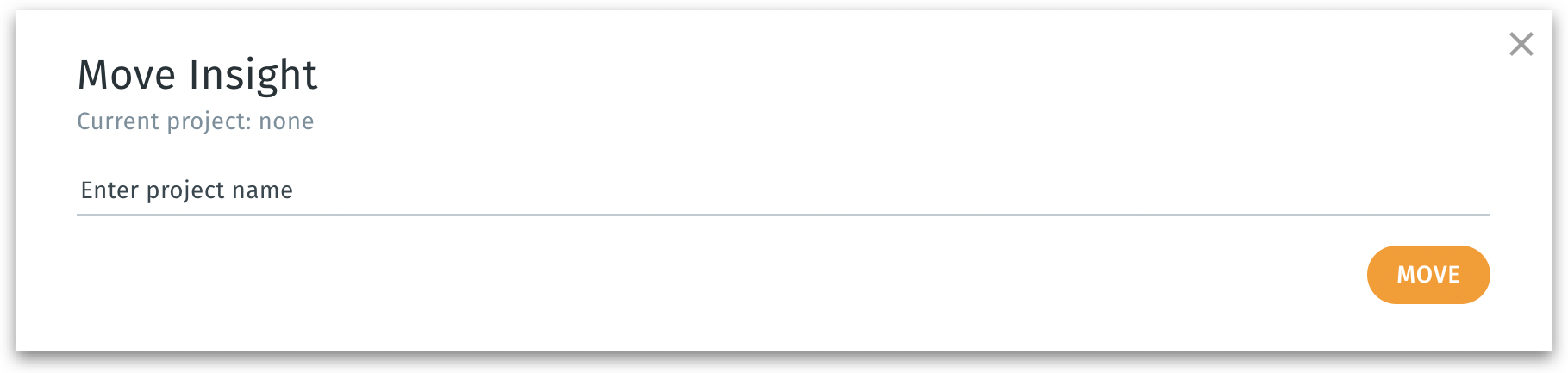
**d. Move -** To move the Insight to a specific Projects folder. The following window appears where you can provide the Project name to be moved.

<figure><img src="https://content.gitbook.com/content/C5PhRxmOjkQZJEO6F9Zw/blobs/zDkqYOI4gFo9Q8O63uYi/image.png" alt="" width="563"><figcaption><p>Moving an Insight</p></figcaption></figure>

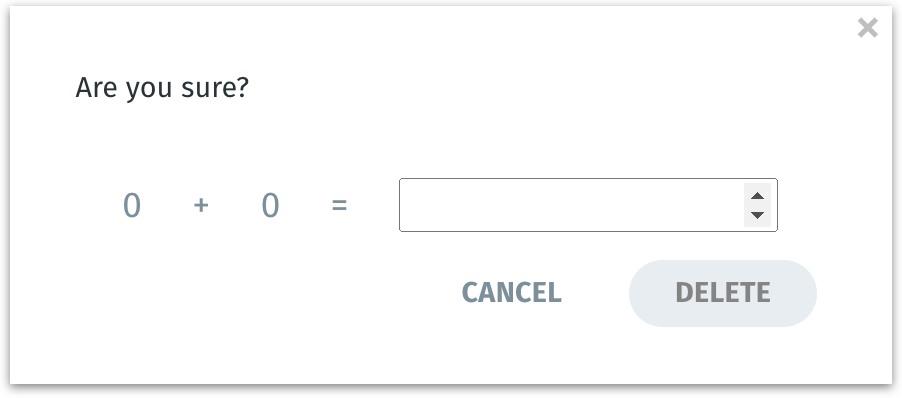
**e. Delete -** To delete a specific Insight, follow the prompt in the window and provide the correct response.

<figure><img src="https://content.gitbook.com/content/C5PhRxmOjkQZJEO6F9Zw/blobs/9rWlEAvuc6tCtrCN4281/image.png" alt="" width="375"><figcaption><p>Deleting an Insight</p></figcaption></figure>

9. **Pagination**

Navigate through the existing Insights using the pagination.


---

# Agent Instructions
This documentation is published with GitBook. GitBook is the documentation platform designed so that both humans and AI agents can read, navigate, and reason over technical content effectively. Learn more at gitbook.com.

## Querying This Documentation
If you need additional information that is not directly available in this page, you can query the documentation by asking a question.

Perform an HTTP GET request on the following URL with the `ask` and `goal` query parameters:

```
GET https://help.tellius.com/tellius-6.4/insights-discover/get-familiar-with-our-insights.md?ask=<question>&goal=<user_goal>
```

`ask` is the immediate question: it should be specific, self-contained, and written in natural language.
`goal` is what the user is ultimately trying to achieve, the reason they need the answer. Sharing it helps GitBook give you a better, more relevant answer. A goal is most helpful when it describes the outcome the user wants rather than restating the question. For example, with `ask=how do I create an API token`, a goal like `automate deployments from our CI pipeline` lets GitBook tailor the answer to that use case.

The response will contain a direct answer to the question and relevant excerpts and sources from the documentation.

Use this mechanism when the answer is not explicitly present in the current page, you need clarification or additional context, or you want to retrieve related documentation sections.