> For the complete documentation index, see [llms.txt](https://help.tellius.com/llms.txt). Markdown versions of documentation pages are available by appending `.md` to page URLs; this page is available as [Markdown](https://help.tellius.com/tellius-6.4/kaiya/kaiya-missions/mission-editor.md).
# Mission Editor
{% hint style="info" %}
In Tellius 6.4, the Mission Editor's tabs are replaced. A published Mission opens on its own page with its latest briefing, and **Configure** opens the Mission in a Kaiya conversation. This page maps the old tabs to where they are now. For the full walkthrough, see [Building a Mission in the conversation](https://help.tellius.com/kaiya/understanding-ai-agents-and-agentic-flows/kaiya-missions/building-a-mission-in-the-conversation).
{% endhint %}
#### The briefing (formerly Last Briefing)
A Mission's page shows the briefing of the selected run. The label above it shows when the run happened. Beside the label is **Report**, the briefing itself, and, when the run produced files, **Artifacts**.
**How Kaiya got this and Mission steps.** **How Kaiya got this** shows the work behind the run and how long it took. **Mission steps** lists each step that ran, with its type and description and a check mark once it completed. In releases before Tellius 6.4, this part of the briefing was a single **Thought Process** panel, with the steps grouped by iteration, such as **Iteration 1**.
**Rendered output.** Below the steps, a short summary appears. When the Mission has a **Rich Summary** step, the visual summary page follows it. Briefings from earlier runs keep the layout they were made with, such as a longer summary with tables and charts. Citation numbers beside figures link each figure to the step that produced it. Select **Continue this conversation in Kaiya** to ask a follow-up question without starting a new Mission.
To schedule the Mission, open the three-dot menu at the top right and select **Create Schedule**. **Scheduled Missions** opens, filtered to this Mission. Select **Schedule** to add a schedule.
#### Configure (formerly Configuration)
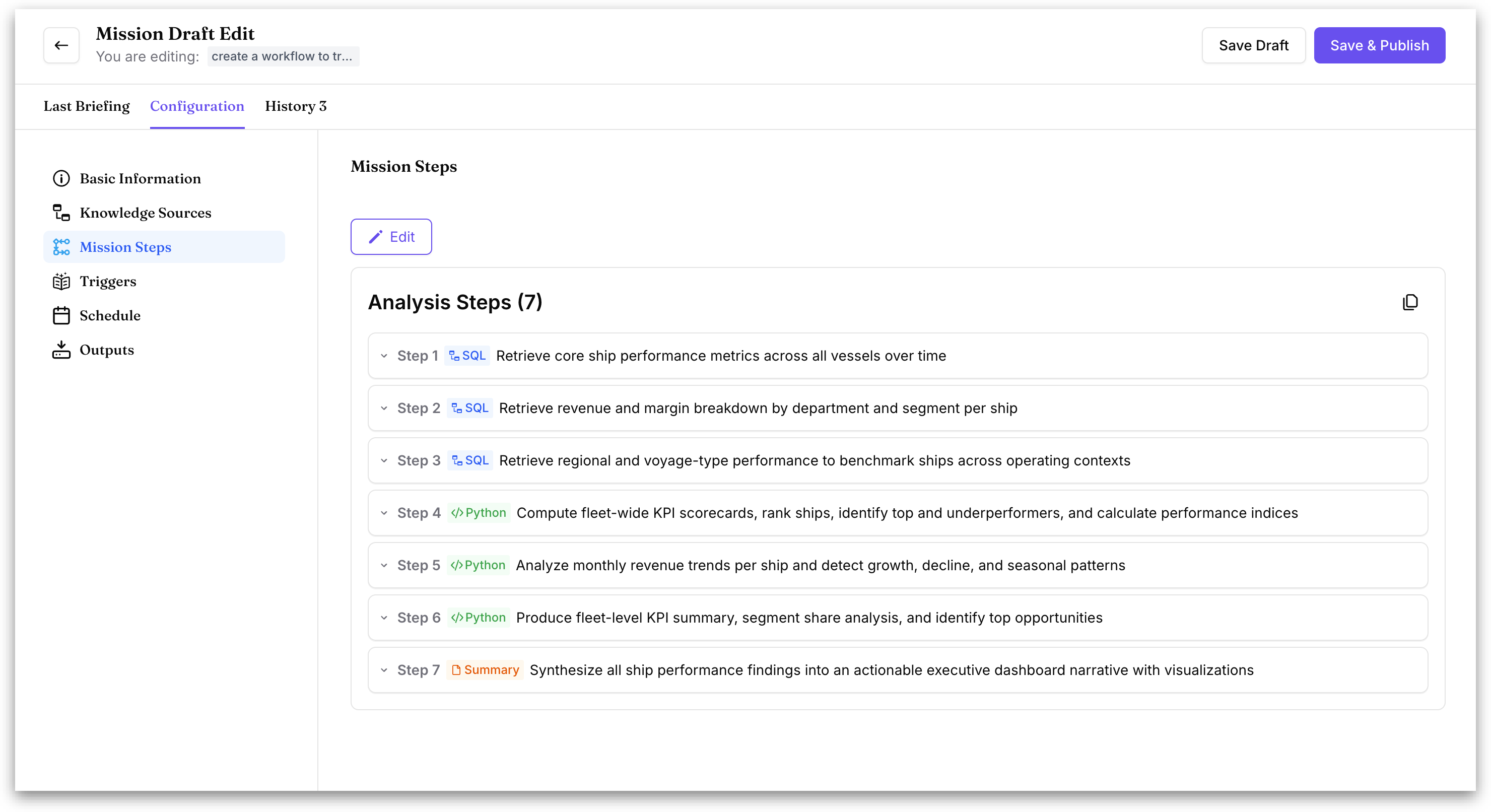
Select **Configure** on a Mission's page. Kaiya usually opens the Mission's conversation at the message that built the Mission, with the Mission beside it across four tabs:
* **Steps:** the plan as ordered SQL, Python and summary steps, in an **Outline** view and a **Diagram** view.
* **Preview:** runs the plan and shows what each step returned before you publish.
* **Triggers:** the natural-language phrases that invoke the Mission in conversation.
* **Schedule:** the recurring cadence and where each briefing is delivered.
The Mission's name and description, and any of these settings, can also be changed by asking Kaiya in the conversation. Files come from export steps, which you add by asking, so there is no separate Outputs section.
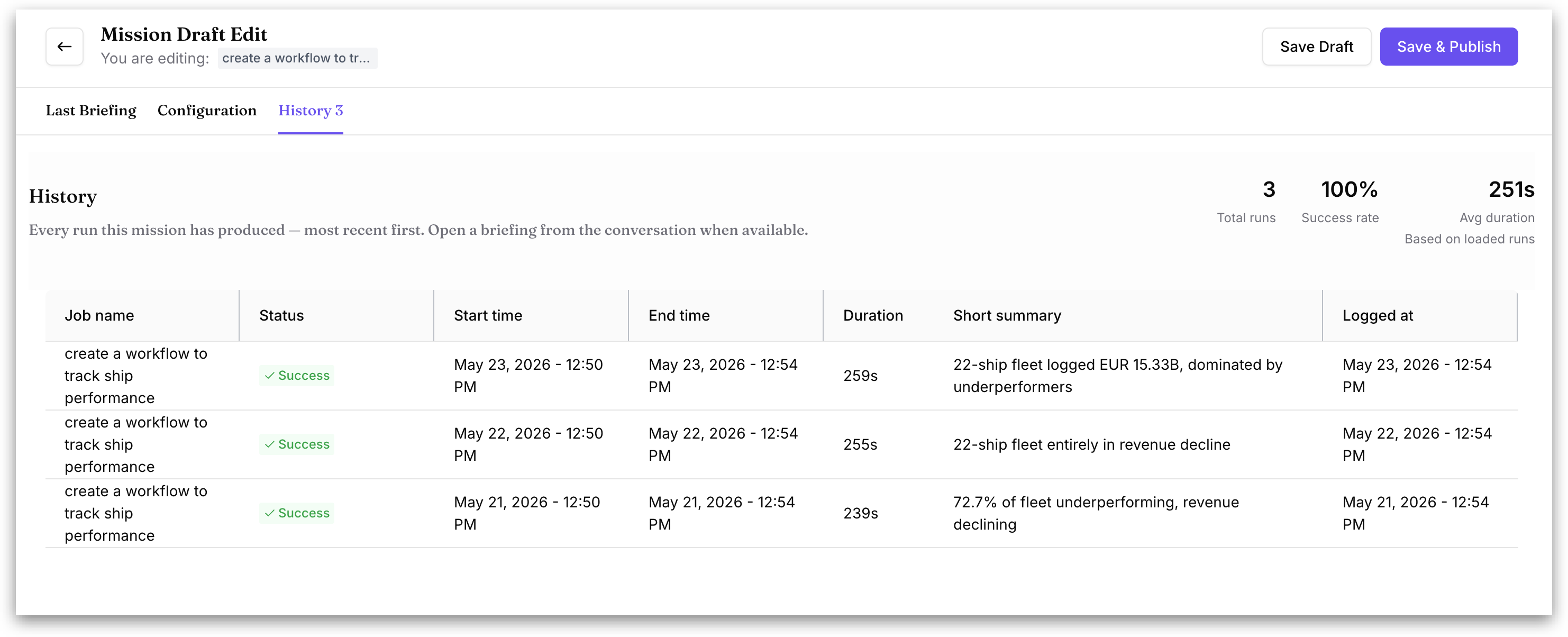
#### Run history (formerly History)
Open the run selector in a Mission's page header to see **RUN HISTORY**. The top of the list shows three numbers:
* **RUNS:** how many times the Mission has run.
* **SUCCESS:** the share of runs that completed.
* **AVG:** the average time a run takes.
Each run in the list shows the Mission name, the date and time it ran, how long it took, how it was started (such as **Run manually**, **Scheduled** or **From Kaiya Chat**) and its status. Select a run to open its briefing.
---
# Agent Instructions
This documentation is published with GitBook. GitBook is the documentation platform designed so that both humans and AI agents can read, navigate, and reason over technical content effectively. Learn more at gitbook.com.
## Querying This Documentation
If you need additional information that is not directly available in this page, you can query the documentation by asking a question.
Perform an HTTP GET request on the following URL with the `ask` and `goal` query parameters:
```
GET https://help.tellius.com/tellius-6.4/kaiya/kaiya-missions/mission-editor.md?ask=&goal=
```
`ask` is the immediate question: it should be specific, self-contained, and written in natural language.
`goal` is what the user is ultimately trying to achieve, the reason they need the answer. Sharing it helps GitBook give you a better, more relevant answer. A goal is most helpful when it describes the outcome the user wants rather than restating the question. For example, with `ask=how do I create an API token`, a goal like `automate deployments from our CI pipeline` lets GitBook tailor the answer to that use case.
The response will contain a direct answer to the question and relevant excerpts and sources from the documentation.
Use this mechanism when the answer is not explicitly present in the current page, you need clarification or additional context, or you want to retrieve related documentation sections.