> For the complete documentation index, see [llms.txt](https://help.tellius.com/llms.txt). Markdown versions of documentation pages are available by appending `.md` to page URLs; this page is available as [Markdown](https://help.tellius.com/tellius-6.4/kaiya/kaiya-skills/how-to-create-a-new-skill.md).
# How to create a new Skill
The **Skills & Context** area is where you see and manage everything Kaiya uses to reason about your business. In Tellius 6.4, you reach it from the tab bar at the top of the **Context** page: **All layers**, **Skills** and **Memory**, plus a read-only **Legacy learnings** tab while learnings remain outside Memory. Earlier releases had **Phrase learning** and **Query learning** tabs in place of **Legacy learnings**.
{% hint style="info" %}
**Create skills in the chat.** In Tellius 6.4, you can also create, edit, publish or unpublish, delete, promote and demote skills in Kaiya chat. Send `/skill` as a message and Kaiya guides you one question at a time, or send `/skills` to list your skills. Kaiya reads these short requests like any other message, and plain words work the same way. There is no command menu. See [Managing skills in the conversation](https://help.tellius.com/kaiya/kaiya-skills/managing-skills-in-the-conversation).
{% endhint %}
### Skills in Tellius 6.4
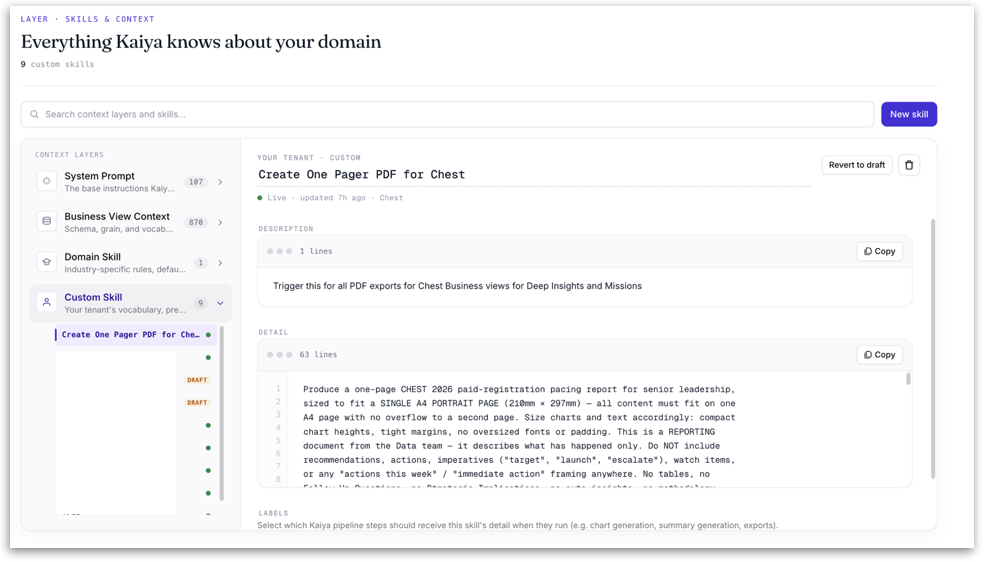
The **Skills** tab lists the context layers on the left. Select a layer to see its skills, and select a skill to open it. To find a skill or a layer by name, type in the search box above the list.
* **Unified Chat Skills** (read-only): the built-in skills Kaiya's chat uses, grouped by area, such as Analysis & SQL, Deep Insights, Rich Summary, Export, Insight Apps, Data Architect, Missions and Memory. Each one opens as a reference page with a **Copy** button.
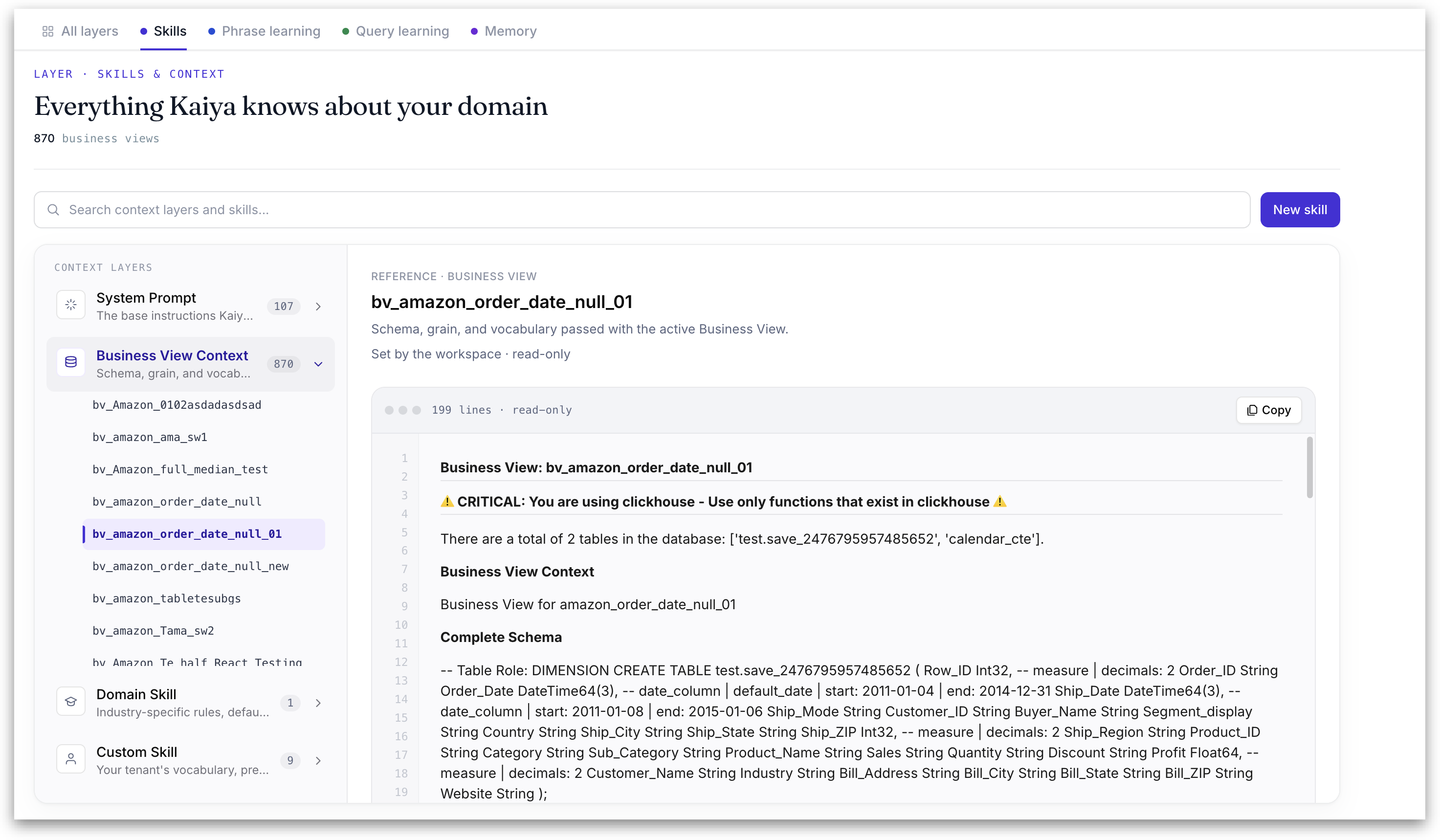
* **Business View Context:** the schema, grain and vocabulary passed with the active Business View.
* **Domain Skill:** industry-specific rules, defaults and phrase routing, curated by Tellius. Only super users can change them, and other users don't see them. To link a domain skill to a Business View, see [Link a Business View to a domain skill](#link-a-business-view-to-a-domain-skill) below.
* **Custom Skill:** your tenant's vocabulary, preferences and taught skills.
* **Personalization:** how you like Kaiya to answer, such as your defaults, units and depth. Each item, such as your role, has a **Remove** button, and you can select **Retake setup** or **Clear all**. These items shape wording, depth and formatting. They never change which rows or values are computed. **Personalization** is the last item in the list, and every user can see it.
#### Global and User skills
* **Two levels.** A custom skill is either **Global**, used in every user's sessions, or **User**, used only in the sessions of the person who created it. An open skill shows which, for example **Every user's sessions** or **Only your sessions**. Kaiya chat calls a User skill a **personal** skill.
* **Browsing.** In the **Custom Skill** layer, switch between **Global** and **Users** to list skills. Admins, Content Admins and Super Users can open the **Users** list, search it, and pick a user to see that user's skills.
* **Who can create.** Anyone whose role has **Full Access** to the **Context** module can create, edit and delete their own User skills, but can't create or edit Global skills. See [Custom roles](https://help.tellius.com/settings/users-and-access/custom-roles).
* **Admins, Content Admins and Super Users,** and custom roles with Full Access to **Manage workspace** or with **Content management** access, see a **User** and **Global** toggle when they create a skill, with **User** selected first. They can edit any skill and promote a User skill to Global.
* **Existing skills.** Skills created before User skills existed are Global.
* **Names.** A skill's name must be different from your other skills and from every Global skill.
{% hint style="info" %}
**Global or User?** Choose **User** for a skill only you need, or to try a skill without changing anyone else's answers. An Admin, Content Admin or Super User can promote it to **Global** once it works well. Choose **Global** for house rules that everyone should follow, such as a shared report format.
{% endhint %}
#### Create a skill in Tellius 6.4
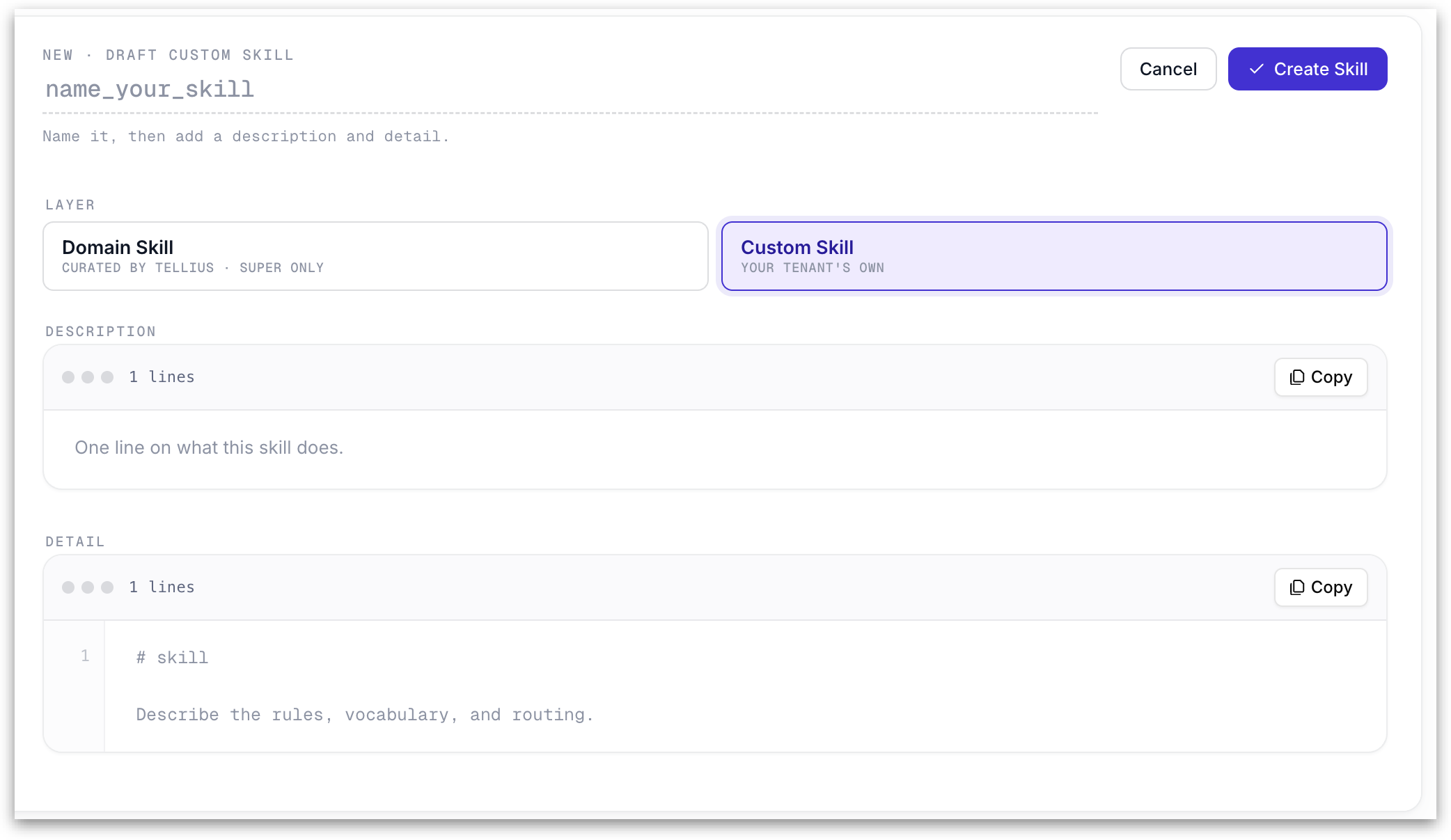
1. Select **New skill**.
2. Type a name in place of **name\_your\_skill**.
3. If you see the **User** and **Global** toggle, choose who the skill is for.
4. Under **Layer**, choose **Custom Skill** (*Your own*). Super users can also choose **Domain Skill** (*Curated by Tellius · Super only*).
5. Under **Skill content**, add `name` and `description` between two `---` lines at the top, and write the skill detail below them. Write the description as when to use the skill (see the tip below).
6. Select **Create Skill**, or **Cancel** to discard it. A new skill starts as a draft. Select **Publish skill** to make it live, and **Revert to draft** to take a live skill back to draft.
{% hint style="info" %}
**Write a description that loads.** Kaiya decides whether to use a skill from its name and description alone, not its detail. Start the description with "Use when…" and name the words people type, for example "Use when a question mentions FY, fiscal quarter or YTD." A description that only says what the skill does, such as the placeholder "What this skill does", gives Kaiya nothing to match, so the skill may never load. In Kaiya chat, send `/skill test` with a skill and a question, or ask in plain words, to check whether the question would load the skill.
{% endhint %}
#### Delete a custom skill
Open the skill and select the trash icon (**Delete custom skill**) in its header, beside **Publish skill** on a draft or **Revert to draft** on a live skill. For who can delete which skills, see [Global and User skills](#global-and-user-skills) above.
{% hint style="info" %}
**Delete or revert to draft?** Select **Revert to draft** when a live skill needs fixing: the skill stops being live, and its content stays for you to edit and publish again. Delete a skill only when no one needs it any more.
{% endhint %}
#### Link a Business View to a domain skill
You link a domain skill to a Business View from the Business View, not from the skill. The domain skill itself has no Business View field.
1. Go to **Data → Business View**.
2. Open the Business View's three-dot menu and select **Edit**.
3. In **Edit Business View**, turn on **Show Advanced Settings**.
4. Under **Assign Domain Skill**, choose one live domain skill, or **None** to remove the link.
The link gives that Business View the skill's specialized analytics. A Business View can have one domain skill at a time. See [Editing a Business View](https://help.tellius.com/data/preparing-your-business-views/editing-a-business-view).
#### Editing at the same time
Two people, or one person in two browser tabs, can edit Skills without losing work. If a save is based on an older version of a skill, Tellius reports it instead of replacing the newer version.
The rest of this page describes the Skills page in earlier releases.
### The four context layers
The left-hand **Context Layers** panel lists the four layers that feed Kaiya's reasoning for a request, ordered from the foundational platform instructions through to your own tenant's skills.
### System Prompt (read-only)
{% hint style="info" %}
In Tellius 6.4, the System Prompts page is retired. Kaiya's built-in instructions show read-only as **Unified Chat Skills** on the **Skills** tab, for super users. See [Skills in Tellius 6.4](#skills-in-tellius-6.4). The System Prompt layer below describes releases before Tellius 6.4.
{% endhint %}
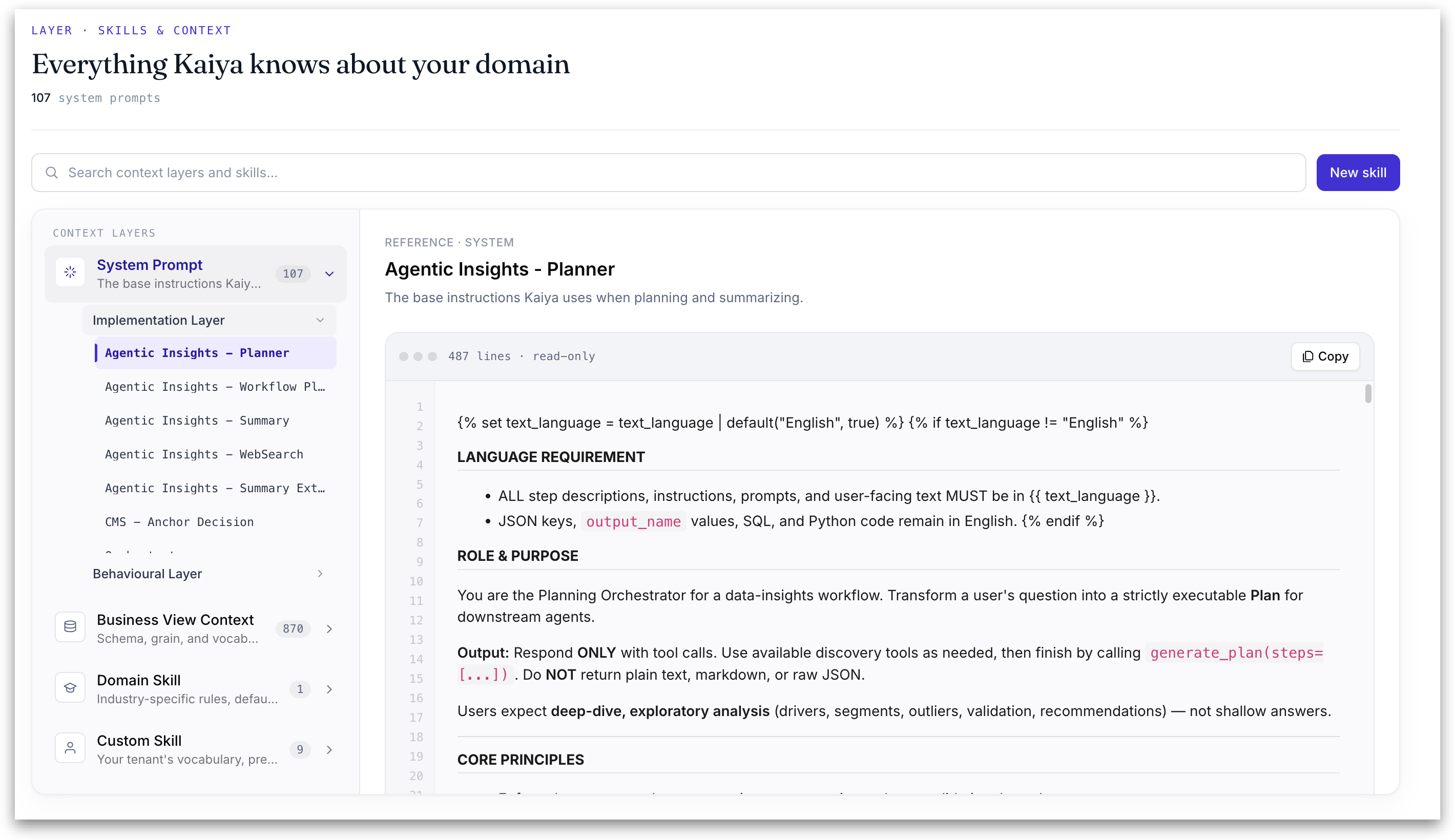
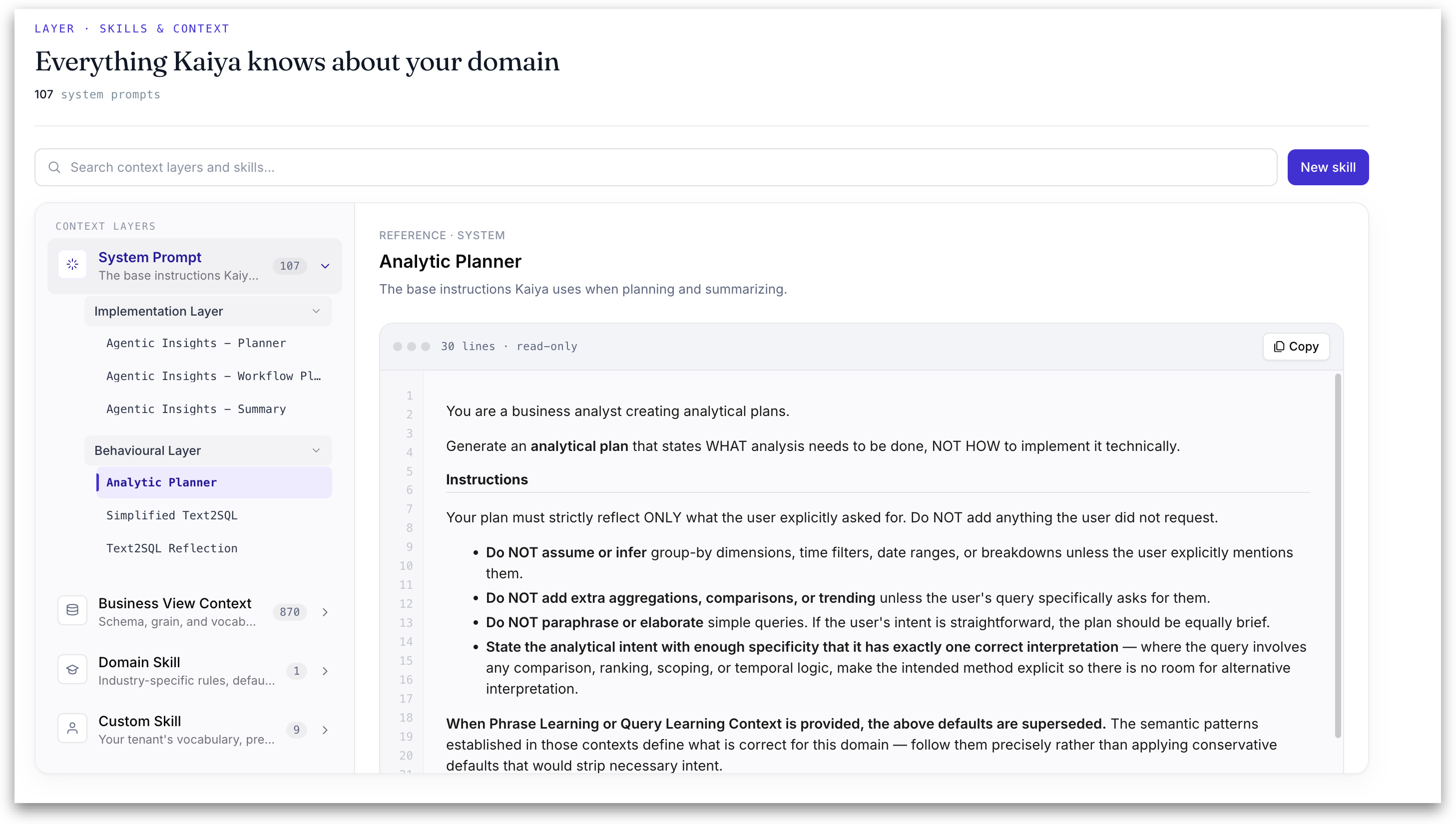
The **System Prompt** layer holds the base instructions Kaiya uses when planning and summarizing. It is read-only reference and is divided into two sub-layers:
* **Implementation Layer:** the core entries that make Kaiya operate correctly, such as *Agentic Insights – Planner*, *Agentic Insights – Workflow Planner*, *Agentic Insights – Summary*, *Agentic Insights – WebSearch*, and *CMS – Anchor Decision*.
* **Behavioural Layer:** Kaiya's default behaviour across the platform.
Selecting any entry opens a read-only view with a short description and the full instruction text shown as a numbered, scrollable block with a line count and a **Copy** button. You cannot edit anything in this layer from this page.
### Business View Context (read-only)
The **Business View Context** layer holds the schema, grain, and vocabulary passed to Kaiya with each active Business View. Selecting a Business View opens a read-only view. The content block shows that Business View's tables, measures, dimensions, and any model-specific notes (including warnings such as the data engine in use. Like the System Prompt, this layer is reference only) it is set by the workspace and cannot be edited here.
#### Domain Skill (curated by Tellius)
A **Domain Skill** holds industry-specific rules and sensible defaults for a vertical. Only super users can change it; everyone else sees it as read-only. A Domain Skill is made up of a **Description** and one or more **Sections** (covered in detail below). Its lifecycle is shown with a **Live** badge and a **Revert to draft** button.
#### Anatomy of a domain skill
A domain skill has:
* **Name:** the name of the domain skill.
* **Description:** a single line describing what the skill does.
* **Sections:** one or more sections, each with its own name, description, and detail.
#### What a section is
A **section** breaks a domain skill into the distinct things it teaches Kaiya.
When you click **Add section**, a **New section** is created in place with its own editable **Name**, its own **Description**, and its own **Detail** body (markdown). You author this content directly inside the domain skill.
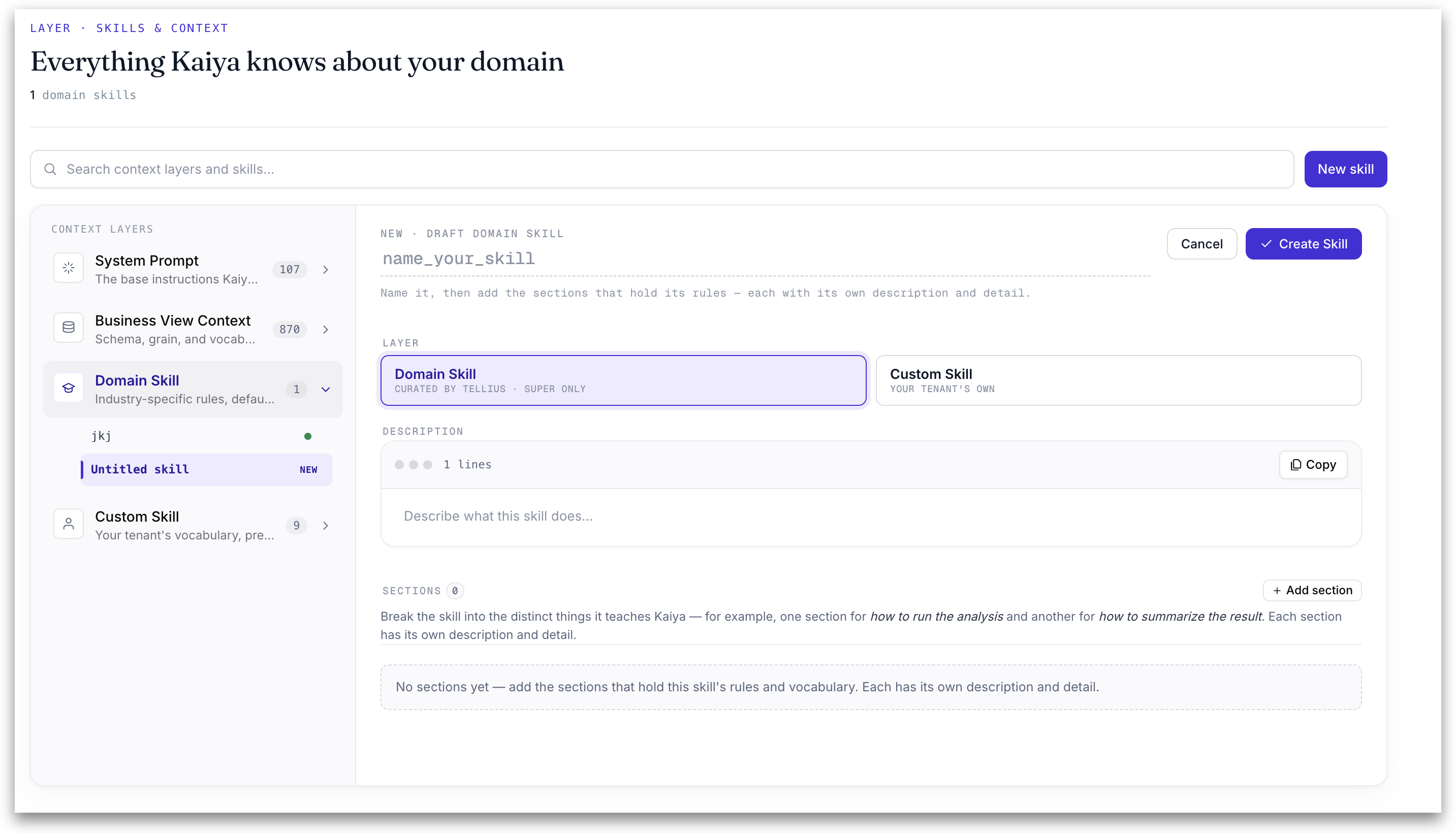
#### Create a domain skill
1. Click on **New skill**.
2. Under **Layer**, choose **Domain Skill** (*Curated by Tellius · super only*).
3. Enter a **Name** for the skill.
4. Write the **Description** one line on what the skill does (placeholder: *"Describe what this skill does…"*).
5. Click **Add section**, give the section a name, and fill in its **Description** and **Detail**. Click **Done** to collapse it. Repeat for each distinct thing the skill should teach. Before you add any, the area reads *"No sections yet — add the sections that hold this skill's rules and vocabulary."*
6. Click **Create Skill** to save, or **Cancel** to discard.
{% hint style="warning" %}
Domain skills are **editable by super users only**. Other roles can read them but cannot create or change them.
{% endhint %}
#### Custom Skill (your tenant's own)
A **Custom Skill** captures your organization's own vocabulary, preferences, and business rules. The detail header shows the skill's lifecycle state, when it was last updated, and the context it is associated with — for example, *Live · updated 5h ago · Chest*. A Custom Skill is made up of a **Description**, a **Detail** body, and one or more **Labels** (covered below).
#### Anatomy of a custom skill
Each custom skill has the following parts:
* **Name:** a short name for the skill
* **Description:** a single line stating when and why the skill applies
* **Detail:** the actual instructions Kaiya follows when the skill applies. It accepts markdown and is shown as a numbered block with a line count and a **Copy** button.
* **Labels:** one or more routing tags that control which parts of Kaiya receive this skill (auto-generated by Kaiya after you publish a Skill).
#### Labels
{% hint style="info" %}
**Labels in Tellius 6.4.** In Kaiya chat, Kaiya loads a custom skill from its name and description only. Labels no longer decide which step a skill applies to. There is one exception: when a Mission's export step takes images or logos from custom skills, it uses only the skills labelled for that format (**PPT Export**, **DOCX Export** or **PDF Export**) or labelled **Default**. A skill without a label counts as **Default**. So if a Mission export should pick up your logo, label that skill for the format, or leave it on Default.
{% endhint %}
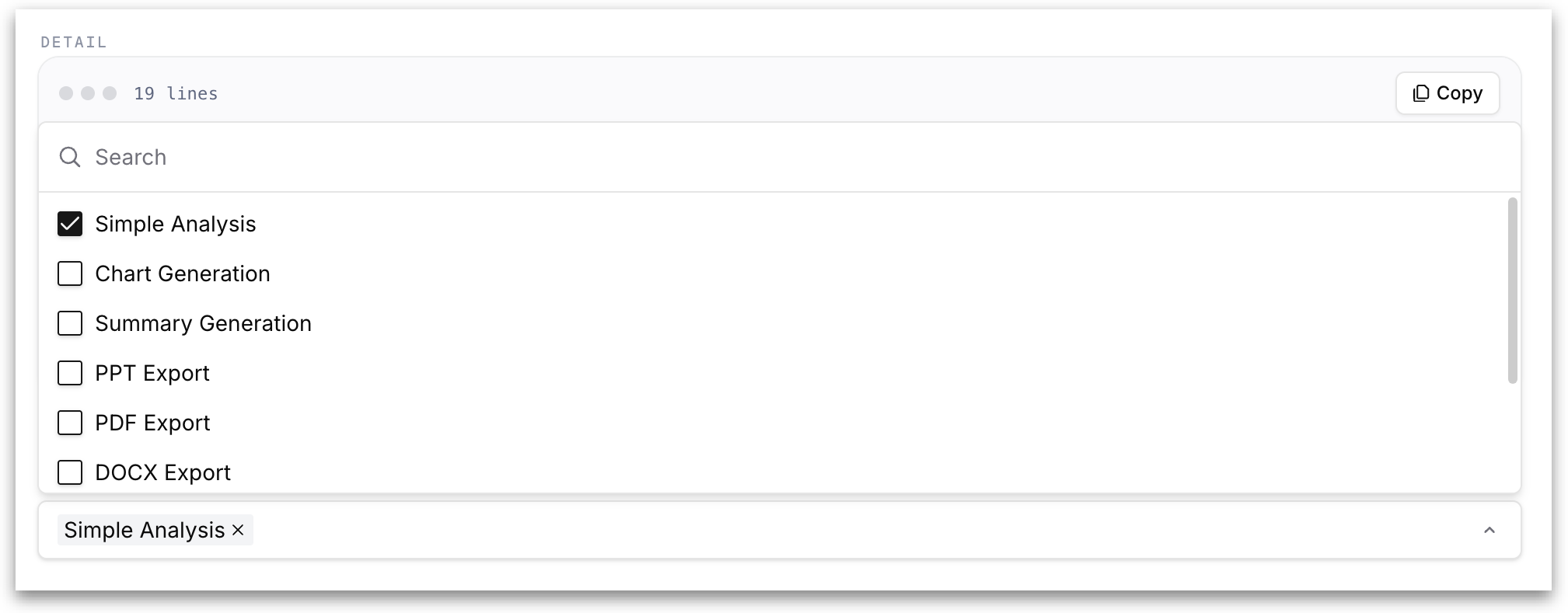
Labels control routing. They determine which Kaiya pipeline steps receive a skill's detail when they run. In Tellius 6.4, the skill form doesn't show a label field. A new custom skill starts with the **Default** label, and Kaiya assigns labels on its own after the skill is created. To change them, open the skill and select the label icon beside **Copy**, at the top of the **Skill content** box. Its tooltip shows how many labels the skill has, such as **1 label**. The **Labels** dialog has a list with a **Search** box. It offers Simple Analysis, Chart Generation, Summary Generation, PPT Export, PDF Export, DOCX Export, Deep Analysis, Deep Summary, Self-review, Insight App, Kaiya Architect and Default. Select a label to add it, or select **x** on its chip to remove it. Then select **Done**, or **Cancel** to keep the labels as they were.
Labels are auto-generated: when you write a skill's details and description, Kaiya reads them and assigns the labels it judges relevant. You can then **override** the result with the checkboxes: adding or removing labels yourself. For example, a skill described as applying to PDF exports is auto-tagged **PDF Export**, which you can confirm or change.
Open the dropdown to see the options:
* **Simple Analysis:** routes the skill to the standard, single-step analysis path.
* **Chart Generation:** routes the skill to the chart-building step.
* **Summary Generation:** routes the skill to the result-summary step.
* **PPT Export:** routes the skill to the PowerPoint export step.
* **PDF Export:** routes the skill to the PDF export step.
* **DOCX Export:** routes the skill to the Word export step.
* **Deep Analysis:** routes the skill to the multi-step Deep Insights analysis path.
* **Deep Summary:** routes the skill to the Deep Insights narrative-summary step.
* **Default:** applies the skill to all prompts in the engine, rather than to one specific step. This is the broad, always-on routing; every other label targets a single capability.
Select one or more options using the checkboxes. Each selected label appears as a removable chip, and you remove one by clicking the × on its chip.
#### Create a custom skill
1. Click on **New skill**.
2. Under **Layer**, choose **Custom Skill** (*Your tenant's own*).
3. Enter a **Name** for the skill.
4. Write a one line description on what the skill does and when it applies
5. Fill in the **Detail:** the rules, vocabulary, and routing the skill should follow. It accepts markdown with YAML front-matter
6. Click **Create Skill** to save, or **Cancel** to discard. While you are creating it, the skill appears in the left list as **Untitled skill** with a **NEW** tag.
{% hint style="success" %}
Skills move through two states: Draft and Live. A live, published, active skill, shown with a green dot in the left list and a **Live** badge in the detail view. Use **Revert to draft** to pull a Live skill back into draft state for editing.
{% endhint %}
{% hint style="info" %}
Enabled skills are matched and **applied automatically** during a Kaiya conversation, based on each skill's description and label routing, in the same way Phrase learning, Query learning, and Memory are applied. To see which skills and other context were used in a given answer, open the **thought process** dropdown on that Kaiya response.
{% endhint %}
When more than one layer applies to the same request, they resolve in this order:
**Custom Skill › Domain Skill › Behavioural Layer**, with the **Implementation Layer** as the foundation that is never overridden by a skill.
{% hint style="info" %}
Skills are selected by matching their description to the query intent, then routed by their auto-generated label to the relevant engine path. For **Deep Insights**, skills are scoped to the planner only. The SQL executor and summary generator run with skills disabled, so any downstream change results from the changed plan rather than those steps reading a skill.
{% endhint %}
### How Domain Skills and Custom Skills relate
The difference between custom and domain skills are how they are organized and who owns them:
* A **Custom Skill** is a skill at the **custom level:** your tenant's own, authored directly in the Custom Skill layer.
* A **Domain Skill** is a namespace (an organizing container) at the domain level, curated by Tellius. The **sections** inside a domain skill are themselves skills at the domain level. The same underlying object type as a custom skill, grouped under the domain skill's name.
Each skill stays self-contained. Grouping sections under a domain skill organizes them.
---
# Agent Instructions
This documentation is published with GitBook. GitBook is the documentation platform designed so that both humans and AI agents can read, navigate, and reason over technical content effectively. Learn more at gitbook.com.
## Querying This Documentation
If you need additional information that is not directly available in this page, you can query the documentation by asking a question.
Perform an HTTP GET request on the following URL with the `ask` and `goal` query parameters:
```
GET https://help.tellius.com/tellius-6.4/kaiya/kaiya-skills/how-to-create-a-new-skill.md?ask=&goal=
```
`ask` is the immediate question: it should be specific, self-contained, and written in natural language.
`goal` is what the user is ultimately trying to achieve, the reason they need the answer. Sharing it helps GitBook give you a better, more relevant answer. A goal is most helpful when it describes the outcome the user wants rather than restating the question. For example, with `ask=how do I create an API token`, a goal like `automate deployments from our CI pipeline` lets GitBook tailor the answer to that use case.
The response will contain a direct answer to the question and relevant excerpts and sources from the documentation.
Use this mechanism when the answer is not explicitly present in the current page, you need clarification or additional context, or you want to retrieve related documentation sections.