> For the complete documentation index, see [llms.txt](https://help.tellius.com/llms.txt). Markdown versions of documentation pages are available by appending `.md` to page URLs; this page is available as [Markdown](https://help.tellius.com/tellius-6.4/kaiya/understanding-ai-agents-and-agentic-flows/automated-workflows/deep-insight.md).
# Deep Insight
Deep Insights activates Agent Mode, turning Kaiya into an AI analyst that plans, executes, and explains multi-step analysis from a single business question.
**Agent Mode** (activated by **Deep Insights**) turns Kaiya into an always-on AI Analyst that plans, executes, validates, and explains multi-step analysis from a single question. It combines the flexibility of agents with the consistency of workflows so you get 20× deeper insights and recommended next steps.
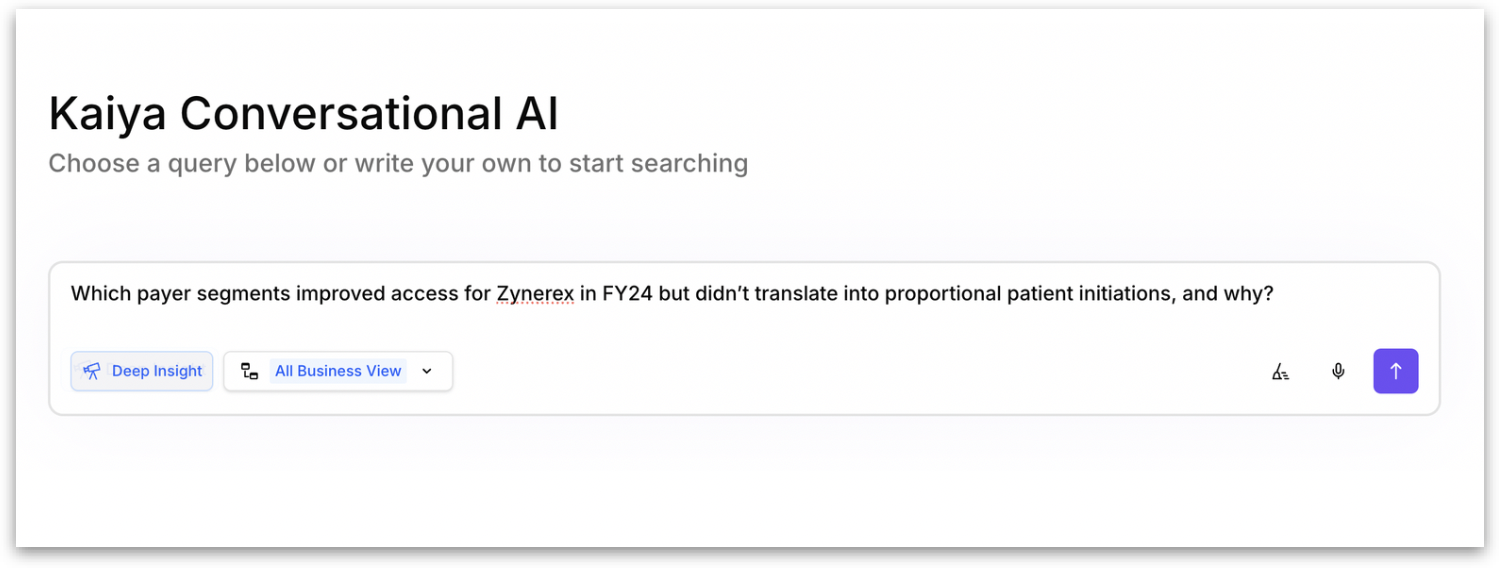
1. Start from the home page, or select **New Chat** in the left navigation.
2. On the home page, select the **Deep Insight** tag under the ask box. In any conversation, you can also ask Kaiya to run one, for example *"Run a Deep Insight on which brands lost the most share in the Southeast."*
3. Choose a Business View with **Auto detect BV**, or leave the choice to Kaiya. When more than one Business View could answer, Kaiya asks which one to use.
4. Type your question and press Enter, or select **Send**.
{% hint style="warning" %}
Kaiya also starts a Deep Insight on its own when a question needs one, so the tag is optional. It decides from the complexity and nature of your question (from v6.1).
{% endhint %}
### How Kaiya auto-routes your question (from v6.1)
Once Kaiya understands your question (including any clarifications you have provided), it automatically determines the best execution path to generate your answer. This routing happens behind the scenes through an orchestration layer, so you do not need to manually select a mode or specify how Kaiya should process your query.
Kaiya evaluates your question and the current conversation context, then routes it to one of the following execution paths:
**SQL-only execution** is used when the question can be answered by querying your data tables directly (using filters, joins, aggregations, group-bys, and other standard SQL operations). Most common analytical questions (such as "What were total sales by region last quarter?" or "Show me the top 10 products by revenue") are routed through this path.
**SQL + Python-style processing** is used when the question requires additional computation beyond what SQL can handle on its own. This includes statistical analysis, forecasting, clustering, custom business logic, advanced text handling, and more complex data transformations.
For example, "What is the forecasted TRx for Product X over the next 6 months?" would be routed through this path because it requires a forecasting model in addition to the underlying data query.
**Deep Insights mode** is used when the question calls for a multi-step, in-depth analytical exploration rather than a single query. Kaiya can now route to **Deep Insights** automatically when it detects that the question benefits from a structured plan of sub-analyses.
{% hint style="success" %}
This automatic routing means you can focus on asking questions naturally. Kaiya handles the decision of how to process each question, reducing the friction of switching between modes or guessing which approach will produce the best result.
{% endhint %}
### Deep Insights as a conversation
In Tellius 6.4, a Deep Insight works as a conversation. You start with one question and then follow the answer where it leads. For example, ask whether a change is big enough to worry about, then ask what is behind it. Each answer builds on the one before it, so you go deeper one turn at a time instead of writing one long prompt.
* **Choosing the Business View.** When more than one Business View could answer the question, Kaiya narrows the choice and asks which one to use. The Business View you pick stays in context for the rest of the conversation, and a **Based on** line under the answer names it.
* **More than one Business View.** A Deep Insight scoped to several Business Views runs across all of them in one analysis.
* **Your documents too.** In Tellius 6.4, any Kaiya conversation, not only a Deep Insight, can search your document workspaces together with Business View data, and each claim is cited to its passage. See [How Kaiya uses your documents](https://help.tellius.com/kaiya/ask-across-your-documents-unstructured#how-kaiya-uses-your-documents-in-tellius-6.4).
* **Forecasts and other calculations.** When a question needs a forecast or another calculation, Kaiya runs it in Python and shows the assumptions behind it.
* **Dates in your question.** When your question names a date range, Kaiya passes that range to the steps that follow. The queries then filter on the dates you asked about, not on a range fixed when the plan was written.
* **What to ask next.** At any point, ask Kaiya to summarize what you found, export it, or repeat the same analysis for another region. Suggested questions also appear under **Follow-up questions** below each answer. See [Exporting Kaiya conversations](https://help.tellius.com/kaiya/kaiya-conversational-ai/exporting-kaiya-conversations).
### Following the analysis while it runs
While a Deep Insight runs, its progress appears in one place: the **How Kaiya got this** panel above the answer (named **Thought Process** in earlier releases).
* **Investigation** shows how many steps of the plan are done, for example **8 of 8 complete**, with a bar for each step.
* Select **Show plan** to see the steps. Kaiya builds the plan one step at a time, and each step appears as soon as it is ready. A longer analysis therefore starts to show its shape sooner.
* Below the plan, the panel lists what Kaiya did in order, such as loading its analysis guidance and finding the Business Views it could use, with the time each one took.
* When the analysis finishes, the panel header shows how long it took, for example **Took 4m 14s**. Select the arrow in the header to collapse or expand the panel. Use the **Detailed view** switch in the expanded panel to show more detail about each step.
### How Kaiya checks the analysis
Kaiya checks a Deep Insight at each stage, so the answer rests on data that can support it.
* **Before planning.** Kaiya checks what the data actually holds. It confirms that the columns the question needs are present and what values they carry. For a comparison, it checks that the data being compared exists. This appears in the plan as a **Check the data** step. If data is missing, or more than one column could fit the question, Kaiya asks you a clarifying question instead of choosing for you.
* **Before running.** Kaiya reviews the finished plan for analytical soundness. If it finds a problem, it revises the plan and reviews it again before anything runs.
* **While running.** If a step fails, Kaiya rewrites only that step. The rest of the plan is kept, and the analysis continues from there.
* **After running.** Kaiya reviews the results against the question you asked. If they do not answer it, Kaiya revises the analysis. This appears in the plan as a **Review** step.
### The summary page
A finished Deep Insight can include a summary page that lays out the findings, with headline figures in cards, numbered sections and tables. It appears as a card under the answer, with the summary's title and the label **Visual summary**.
* While the summary is being built, the card shows that it is being prepared. You can select it as soon as it is ready.
* Select the card to open the page in the **Summary** panel beside the conversation. Select **X** to close the panel.
* The panel opens only when you select a card. This is also true for export cards and when you come back to a conversation.
### Who is it for?
* Business users who want answers that go beyond chat (timing, magnitude, why, and what to do next).
* Analysts who need repeatable deep dives without manual orchestration.
* Data teams that require governed, audited execution across SQL and Python.
### How Agent Mode works (at a glance)
A simple loop, **Ask → Plan → Execute → Validate → Explain → Save,** turns complex questions into governed, multi-step analysis. A multi-agent planner picks **SQL** or **Python** per step, applies transparent checks (samples, joins, fiscal calendar), then returns a clear narrative with next steps.
#### Plan
* A multi-agent planner breaks the question into steps.
* Chooses the right tools: SQL, Python, and visualization.
* Checks what the data holds before planning, and asks you a clarifying question when data is missing or more than one column could fit, rather than choosing for you.
#### Execute
* SQL: Runs warehouse-native work—joins, subqueries, dynamic formulas, nested aggregations.
* Python: Handles methods SQL can’t. Changepoints, contribution/variance with volume weighting, sample-size checks, cohorts/retention, correlation/association, causal probes, forecasting with intervals, segmentation/clustering.
#### Validate & Reflect
* Checks whether each group has a big enough sample so results aren’t noisy.
* Prevents bad joins that duplicate rows (fan-out/chasm traps).
* Keeps the join at the correct grain so numbers add up.
* Uses your fiscal calendar so results respect your business timeline.
#### Explain
* Delivers timing and magnitude, ranked drivers, and relevant charts/tables.
* Includes concise recommended next steps.
### Example walk-through
Consider this question:\
“**How did cancellation rate change week-over-week in Q3, and which regions/products/channels contributed most to the WoW delta?**”
**Step 0: Ask**\
You ask the question in plain English. If a detail is missing (e.g., fiscal vs. calendar weeks), Kaiya asks clarification once, then proceeds.
**Step 1: Build the baseline**\
Kaiya pulls governed data at weekly grain for Q3, honoring row-level policies and your fiscal calendar. It computes the conversion rate series and applies obvious filters (e.g., exclude tests). Outputs are **audited** and preview-able so you can confirm scope.
**Step 2: Create analysis slices**\
Kaiya enriches the baseline with **Region / Product / Channel** via governed joins. It generates only the slices relevant to the question to avoid fan-out and noise.\
Sample sufficiency and grain consistency checks ensure stability.
**Step 3: Apply the best method**\
Based on intent (“why + drivers”), Kaiya runs variance/contribution analysis and changepoint detection; routes heavy work to SQL and advanced methods to Python. Guardrails enforce sensible defaults and minimum samples; confidence cues are added where possible. You get a ranked, interpretable driver table aligned to the question.
**Step 4: Validate & reflect**\
Kaiya verifies enough data, correct join grain, no double counting, and correct week mapping. All defaults used are disclosed; if something looks off, it adjusts filters/grain/method and reruns the affected step.
**Step 5: Explain & package**\
You receive a plain-English narrative with timing & magnitude of the drop, ranked drivers by region/product/channel, clear visuals, and recommended next steps (e.g., staffing fix, promo tweak). All assumptions, steps, and artifacts are disclosed for auditability; you can ask Kaiya to turn the analysis into a [Kaiya Mission](https://help.tellius.com/kaiya/kaiya-missions) so it runs again on request or on a schedule.
{% hint style="danger" %}
Supported data sources for **Agent Mode** and **Text-to-SQL**: Snowflake, Redshift, ClickHouse. Spark is not yet supported. Please migrate critical datasets to a supported warehouse for these features.
{% endhint %}
---
# Agent Instructions
This documentation is published with GitBook. GitBook is the documentation platform designed so that both humans and AI agents can read, navigate, and reason over technical content effectively. Learn more at gitbook.com.
## Querying This Documentation
If you need additional information that is not directly available in this page, you can query the documentation by asking a question.
Perform an HTTP GET request on the following URL with the `ask` and `goal` query parameters:
```
GET https://help.tellius.com/tellius-6.4/kaiya/understanding-ai-agents-and-agentic-flows/automated-workflows/deep-insight.md?ask=&goal=
```
`ask` is the immediate question: it should be specific, self-contained, and written in natural language.
`goal` is what the user is ultimately trying to achieve, the reason they need the answer. Sharing it helps GitBook give you a better, more relevant answer. A goal is most helpful when it describes the outcome the user wants rather than restating the question. For example, with `ask=how do I create an API token`, a goal like `automate deployments from our CI pipeline` lets GitBook tailor the answer to that use case.
The response will contain a direct answer to the question and relevant excerpts and sources from the documentation.
Use this mechanism when the answer is not explicitly present in the current page, you need clarification or additional context, or you want to retrieve related documentation sections.