> For the complete documentation index, see [llms.txt](https://help.tellius.com/llms.txt). Markdown versions of documentation pages are available by appending `.md` to page URLs; this page is available as [Markdown](https://help.tellius.com/tellius-6.4/settings/administration/impersonate.md).
# Impersonate
Sign in as another user to see Tellius exactly as they do: check their access, reproduce a problem they reported and confirm what their role and groups allow.
Under **Settings → System → Administration → Impersonate**, super users can sign in as another user without that person's password. You then see Tellius exactly as that user does, with the content, data and actions their role and groups give them. Use it to reproduce a problem someone reported, to check what a new role really allows, or to confirm that row-level security shows each person the right data.
### Impersonate a user
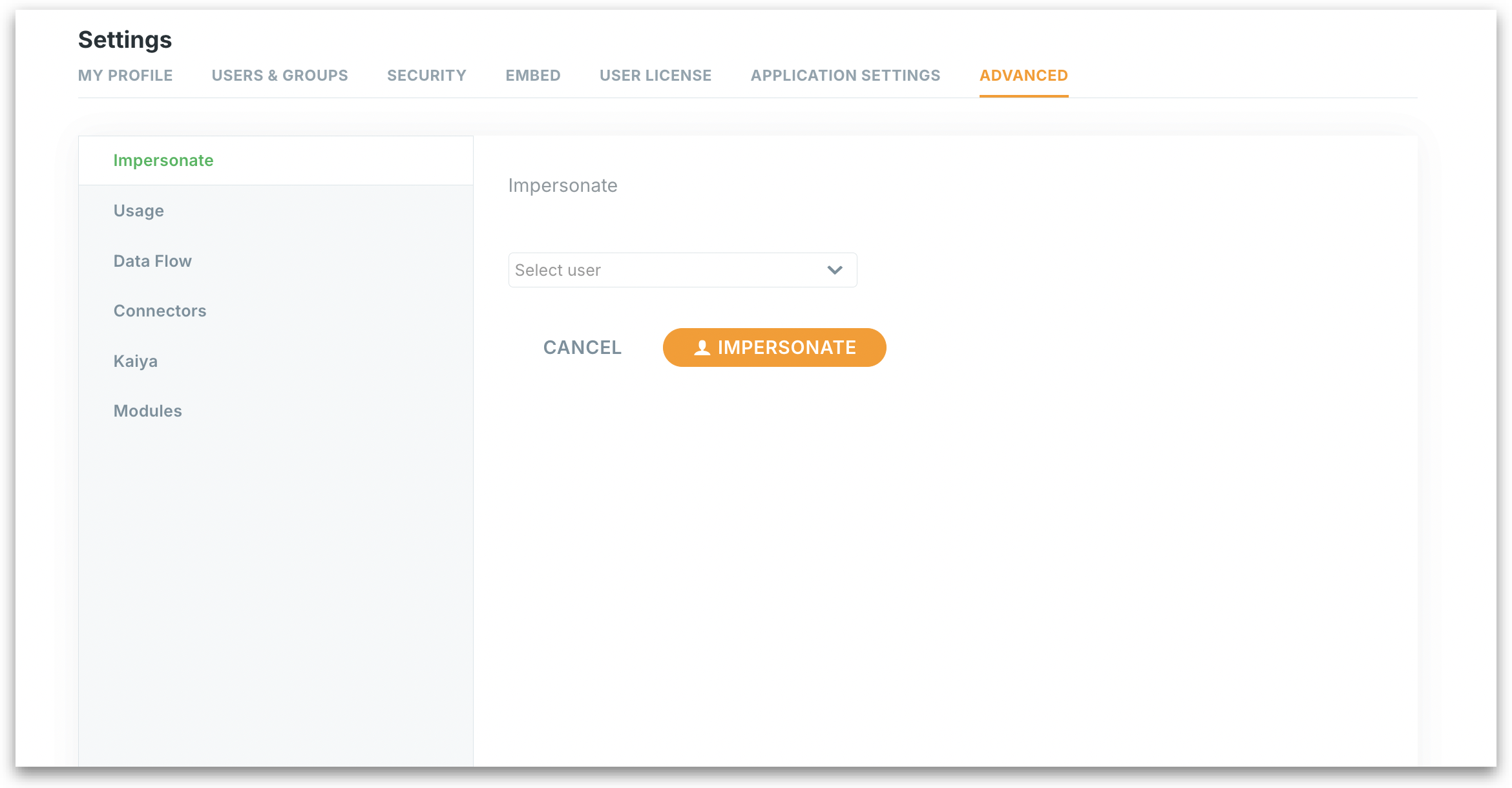
1. Open the **Select user** list.
2. Find the user. The list shows the first users straight away. Type part of a name in the search box at the top of the list to find someone else.
3. Select the user. Each row shows the person's initials, name and email, and a tag for every role in effect for them, including the roles that come from their groups.
4. Select **Impersonate**.
Tellius signs you in as that user and opens Tellius in their session. From then on, everything you do is done as that user, with their access.
**Cancel** clears the user you selected. **Impersonate** stays unavailable until you select a user.
{% hint style="warning" %}
**You act as that user.** Anything you create, change or delete while impersonating is done in that person's name. To check a problem, look and reproduce, but avoid changing their content. When you're done, sign out, then sign in again with your own account.
{% endhint %}
{% hint style="success" %}
**Impersonate or check effective access?** To see which modules a user can reach and at what level, open **View effective access** from the user's row on **Users**: it shows the result without signing in as them. Impersonate when you need to see the actual screens, data and answers the user gets. See [Users](/tellius-6.4/settings/users-and-access/users.md).
{% endhint %}
If Tellius can't impersonate the user you chose, it shows a message and keeps you signed in as yourself.
### Who can see this page
Only super users see **Impersonate** in Settings. A custom role reaches it with **Manage system** under **Administration**. See [Custom roles](/tellius-6.4/settings/users-and-access/custom-roles.md).
### In releases before Tellius 6.4
Impersonate was under **Settings → Advanced → Impersonate**, where you chose the user from a dropdown.
Impersonate
---
# Agent Instructions
This documentation is published with GitBook. GitBook is the documentation platform designed so that both humans and AI agents can read, navigate, and reason over technical content effectively. Learn more at gitbook.com.
## Querying This Documentation
If you need additional information that is not directly available in this page, you can query the documentation by asking a question.
Perform an HTTP GET request on the following URL with the `ask` and `goal` query parameters:
```
GET https://help.tellius.com/tellius-6.4/settings/administration/impersonate.md?ask=&goal=
```
`ask` is the immediate question: it should be specific, self-contained, and written in natural language.
`goal` is what the user is ultimately trying to achieve, the reason they need the answer. Sharing it helps GitBook give you a better, more relevant answer. A goal is most helpful when it describes the outcome the user wants rather than restating the question. For example, with `ask=how do I create an API token`, a goal like `automate deployments from our CI pipeline` lets GitBook tailor the answer to that use case.
The response will contain a direct answer to the question and relevant excerpts and sources from the documentation.
Use this mechanism when the answer is not explicitly present in the current page, you need clarification or additional context, or you want to retrieve related documentation sections.