> For the complete documentation index, see [llms.txt](https://help.tellius.com/llms.txt). Markdown versions of documentation pages are available by appending `.md` to page URLs; this page is available as [Markdown](https://help.tellius.com/tellius-6.4/settings/appearance/branding-and-themes.md).
# Branding & Themes
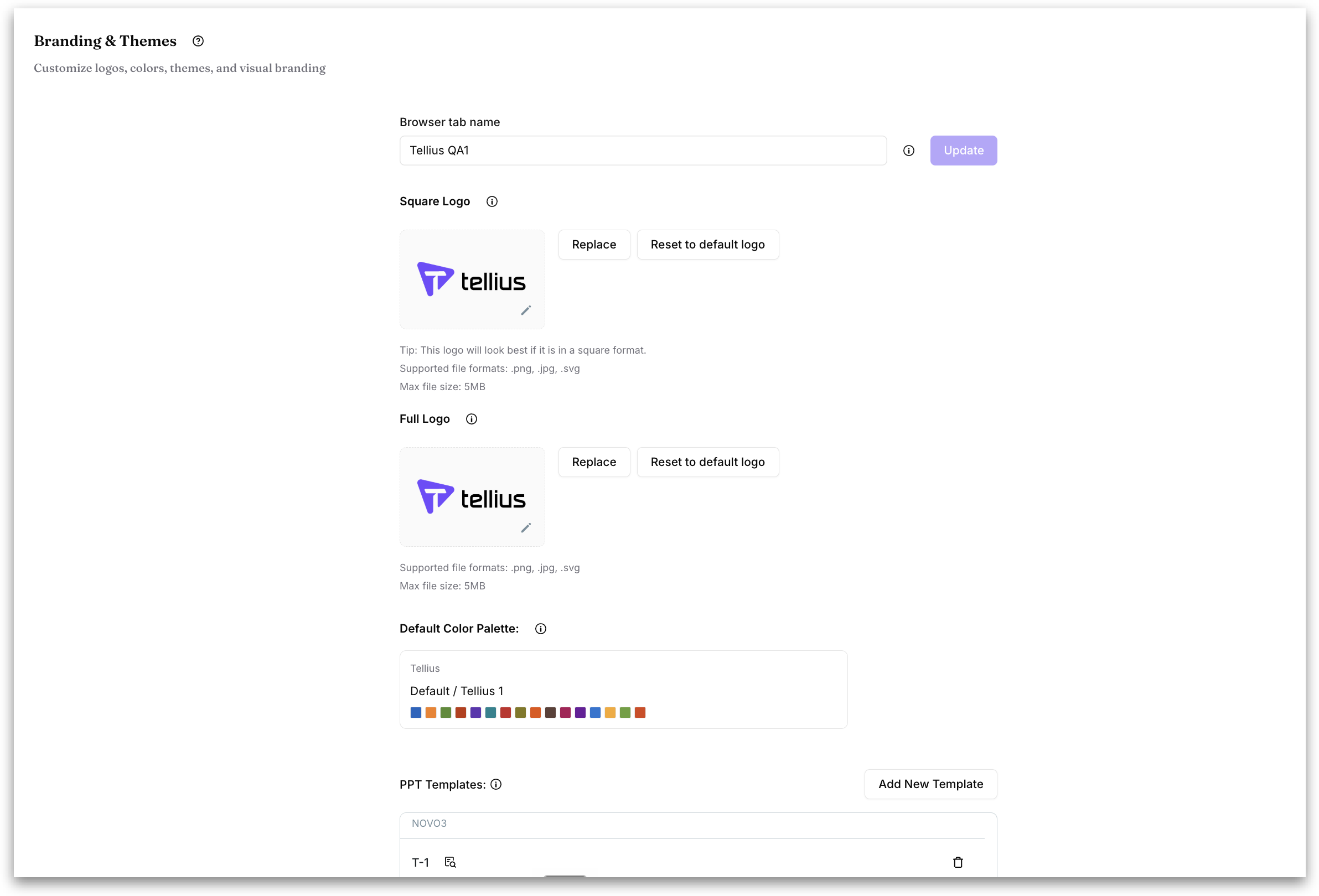
Under **Settings → Appearance & Preferences → Appearance → Branding & Themes,** admins can personalize the Tellius environment to match their organization's brand identity. The subtitle describes it as customizing logos, colors, themes, and visual branding. For both logos, the supported file formats are `.png`, `.jpg`, and `.svg`, and the maximum file size is 5 MB.
#### Brand Name
The name of your organization's brand. Type it in the field, then click the **Update** button next to it to apply it. This field saves on its own, separately from **Browser tab name**.
#### Browser tab name
Customizes the browser tab title so it reflects your organization's branding instead of the default. Type the name you want, then click **Update** to apply it.
#### Square Logo
A square-format logo that represents your organization, best suited for compact placements such as profile icons or footers.
* Click **Replace** to upload a new logo.
* Click **Reset to default logo** to revert to the Tellius default.
* The pencil icon on the logo preview lets you edit the current image.
#### Full Logo
A full-size version of your organization's logo, meant for larger displays such as login screens and headers.
* Click **Replace** to upload a new logo.
* Click **Reset to default logo** to revert to the Tellius default.
* The pencil icon on the logo preview lets you edit the current image.
{% hint style="success" %}
**Which file works best for a logo?** Both logos accept PNG, JPG and SVG files, but a PNG with a transparent background gives the cleanest result, because no block of background color shows around your logo.
{% endhint %}
#### Default Color Palette
Sets the default color palette used across Tellius. The current selection is shown with its name (for example, "Default / Tellius 1") and a preview of its colors.
#### PPT Templates
{% hint style="info" %}
In Tellius 6.4, uploading PPT and PDF templates is retired, and this page has no template sections. To shape an export, give Kaiya instructions in the chat, use a custom skill, such as one that sets your house deck format, or share a screenshot of the layout you want. See [Kaiya Skills](https://help.tellius.com/kaiya/kaiya-skills). Templates uploaded in earlier releases stay stored and still show on the older export page. The **PPT Templates** and **PDF Templates** sections below describe releases before Tellius 6.4.
{% endhint %}
Manages the PowerPoint templates available when exporting content to PPT, so exports follow your organization's slide branding.
* Each saved template appears as a row showing its name, a preview icon, and a delete (trash) icon.
* Hovering over the preview icon (the small magnifier next to the template name) shows a **"Preview template"** tooltip; clicking it opens a full preview of the template.
* In the preview window you can page through the slides using the page controls, zoom in and out, open the template in a larger view, and download it using the download icon next to the template name.
* Click the trash icon on a row to delete that template.
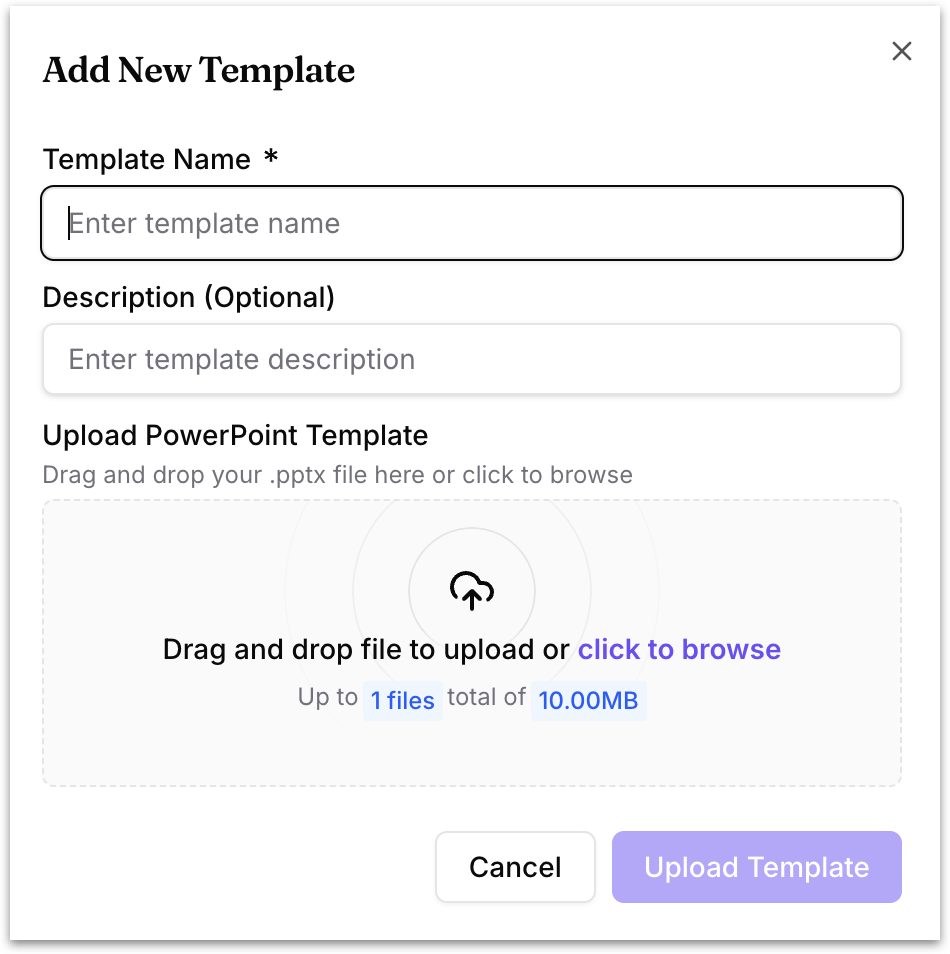
To add a template, click **Add New Template**. The Add New Template dialog has these fields:
* **Template Name** *(required)*: A name for the template.
* **Description (Optional)**: A short description of the template.
* **Upload PowerPoint Template**: Drag and drop your `.pptx` file into the upload area, or click **click to browse** to select it. You can upload one file, up to 10 MB total.
* Click **Upload Template** to save it, or **Cancel** to discard.
#### PDF Templates
{% hint style="info" %}
This section describes releases before Tellius 6.4. In Tellius 6.4, uploading PDF templates is retired, as described under PPT Templates above.
{% endhint %}
Manages the PDF templates available when exporting content to PDF. This section works the same way as PPT Templates.
* Each saved template appears as a row showing its name, a preview icon, and a delete (trash) icon.
* Hovering over the preview icon shows a **"Preview template"** tooltip; clicking it opens a full preview, where you can page through the document, zoom, open a larger view, and download the file.
* Click the trash icon to delete a template.
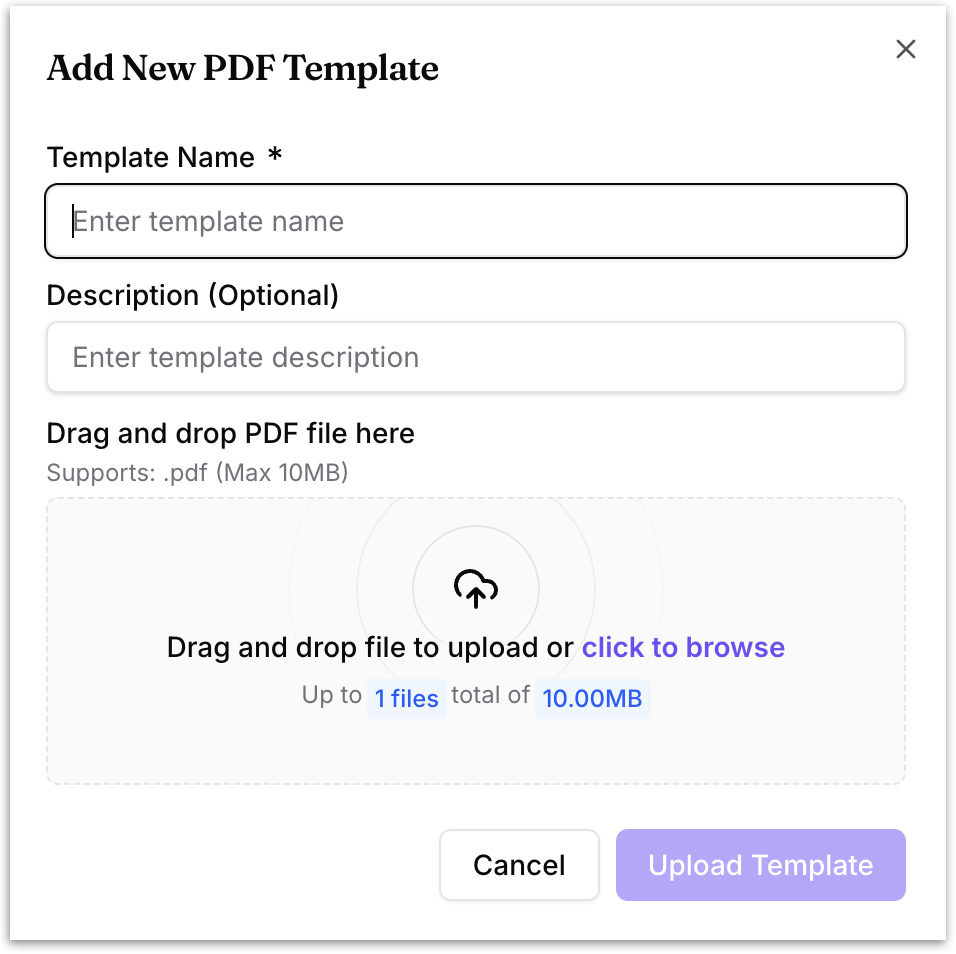
To add a template, click **Add New Template**. The Add New PDF Template dialog has these fields:
* **Template Name** *(required)*: A name for the template.
* **Description (Optional)**: A short description of the template.
* **Upload area**: Drag and drop your `.pdf` file, or click **click to browse** to select it. Only `.pdf` files are supported, one file, up to 10 MB.
* Click **Upload Template** to save it, or **Cancel** to discard.
---
# Agent Instructions
This documentation is published with GitBook. GitBook is the documentation platform designed so that both humans and AI agents can read, navigate, and reason over technical content effectively. Learn more at gitbook.com.
## Querying This Documentation
If you need additional information that is not directly available in this page, you can query the documentation by asking a question.
Perform an HTTP GET request on the following URL with the `ask` and `goal` query parameters:
```
GET https://help.tellius.com/tellius-6.4/settings/appearance/branding-and-themes.md?ask=&goal=
```
`ask` is the immediate question: it should be specific, self-contained, and written in natural language.
`goal` is what the user is ultimately trying to achieve, the reason they need the answer. Sharing it helps GitBook give you a better, more relevant answer. A goal is most helpful when it describes the outcome the user wants rather than restating the question. For example, with `ask=how do I create an API token`, a goal like `automate deployments from our CI pipeline` lets GitBook tailor the answer to that use case.
The response will contain a direct answer to the question and relevant excerpts and sources from the documentation.
Use this mechanism when the answer is not explicitly present in the current page, you need clarification or additional context, or you want to retrieve related documentation sections.