> For the complete documentation index, see [llms.txt](https://help.tellius.com/llms.txt). Markdown versions of documentation pages are available by appending `.md` to page URLs; this page is available as [Markdown](https://help.tellius.com/tellius-6.4/settings/kaiya-and-ai/kaiya-configuration.md).
# Kaiya Configuration
Under **Settings → Intelligence → Kaiya & AI → Kaiya Configuration**, this page is the master control panel for Kaiya across your workspace. It decides whether Kaiya runs, which capabilities are switched on, and whether Kaiya's activity is traced to LangSmith. Settings here apply workspace-wide, not per user.
The page is a single form with seven sections: **General**, **Conversation & Capabilities**, **Voice Assistant**, **Compliance**, **Answers & Retrieval**, **LangSmith** and **Monitoring & Alerting**. Changes anywhere on the page activate **Save** at the top right; **Cancel** discards everything and restores the saved state.
### General
**Enable Kaiya:** The master switch. Turning it on activates Kaiya, Tellius's AI-powered assistant. Enabling it also constitutes acceptance of Tellius's terms and conditions, so read those before switching it on.
**Position of Kaiya Summaries in Search:** Where Kaiya's generated summary sits relative to the chart in the Search module. Three choices: **No Summary** (suppress it), **Above The Chart**, or **Below The Chart**.
### Conversation & Capabilities
**Kaiya Conversational AI:** Turns data analytics into a conversational experience. Kaiya opens from the home page and from **New Chat** in the left navigation.
Missions and Kaiya Apps are built in Kaiya conversations, so turning **Kaiya Conversational AI** off also hides **Create Mission** in the Mission Library and **Create New App** in Kaiya Apps, opens **Configure** on a Mission without the chat panel, and makes **Run** on a Mission's page unavailable. Users in a Kaiya embed session keep these options. See [How to create a Kaiya Mission](https://help.tellius.com/kaiya/kaiya-missions/how-to-create-a-kaiya-mission) and [How to create a Kaiya App](https://help.tellius.com/kaiya/kaiya-apps/how-to-create-a-kaiya-app).
**Hide Kaiya from UI Only:** Keeps the Kaiya module running while removing it from the interface. Useful when Kaiya needs to stay available to other services or embedded surfaces but shouldn't be visible to users in the main platform.
**Enable Kaiya Auto Business View Assistant:** Lets Kaiya auto-select which Business View a question relates to. With this on, users start typing a question in Kaiya Conversational AI without first choosing a Business View manually. For users whose role has the **Context Models** module, Kaiya looks at context models too, and answers from the context model when both a context model and a Business View fit the question.
**Enable Kaiya Agentic:** Turns on Deep Insight in Kaiya. When it is on, together with **Enable Kaiya** and **Kaiya Conversational AI**, users whose role can run Deep Insights can pick **Deep Insight** under the ask box, on the home page and in a conversation. When it is off, the **Deep Insight** option isn't offered. See [Deep Insight](https://help.tellius.com/kaiya/understanding-ai-agents-and-agentic-flows/automated-workflows/deep-insight).
**Learn from conversations (context model suggestions):** When this is on, Kaiya notes the assumptions people state or correct in chat about a context model, such as what a business term means. Once a day, at 00:00 UTC, it reviews them and proposes changes on the model's **Suggestions** tab. There, the model's owner, or someone who can edit the model, approves or rejects each one and publishes the approved ones to the model as a new version. Off by default. While it is off, context models show no **Suggestions** tab. Kaiya proposes suggestions only on models whose owner's role has **Full Access** to **Context Models**. Only super users see this setting and the two below. Turning it on shows two more settings:
* **Minimum suggestion confidence:** the lowest confidence a suggestion needs before it reaches model owners. Choose **High** to show only suggestions that several people agree on or that someone corrected Kaiya about, or **Medium** (the default) to also show ones that come from one person or that Kaiya inferred from the data. Low-confidence suggestions are never shown.
* **Maximum pending suggestions:** the most suggestions that can wait for review on each context model at one time. The accepted range is 1 to 50, and the default is 15.
See [Context model suggestions](https://help.tellius.com/data/kaiya-context-model/context-model-suggestions).
{% hint style="info" %}
**Which confidence level to pick?** Use **Medium** while your context models are new, so owners hear about gaps early. Switch to **High** for busy, mature models, so owners review only the changes that several people agree on.
{% endhint %}
### Voice Assistant
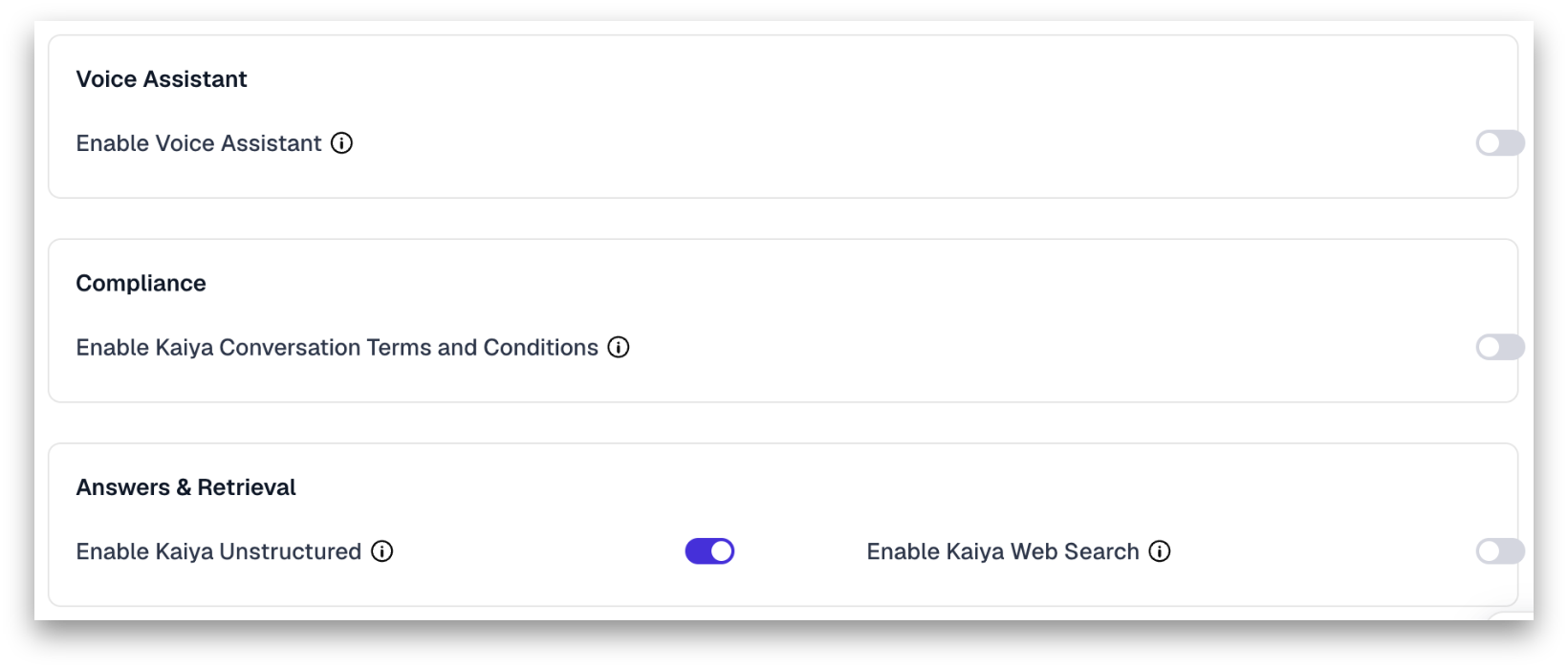
**Enable Voice Assistant:** Switches on voice input and voice output for Kaiya. Turning it on reveals three fields.
**Voice Assistant Type:** The speech provider that handles voice for Kaiya. Three options: **DeepGram**, **OpenAI**, and **ElevenLabs**.
**API Key:** The key issued by whichever provider you selected. Masked once saved.
**Provider Configuration:** Config parameters for the selected provider or model, written as JSON. Leave it as `{}` when no overrides are needed.
The last two fields follow your provider choice.
* Selecting DeepGram labels the field **Deepgram Configuration** and asks for a Deepgram API key.
* Selecting OpenAI labels it **OpenAI Configuration** and asks for an OpenAI key.
* Selecting ElevenLabs labels it **ElevenLabs Configuration**.
{% hint style="info" %}
**Voice mode in Kaiya chat.** Voice mode appears in the Kaiya chat only when **Enable Voice Assistant** is on, **Voice Assistant Type** is set to **OpenAI**, and the OpenAI API key you enter has access to OpenAI's Realtime API. See [Kaiya Voice Mode](https://help.tellius.com/kaiya/kaiya-voice-mode#turn-on-voice-administrators).
{% endhint %}
### Compliance
**Enable Kaiya Conversation Terms and Conditions:** Displays terms and conditions inside Kaiya Conversational AI. Turn this on where your organization needs users to see custom usage terms before interacting with the assistant.
* **Enter the Terms Heading:** The title users see. Defaults to *Terms and Conditions*.
* **Enter the URL of the terms and conditions:** The link that heading points to. Use your organization's custom hosted terms page.
### Answers & Retrieval
**Enable Kaiya Unstructured:** Adds support for unstructured data sources. Turning it on lets any Kaiya conversation search your document workspaces together with Business View data, and Kaiya cites the source of each claim it takes from a document. See [Ask across your documents (Unstructured)](https://help.tellius.com/kaiya/ask-across-your-documents-unstructured).
**Enable Kaiya Web Search:** Allows Kaiya to run real-time web searches for questions that need external or current information. Turning it on displays a field labeled **Enter the Exa API key required for performing web search**. Tellius uses Exa as its web search provider, so this key is required for the feature to work.
### LangSmith
**Enable Kaiya LangSmith Integration:** Switches on telemetry, tracing, and evaluation through LangSmith. This is a diagnostic and quality-monitoring integration, useful when you need visibility into how Kaiya arrived at an answer.
Turning the toggle on reveals three required fields; turning it off hides them again.
* **Endpoint:** The API endpoint used to reach LangSmith.
* **API Name:** The LangSmith project name where traces and telemetry are stored.
* **Project Key:** The API key that authenticates Kaiya with LangSmith. The value is masked once saved.
### Monitoring & Alerting
**Enable Kaiya Monitoring & Alerting:** Sends Kaiya monitoring alerts to Slack. Turning it on shows two fields:
* **Bot Token:** the Slack bot token Kaiya uses to sign in when it posts monitoring alerts. The value is masked once saved.
* **Channel:** the Slack channel where the alerts are posted, for example `#kaiya-alerts`.
### Saving
Click **Save** to apply changes across the workspace, or **Cancel** to discard them. Save stays inactive until something on the page changes.
---
# Agent Instructions
This documentation is published with GitBook. GitBook is the documentation platform designed so that both humans and AI agents can read, navigate, and reason over technical content effectively. Learn more at gitbook.com.
## Querying This Documentation
If you need additional information that is not directly available in this page, you can query the documentation by asking a question.
Perform an HTTP GET request on the following URL with the `ask` and `goal` query parameters:
```
GET https://help.tellius.com/tellius-6.4/settings/kaiya-and-ai/kaiya-configuration.md?ask=&goal=
```
`ask` is the immediate question: it should be specific, self-contained, and written in natural language.
`goal` is what the user is ultimately trying to achieve, the reason they need the answer. Sharing it helps GitBook give you a better, more relevant answer. A goal is most helpful when it describes the outcome the user wants rather than restating the question. For example, with `ask=how do I create an API token`, a goal like `automate deployments from our CI pipeline` lets GitBook tailor the answer to that use case.
The response will contain a direct answer to the question and relevant excerpts and sources from the documentation.
Use this mechanism when the answer is not explicitly present in the current page, you need clarification or additional context, or you want to retrieve related documentation sections.