> For the complete documentation index, see [llms.txt](https://help.tellius.com/llms.txt). Markdown versions of documentation pages are available by appending `.md` to page URLs; this page is available as [Markdown](https://help.tellius.com/tellius-6.4/settings/kaiya-and-ai/llm-assignments.md).
# LLM Assignments
Under **Settings → Intelligence → Kaiya & AI → LLM Assignments,** admins can decide which saved provider configuration handles which piece of Kaiya's work. LLM Configuration registers the models; this page routes traffic to them. The split matters because Kaiya's tasks have different demands (a quick classification and a multi-step deep dive don't need the same model) so you can point fast work at one configuration and heavy reasoning at another.
Every dropdown on this page lists the reference names you created in LLM Configuration. A slot showing **Select Configuration** has nothing assigned yet.
The page has three parts: **Unified Chat**, which sets the models Kaiya chat uses; **Unified Chat Per-User Override**, for giving one user different models; and **Classic Configuration**, which holds the task-by-task assignments.
### Unified Chat
* **Primary Model:** the configuration Kaiya chat uses for every session. If nothing is set, Kaiya uses the default that comes with your deployment.
* **Secondary Model:** optional. Kaiya switches to it on its own if the primary model fails with a rate limit or an authentication error.
{% hint style="info" %}
**Which configurations work for Unified Chat.** In Tellius 6.4, Unified Chat can use a configuration with an OpenAI, Anthropic, Gemini or OpenRouter API key, a Vertex AI service account (Gemini or Claude models), Amazon Bedrock with AWS access and secret keys, Azure OpenAI with an API key, or Snowflake Cortex (bearer token or key-pair). Azure OpenAI configurations that use a service principal can't be assigned to Unified Chat yet, so pick one that uses an API key. See [LLM Configuration](https://help.tellius.com/settings/kaiya-and-ai/llm-configuration).
{% endhint %}
### Unified Chat Per-User Override
An override gives one user their own **Primary Model** and **Secondary Model** for Kaiya chat. Everyone else keeps the models set under **Unified Chat**, and the user also keeps the workspace model for any model the override leaves on inherit. Until you add an override, the section shows that everyone is using the global assignment.
{% hint style="info" %}
**When to use an override.** Use one when a single person needs a different model from everyone else, for example to try a new model with one admin before changing it for the whole workspace. For a change that should apply to everyone, set the models under **Unified Chat** instead.
{% endhint %}
#### Add an override
1. Select **Add User Override**.
2. Under **Select a user to override**, open the list and pick the user. Type in the search box to find someone quickly. Users who already have an override aren't listed; edit their existing override instead.
3. Set **Primary Model**, **Secondary Model**, or both. Each list starts with **Inherit global default**, followed in brackets by the model currently set under **Unified Chat**, and then the configurations you can assign to Unified Chat. Leave a model on **Inherit global default** to keep the workspace setting for it.
4. Select **Save**. It stays unavailable until you pick a user.
The override is saved as soon as you select **Save** in the dialog. The **Save** button at the top of the page is only for the global assignments, so you don't need it here. Select **Cancel** or the close icon to leave the dialog without adding the override.
#### Review, edit and remove overrides
Each override appears as a row with the user's initials, name and email, and a badge that counts how many of the two models it overrides, such as **1 overridden**.
* **Edit** icon: opens **Edit User Override** for that user. The user can't be changed here; change either model and select **Save**.
* **Delete** icon: opens **Remove user override**. Select **Delete** to confirm, and the user goes back to the global Unified Chat models.
If you set both models back to **Inherit global default** and save, the user no longer appears in the list.
{% hint style="info" %}
The Unified Chat override and the **Per-User LLM Assignment** under **Classic Configuration** are managed separately. Removing a user's Unified Chat override leaves their Classic override in place, and the reverse.
{% endhint %}
### Classic Configuration
Select **Classic Configuration** to expand it. It holds the assignments described below, by category and by individual task, and a **Per-User LLM Assignment** section that works like the Unified Chat override for these assignments.
These assignments belong to the classic Kaiya experience that came before Kaiya chat. Tellius marks them as deprecated, and they stay visible for reference until the classic experience is retired.
#### Standard assignments
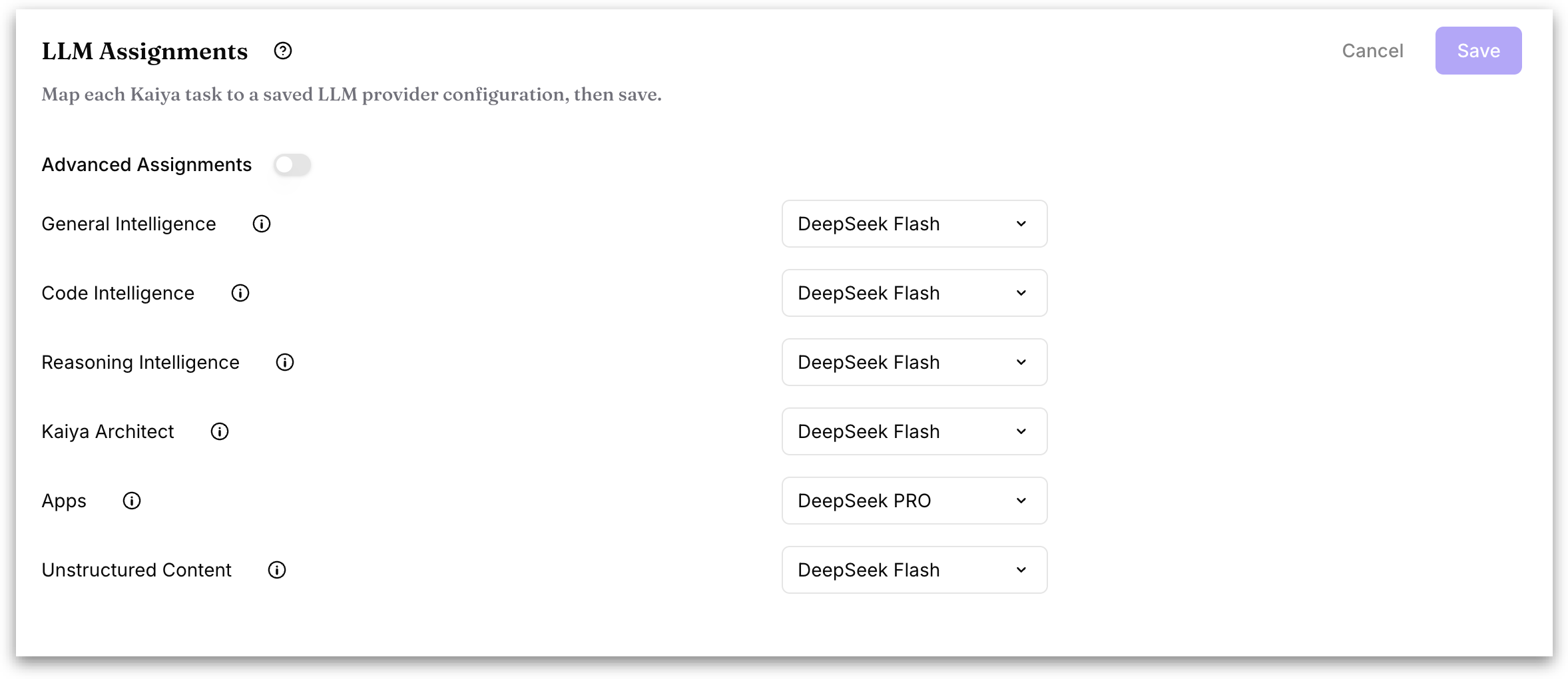
By default the section shows six broad categories. For most environments these are all you need to set.
**General Intelligence:** Everyday language work such as summarizing, classifying, pulling out entities, and working out what a question is asking. Suited to fast, context-aware answers across a wide range of requests.
**Code Intelligence:** Technical work, including SQL generation, Python scripting, and code explanation. This is the model behind analytical query generation and behind writing or debugging code.
**Reasoning Intelligence:** Multi-step reasoning, deep analysis planning, and layered contextual work. Use a stronger model here when answers need to connect findings across several stages.
**Kaiya Architect:** Conversational data preparation, schema design, and modeling suggestions when someone is building a Business View.
**Apps:** Content, logic, and configuration generated for Kaiya Apps.
**Unstructured Content:** Extracts structured information out of unstructured sources such as PDFs, emails, and free-text files.
#### Advanced Assignments
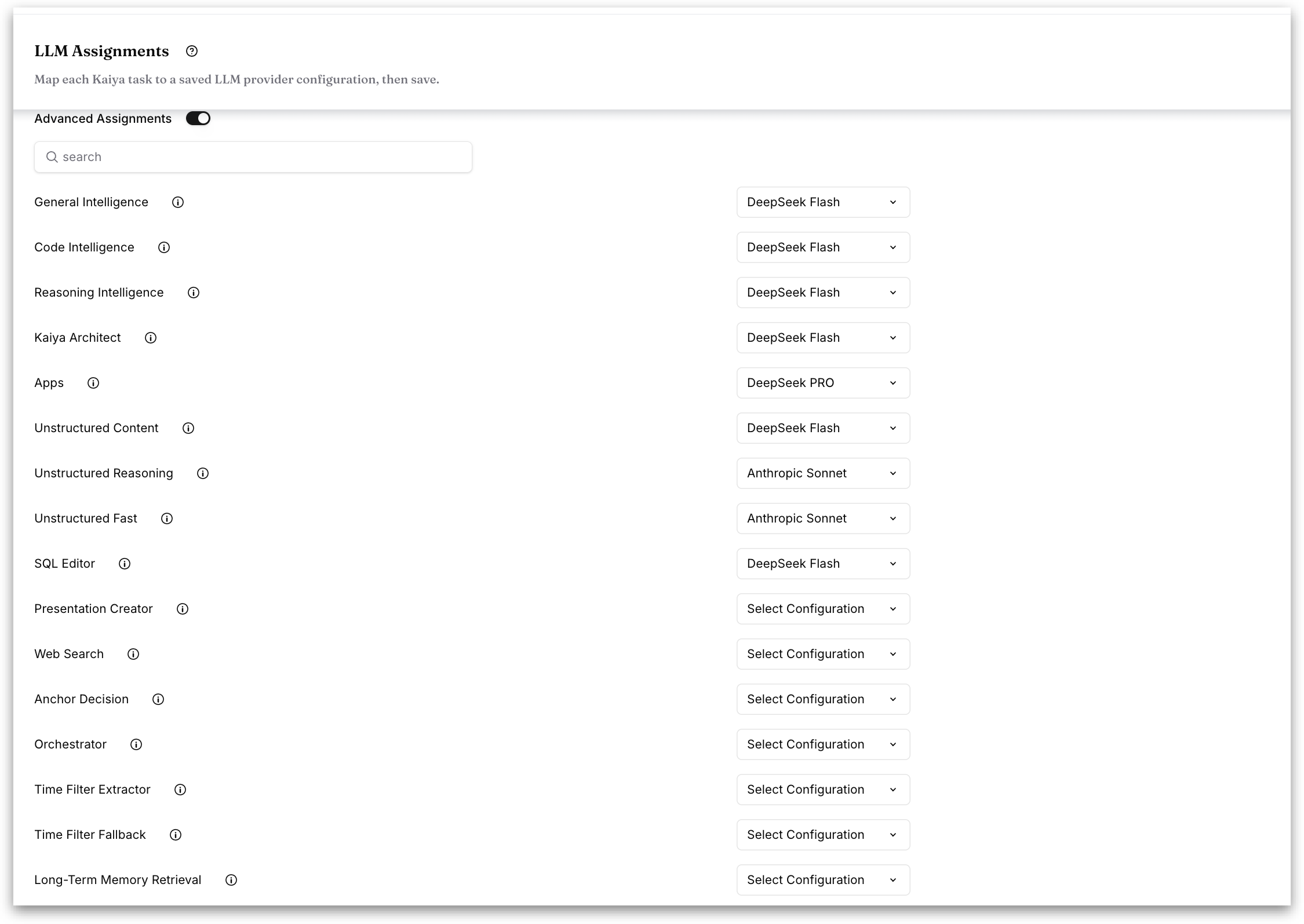
Turning on the **Advanced Assignments** toggle displays the full list of individual Kaiya tasks, and adds a **search** box above it. Type into the search box to filter the list by task name.
Use advanced mode when you need finer control than the six categories allow: routing exports to a cheaper model, giving SQL generation a stronger one, or pinning a specific task to a provider for cost or compliance reasons. Anything you leave unassigned falls back to the broad category behavior.
The six standard categories appear at the top of the advanced list, followed by these:
| Task | What it does |
| -------------------------- | ----------------------------------------------------------------------------------------------------------------------------------------------- |
| Unstructured Reasoning | Deeper analysis of unstructured documents that need more comprehension than straightforward extraction. |
| Unstructured Fast | Speed-optimized handling of unstructured documents. |
| SQL Editor | Faster SQL generation that reuses SQL already held in the Semantic Cache. |
| Presentation Creator | Builds the PowerPoint structure from an uploaded template — slide structure, titles, and content layouts. |
| Web Search | Answers grounded in web search results, for questions that need current information and source citations. |
| Anchor Decision | Works out the anchors for a question from short-term memory, meaning the current conversation. |
| Orchestrator | Identifies intent at a high level using the configured workflow cards, then hands the work to the right sub-agent. |
| Time Filter Extractor | Pulls date and time expressions out of a question such as ranges, relative dates, and periods. |
| Time Filter Fallback | Steps in when the Time Filter Extractor can't process the query. Falls back to the coding model if nothing is assigned. |
| Long-Term Memory Retrieval | Finds and ranks relevant long-term memory entries so answers stay personalized and context-aware. |
| SQL Rephrasing | Rewrites the question for clarity and alignment before SQL is generated. |
| SQL Generation | Turns the question into SQL using the selected Business View's schema and context. |
| Preamble Generation | Writes the preamble that explains the thinking behind the SQL analysis. |
| SQL Summary | Plain-language summary of a SQL query and its results, so end users can read the outcome without reading the SQL. |
| Chart Config Generation | Builds the chart configuration and visualization spec from the query results and what the user asked for. |
| Insights Planner | Plans multi-step deep dives and decides the sequence of insights to generate. |
| Workflow Planner | Takes user-defined workflow steps and builds an execution plan for the Deep Insights engine. |
| Insights Summary | Detailed narrative summaries of analytical insights, calling out key findings and trends. |
| Python Retry | Diagnoses Python execution errors and writes corrected code so a failed step retries automatically. |
| Insights Concise Summary | Short summaries for cards, previews, and at-a-glance views. |
| Business View Summary | Describes a Business View's schema, relationships, and intended purpose in plain language. |
| Auto Business View | Picks or suggests the most relevant Business View for a given question. |
| Business View Validation | Checks Business View configuration — joins, column mappings, and data type consistency. |
| PowerPoint Export | Generates PowerPoint and PDF output for Deep Insights, Agentic Workflows, and similar, producing slide structures, titles, and content layouts. |
| PDF Export | Generates the storyline narrative and formatted content during a PDF export. |
| Export Citation | Checks the numbers, charts, and claims in an export against the source data and produces citation metadata. |
### Assigning and saving
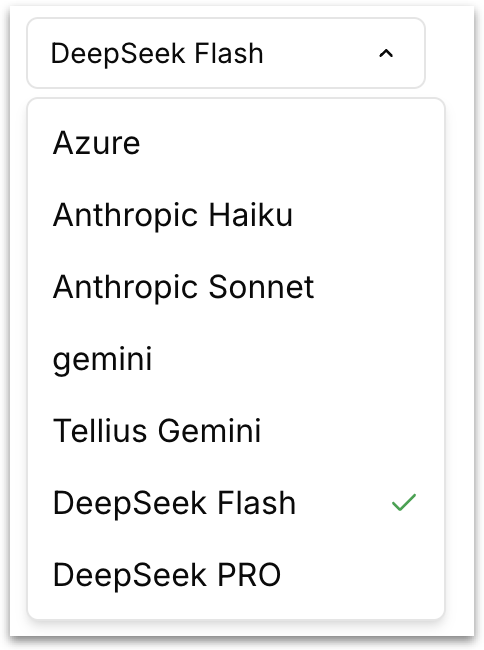
Click any dropdown and pick a saved configuration. The one currently in use is marked with a checkmark. Only configurations saved in **LLM Configuration** appear here. If the provider you want is missing, add it [here](/tellius-6.4/settings/kaiya-and-ai/llm-configuration.md) first.
Click **Save** to apply your changes, or **Cancel** to discard them and return the page to its saved state.
---
# Agent Instructions
This documentation is published with GitBook. GitBook is the documentation platform designed so that both humans and AI agents can read, navigate, and reason over technical content effectively. Learn more at gitbook.com.
## Querying This Documentation
If you need additional information that is not directly available in this page, you can query the documentation by asking a question.
Perform an HTTP GET request on the following URL with the `ask` and `goal` query parameters:
```
GET https://help.tellius.com/tellius-6.4/settings/kaiya-and-ai/llm-assignments.md?ask=&goal=
```
`ask` is the immediate question: it should be specific, self-contained, and written in natural language.
`goal` is what the user is ultimately trying to achieve, the reason they need the answer. Sharing it helps GitBook give you a better, more relevant answer. A goal is most helpful when it describes the outcome the user wants rather than restating the question. For example, with `ask=how do I create an API token`, a goal like `automate deployments from our CI pipeline` lets GitBook tailor the answer to that use case.
The response will contain a direct answer to the question and relevant excerpts and sources from the documentation.
Use this mechanism when the answer is not explicitly present in the current page, you need clarification or additional context, or you want to retrieve related documentation sections.