> For the complete documentation index, see [llms.txt](https://help.tellius.com/llms.txt). Markdown versions of documentation pages are available by appending `.md` to page URLs; this page is available as [Markdown](https://help.tellius.com/tellius-6.4/settings/kaiya-and-ai/llm-configuration.md).
# LLM Configuration
Under **Settings → Intelligence → Kaiya & AI → LLM Configuration**, admins can register the large language model providers Tellius is allowed to call. Each entry holds one provider's connection details — which model service to reach, how to authenticate, and any parameters that shape the request. Once a configuration is saved here, it becomes available in **LLM Assignments**, where you decide which parts of Tellius use it.
#### The configuration list
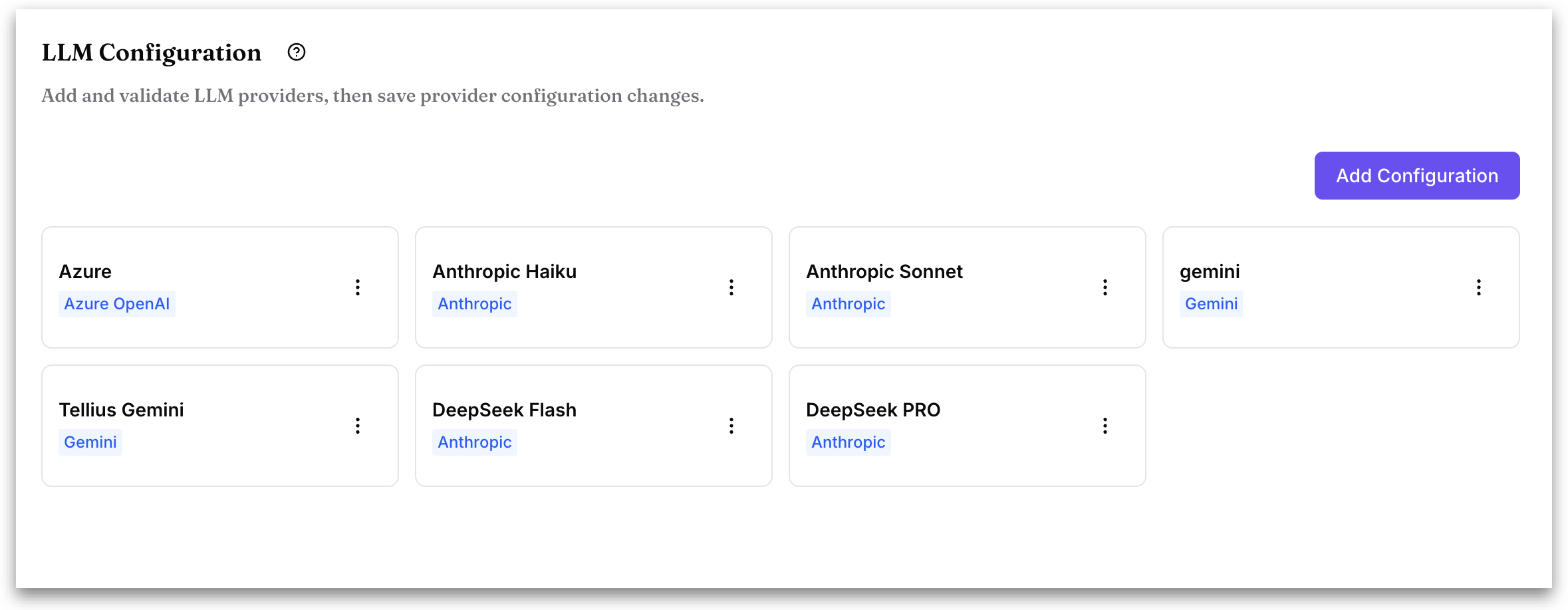
Every saved configuration appears as a card. The card shows the reference name you gave it and a chip underneath naming the underlying provider, so several configurations can point at the same provider without confusion. For example, three separate Anthropic entries named for the specific models they target.
Each card has a three-dot menu with two actions:
* **Edit:** opens the configuration for changes.
* **Delete:** removes the configuration.
Deleting opens a warning that names the configuration being removed and states the action can't be undone. Choose **Yes, Remove** to confirm or **Cancel** to back out.
#### Editing a configuration
Choosing **Edit** on a card opens the **Edit Provider** dialog with the same fields, populated with the saved values. Secrets such as API keys are masked. Switching the deployment or authentication type swaps the credential fields below it, and the new fields start empty — you'll need to re-enter credentials for the method you've moved to.
The Edit Provider dialog offers **Validate** and **Save** only; there's no draft option once a configuration exists.
### Adding a configuration
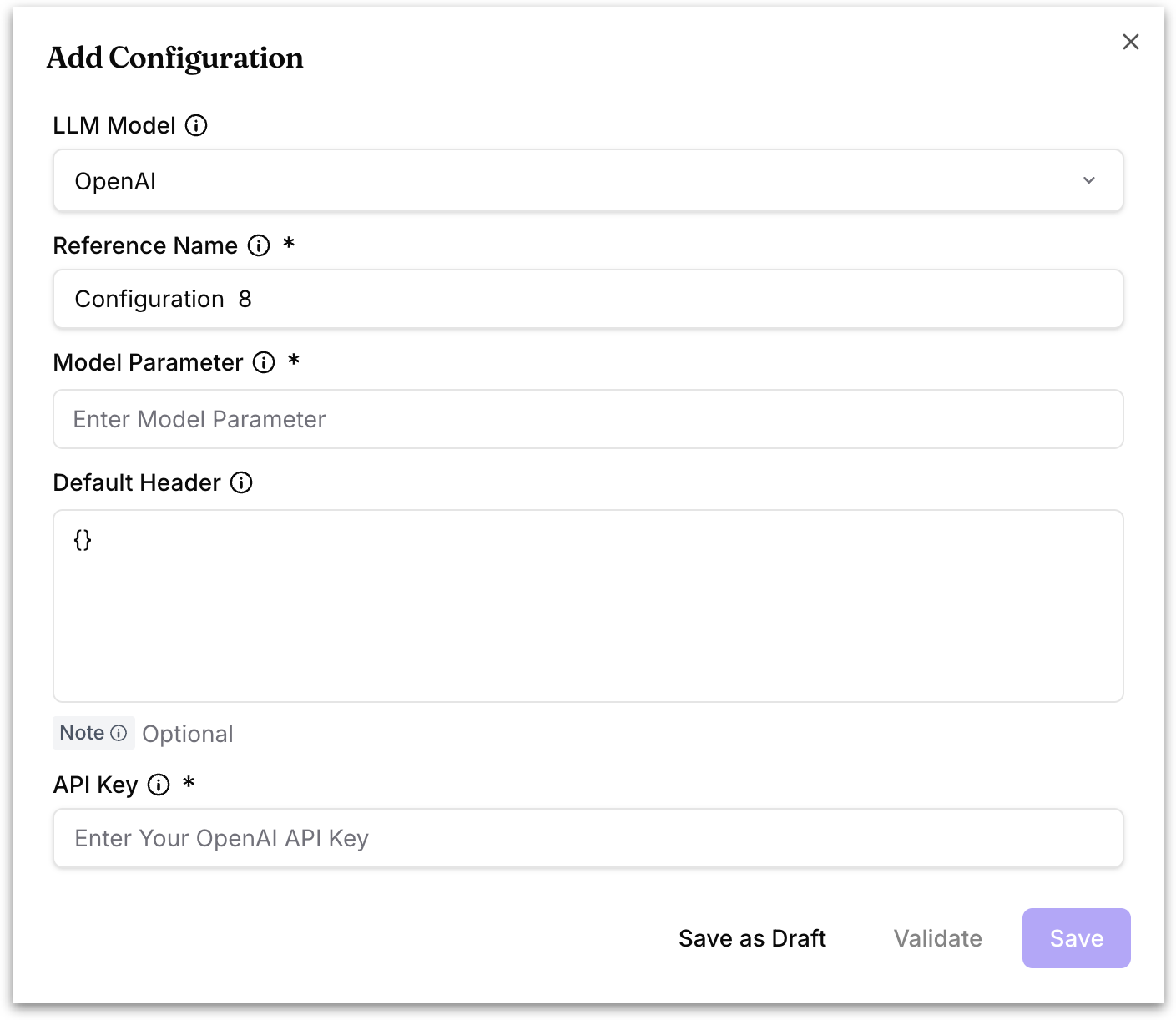
Click **Add Configuration**. The dialog opens with a default provider selected and a reference name pre-filled (Configuration 1, Configuration 2, and so on) — change both to suit.
#### **Fields shared by every provider**
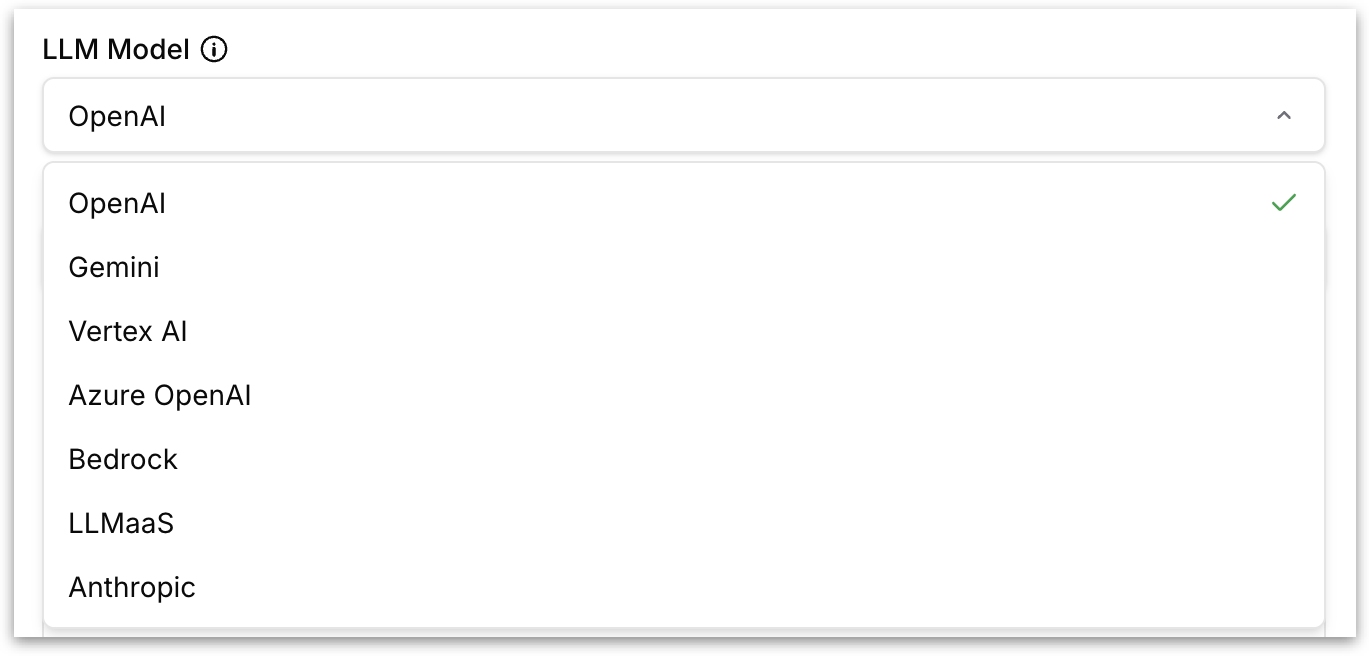
**LLM Model:** the provider you want to connect to. This choice determines the rest of the form, since each provider authenticates differently. The available providers are:
* OpenAI
* Gemini
* Vertex AI
* Azure OpenAI
* Bedrock
* LLMaaS
* Anthropic
* Snowflake Cortex
* OpenRouter
**Reference Name** (required): the label this configuration carries everywhere else in Tellius.
**Model Parameter** (required): the request settings, written as JSON. This is where the specific model and its behavior are pinned down. Typical entries include the model or deployment name, a temperature value, an API version, and a request timeout. The exact keys depend on the provider.
**Default Header:** any extra HTTP headers the provider needs, also written as JSON, such as authorization tokens or custom headers your gateway requires. Leave it as `{}` if none are needed. Snowflake Cortex has no **Default Header** field.
{% hint style="info" %}
**Using a custom endpoint.** The form has no Base URL field. To send requests to your own endpoint, add `"base_url"` to the **Model Parameter** JSON. For Azure OpenAI, add `"azure_endpoint"` instead. Put any custom headers the endpoint needs in **Default Header**. The example in the **Model Parameter** tooltip shows where `"base_url"` goes.
{% endhint %}
#### **Fields that depend on the provider**
**OpenAI, Gemini, Anthropic, OpenRouter**
* **API Key** (required): the key issued by that provider.
**Vertex AI**
* **Service Account JSON** (required): paste the Google Cloud service account JSON key.
**Azure OpenAI**
* **Azure Deployment Type:** choose **Azure OpenAI API Key** or **Azure OpenAI Service Principal**. Use the API key method for a standard Azure OpenAI resource; use a service principal when your organization authenticates through Microsoft Entra ID instead of shared keys.
* With **Azure OpenAI API Key**: **Azure OpenAI API Key** (required).
* With **Azure OpenAI Service Principal**: **Azure Tenant ID**, **Azure Client ID**, and **Azure Client Secret** (all required).
**Bedrock**
* **Bedrock Authentication Type:** choose **Bedrock API Key** or **AWS Access/Secret Keys**.
* With **Bedrock API Key**: **Bedrock API Key** (required).
* With **AWS Access/Secret Keys**: **Access Key ID** and **Secret Access Key** (both required).
**LLMaaS**
* **API Key**, **Client Secret**, and **Client ID** (all required).
**Snowflake Cortex**
* **Account** (required): your Snowflake account identifier, the first part of your Snowflake URL. For example, `myorganization` in `myorganization.snowflakecomputing.com`.
* **Authentication Type:** choose **Bearer Token (PAT / OAuth)** or **Key-Pair (RSA Private Key)**.
* With **Bearer Token (PAT / OAuth)**: **Bearer Token** (required), a Snowflake programmatic access token, OAuth access token or JWT.
* With **Key-Pair (RSA Private Key)**: **Snowflake User** and **RSA Private Key (PEM)** (both required).
For the Snowflake setup and how to use Cortex with Kaiya, see [Snowflake Cortex inference](https://help.tellius.com/settings/kaiya-and-ai/snowflake-cortex-inference).
**Saving**
Three buttons sit at the bottom of the Add Configuration dialog:
* **Save as Draft:** keeps a partly filled configuration without committing it. Useful when you're waiting on a key from another team.
* **Validate:** sends a test request using the details you entered and reports whether the provider accepts them. Validate before saving so a bad key or wrong endpoint surfaces here.
* **Save:** commits the configuration and adds it to the list.
**Validate** and **Save** stay unavailable until the required fields are filled in.
---
# Agent Instructions
This documentation is published with GitBook. GitBook is the documentation platform designed so that both humans and AI agents can read, navigate, and reason over technical content effectively. Learn more at gitbook.com.
## Querying This Documentation
If you need additional information that is not directly available in this page, you can query the documentation by asking a question.
Perform an HTTP GET request on the following URL with the `ask` and `goal` query parameters:
```
GET https://help.tellius.com/tellius-6.4/settings/kaiya-and-ai/llm-configuration.md?ask=&goal=
```
`ask` is the immediate question: it should be specific, self-contained, and written in natural language.
`goal` is what the user is ultimately trying to achieve, the reason they need the answer. Sharing it helps GitBook give you a better, more relevant answer. A goal is most helpful when it describes the outcome the user wants rather than restating the question. For example, with `ask=how do I create an API token`, a goal like `automate deployments from our CI pipeline` lets GitBook tailor the answer to that use case.
The response will contain a direct answer to the question and relevant excerpts and sources from the documentation.
Use this mechanism when the answer is not explicitly present in the current page, you need clarification or additional context, or you want to retrieve related documentation sections.