> For the complete documentation index, see [llms.txt](https://help.tellius.com/llms.txt). Markdown versions of documentation pages are available by appending `.md` to page URLs; this page is available as [Markdown](https://help.tellius.com/tellius-6.4/vizpads-explore/anomaly-management-for-line-charts/vizpad-level.md).
# Vizpad level
Control anomaly visibility at the Vizpad level by enabling or disabling anomalies in View or Edit mode without affecting instance-wide settings.
{% hint style="warning" %}
Enabling/disabling anomalies in Vizpads level will not change the instance level settings configured in **Settings → Modules → Analytics → Anomaly Detection**.
{% endhint %}
### **View mode**
1. Open the required Vizpad from the **Vizpad** module (the **Explore** tab in releases before Tellius 6.4).
2. Select the gear icon at the top right of the Vizpad, next to **View**.
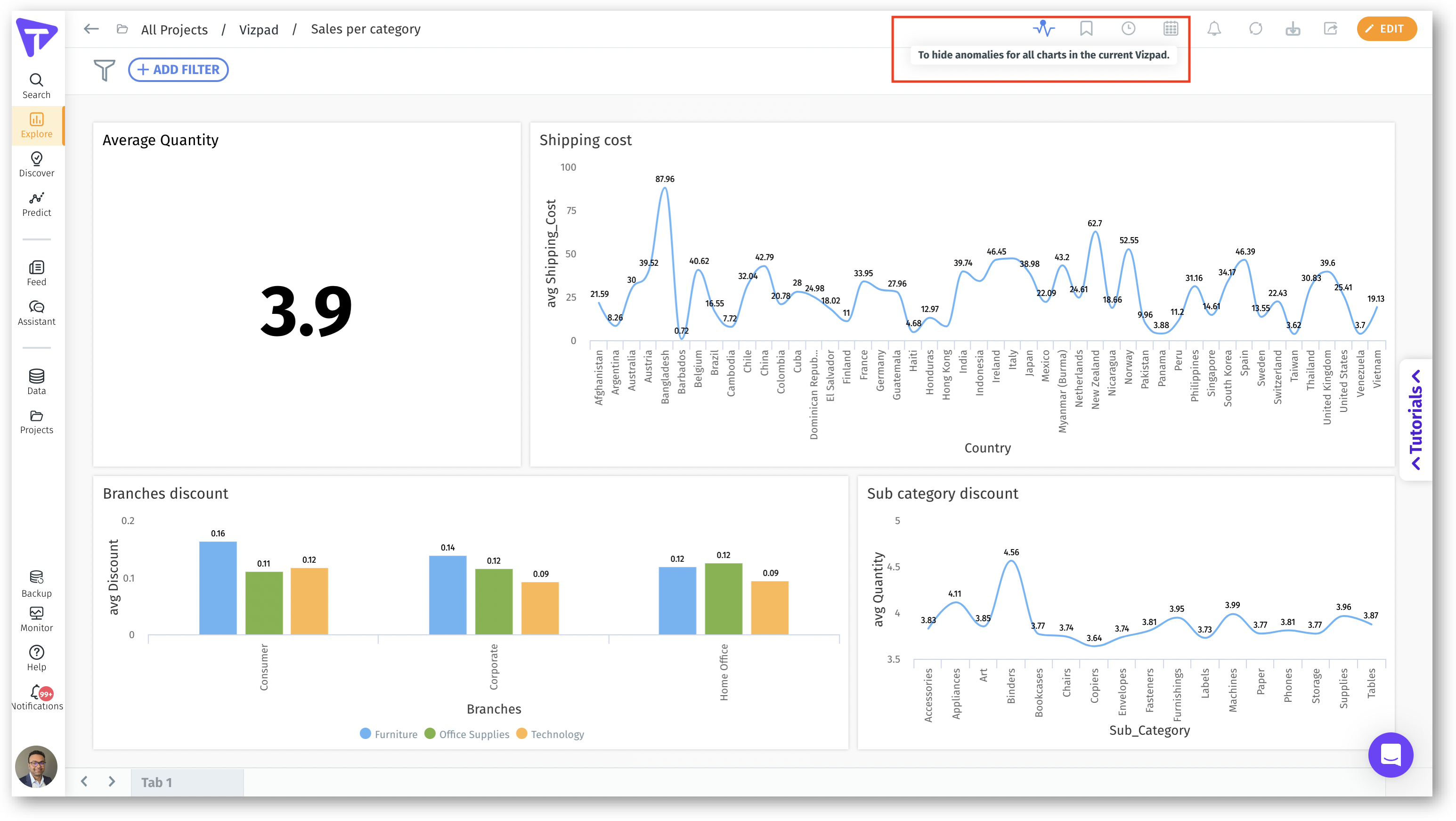
3. Under **Anomalies**, turn on **Show anomalies** to highlight outliers and unexpected trends in the current Vizpad; anomalies show on line charts. Turn it off to hide them.
In releases before Tellius 6.4, the top panel had an array of icons, and the first icon enabled or disabled anomalies for the current Vizpad. When the icon was enabled (blue in color), anomalies were displayed for line charts in the Vizpad, and every click showed a message at the top of the screen saying whether anomalies were enabled or disabled.
Setting anomalies for a Vizpad in View mode
### **Edit mode**
1. Click on the **Edit** button on the required Vizpad.
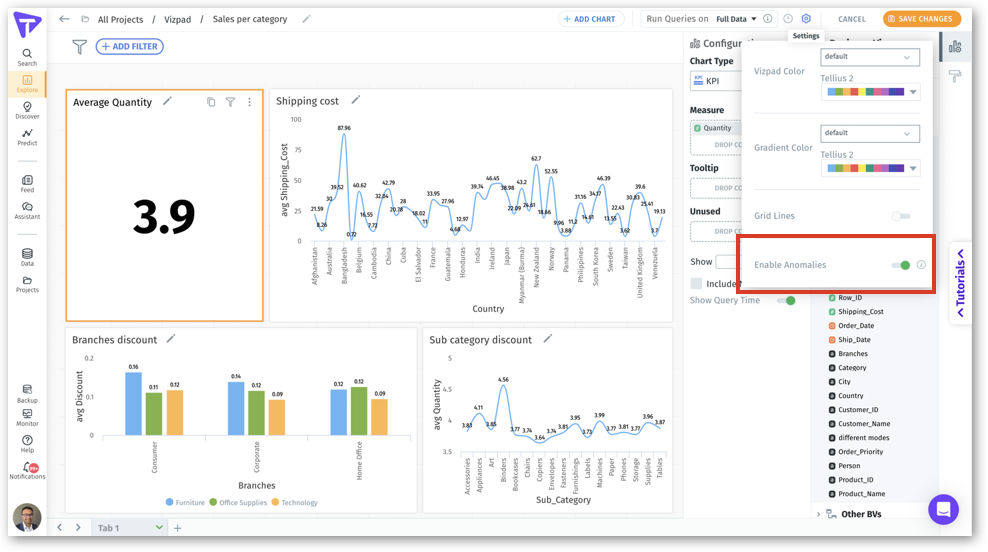
2. On the top right corner, select the gear icon, next to **Cancel** and **Save Changes**. If the **Show anomalies** toggle under **Anomalies** is on, anomalies are displayed for line charts. If it is off, the anomalies are hidden. In releases before Tellius 6.4, this toggle was named **Enable Anomalies** and sat in the **Settings** panel.
Setting anomalies for a Vizpad in Edit mode
---
# Agent Instructions
This documentation is published with GitBook. GitBook is the documentation platform designed so that both humans and AI agents can read, navigate, and reason over technical content effectively. Learn more at gitbook.com.
## Querying This Documentation
If you need additional information that is not directly available in this page, you can query the documentation by asking a question.
Perform an HTTP GET request on the following URL with the `ask` and `goal` query parameters:
```
GET https://help.tellius.com/tellius-6.4/vizpads-explore/anomaly-management-for-line-charts/vizpad-level.md?ask=&goal=
```
`ask` is the immediate question: it should be specific, self-contained, and written in natural language.
`goal` is what the user is ultimately trying to achieve, the reason they need the answer. Sharing it helps GitBook give you a better, more relevant answer. A goal is most helpful when it describes the outcome the user wants rather than restating the question. For example, with `ask=how do I create an API token`, a goal like `automate deployments from our CI pipeline` lets GitBook tailor the answer to that use case.
The response will contain a direct answer to the question and relevant excerpts and sources from the documentation.
Use this mechanism when the answer is not explicitly present in the current page, you need clarification or additional context, or you want to retrieve related documentation sections.