> For the complete documentation index, see [llms.txt](https://help.tellius.com/llms.txt). Markdown versions of documentation pages are available by appending `.md` to page URLs; this page is available as [Markdown](https://help.tellius.com/tellius-documentation/kaiya/kaiya-conversational-ai/kaiya-learnings.md).
# Kaiya Learnings
Teach Kaiya how to interpret terms with Business View-level or system-wide learnings, ensuring Tellius understands phrases in your exact business context.
You can teach Kaiya Search how to interpret specific words or phrases in your search queries. This enhances the search experience by ensuring that Kaiya understands and processes queries according to your specific business context.
There are two types of Kaiya Learnings:
* Business View-level Learning
* System-level Learning
**Business View-level Learning**
These are specific to the current Business View and do not affect other parts of the system. They are ideal for context-specific mappings, like associating "core customer reach" with the average profit within that particular Business View.
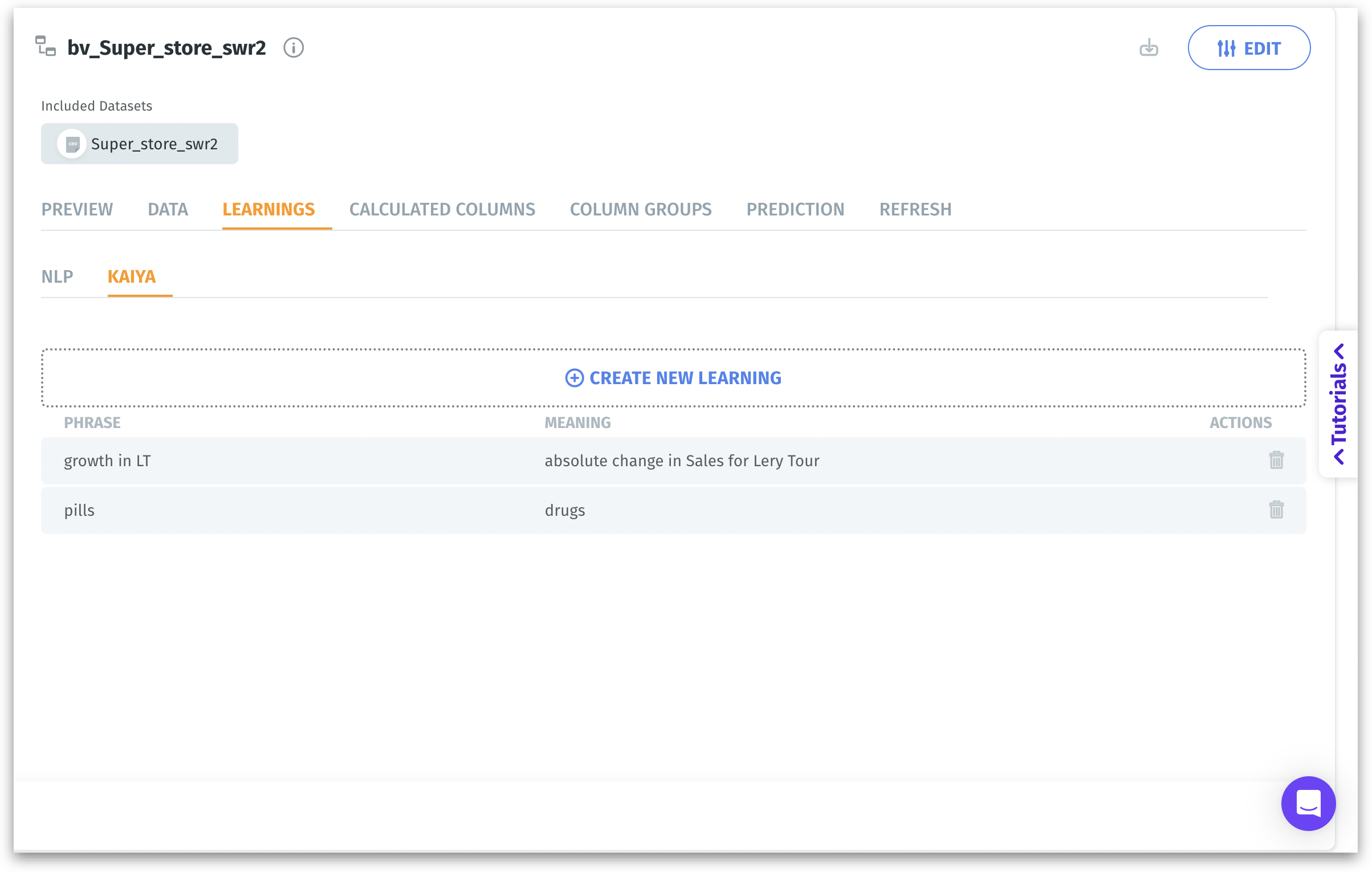
1. Click on the user icon and navigate to **Data → Business View → Learnings → Kaiya.**
2. Initially, if there are no learnings, you will find an option to create new learnings.
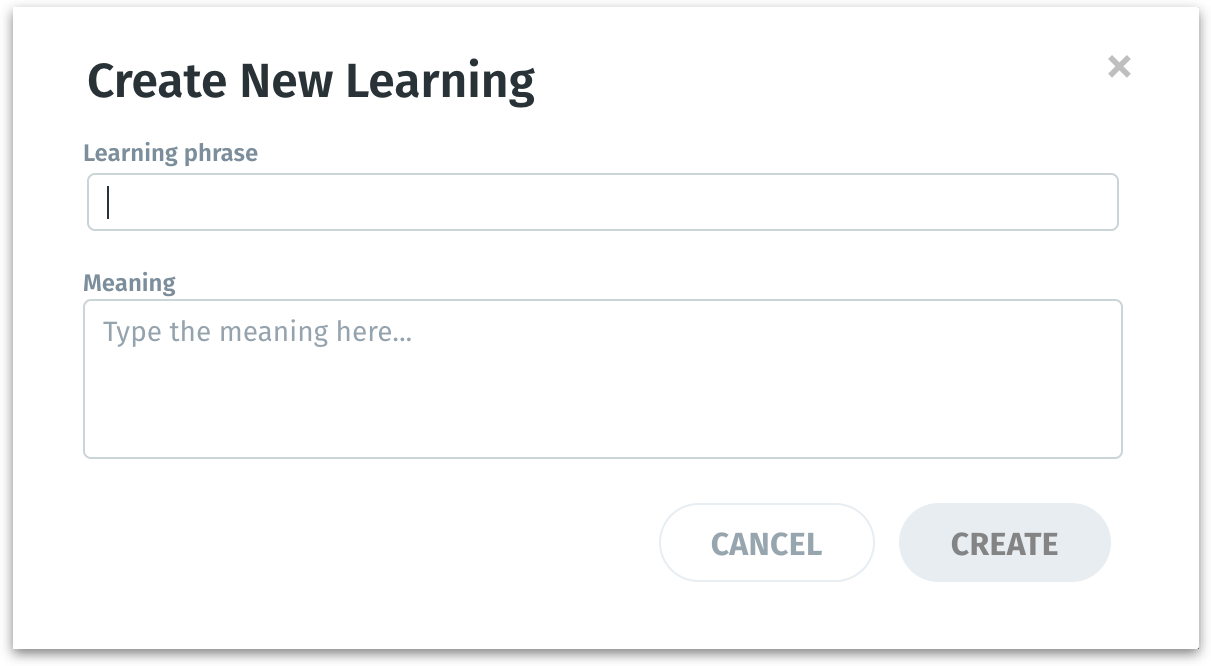
3. Click on the **Create new learning** button and the following window will be displayed.
4. Under **Learning Phrase**, provide a phrase which you want to be interpreted in a specific way. Under **Meaning**, provide the actual meaning which needs to be replaced for the phrase and click on **Create**.
5. The created learning will be displayed, which can be removed, if required.
1. For example, if you added “growth” should mean “absolute change in Sales", then search queries containing "growth” will be automatically interpreted as “absolute change in Sales" when the specific Business View is involved in Kaiya Search.
**System-level Learning**
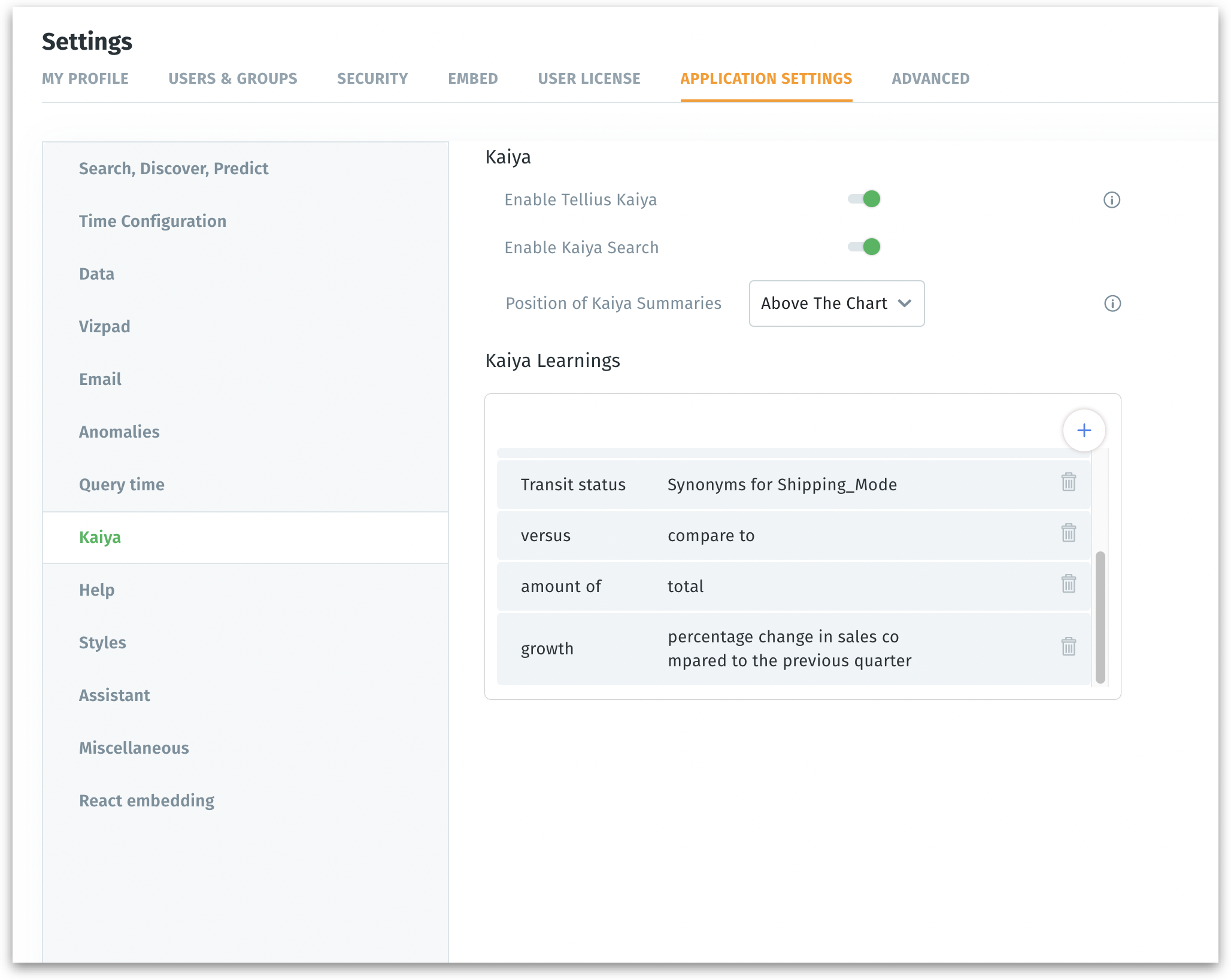
These learnings are applied globally, affecting all users and queries on the platform, regardless of the Business View. They are suitable for establishing general rules and definitions, such as mapping abbreviations to their full meanings (e.g., PLV meaning Pluvicto).
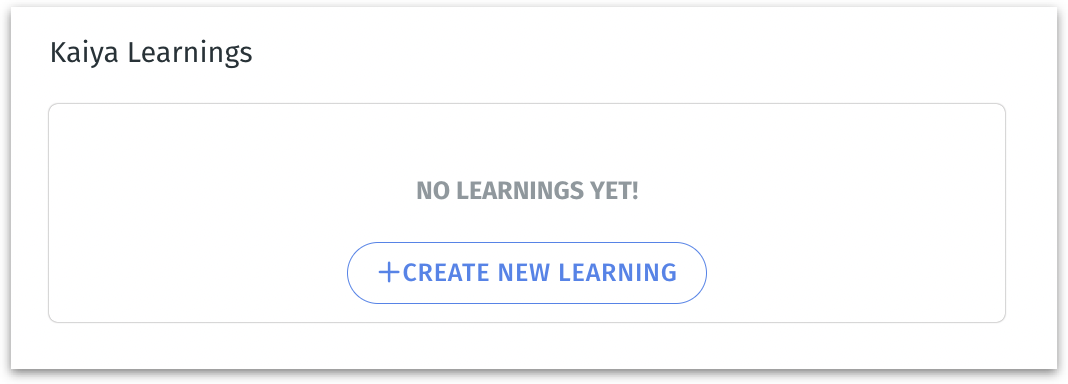
1. Click on the **Settings → Application Settings → Kaiya → Kaiya Learnings**.
2. Initially, if there are no learnings, you will find an option to create new learnings.
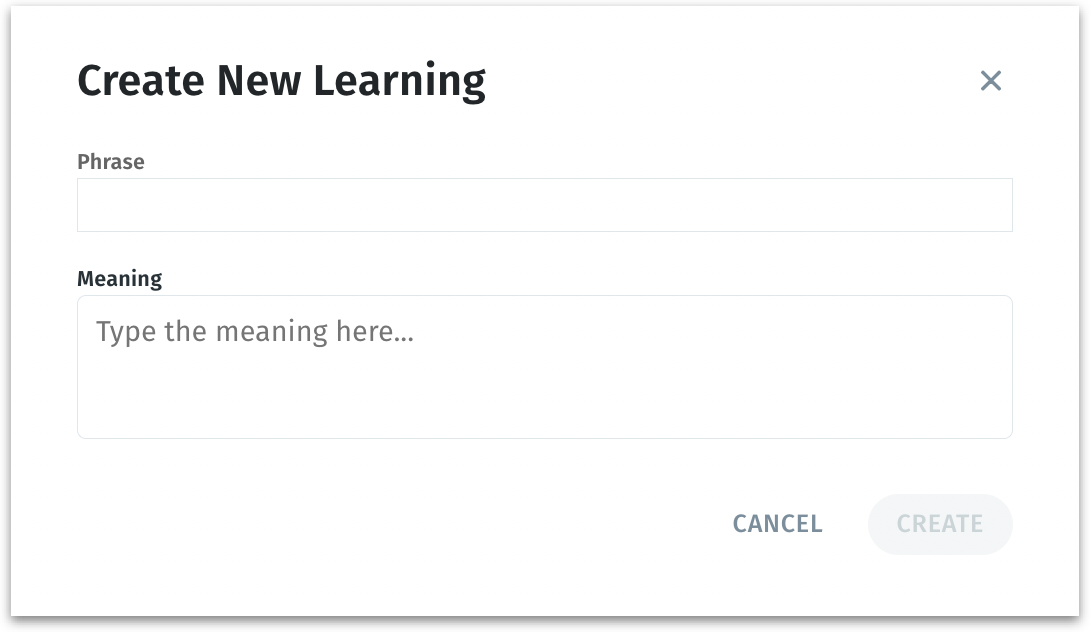
1. Click on the **Create new learning** button and the following window will be displayed.
1. Under **Phrase**, provide a phrase which you want to be interpreted in a specific way. Under **Meaning**, provide the actual meaning which needs to be replaced for the phrase and click on **Create**.
2. The created learning will be displayed, which can be removed, if required.
1. For example, if you added “PLV” should mean “Pluvicto”, then search queries containing “PLV” will be automatically interpreted as Pluvicto across Tellius, irrespective of the Business View.
---
# Agent Instructions
This documentation is published with GitBook. GitBook is the documentation platform designed so that both humans and AI agents can read, navigate, and reason over technical content effectively. Learn more at gitbook.com.
## Querying This Documentation
If you need additional information that is not directly available in this page, you can query the documentation dynamically by asking a question.
Perform an HTTP GET request on the current page URL with the `ask` query parameter, and the optional `goal` query parameter:
```
GET https://help.tellius.com/tellius-documentation/kaiya/kaiya-conversational-ai/kaiya-learnings.md?ask=&goal=
```
`ask` is the immediate question: it should be specific, self-contained, and written in natural language.
`goal` is optional and describes the broader end goal you are ultimately trying to accomplish on behalf of the user. GitBook uses it to tailor the answer towards what is most useful for that goal.
The response will contain a direct answer to the question and relevant excerpts and sources from the documentation.
Use this mechanism when the answer is not explicitly present in the current page, you need clarification or additional context, or you want to retrieve related documentation sections.