# Actions in Edit mode

There are two ways in which you can access Vizpad in Edit mode.&#x20;

* Creating a new Vizpad
* Editing an existing Vizpad

### **Creating a new Vizpad**

Click on **Explore** on the left pane and click on the plus (Create new Vizpad) sign. You will be redirected to a blank canvas shown below:

<figure><img src="https://977923713-files.gitbook.io/~/files/v0/b/gitbook-x-prod.appspot.com/o/spaces%2FJHwf1QFuv1BRPzfSnL2Z%2Fuploads%2FZiE61IsMwQsD3BXVVNWg%2Fimage.png?alt=media&#x26;token=0e073de8-587a-4844-9dfc-8c542808c62b" alt="" width="375"><figcaption><p>Creating a new Vizpad</p></figcaption></figure>

### **Editing an existing Vizpad**

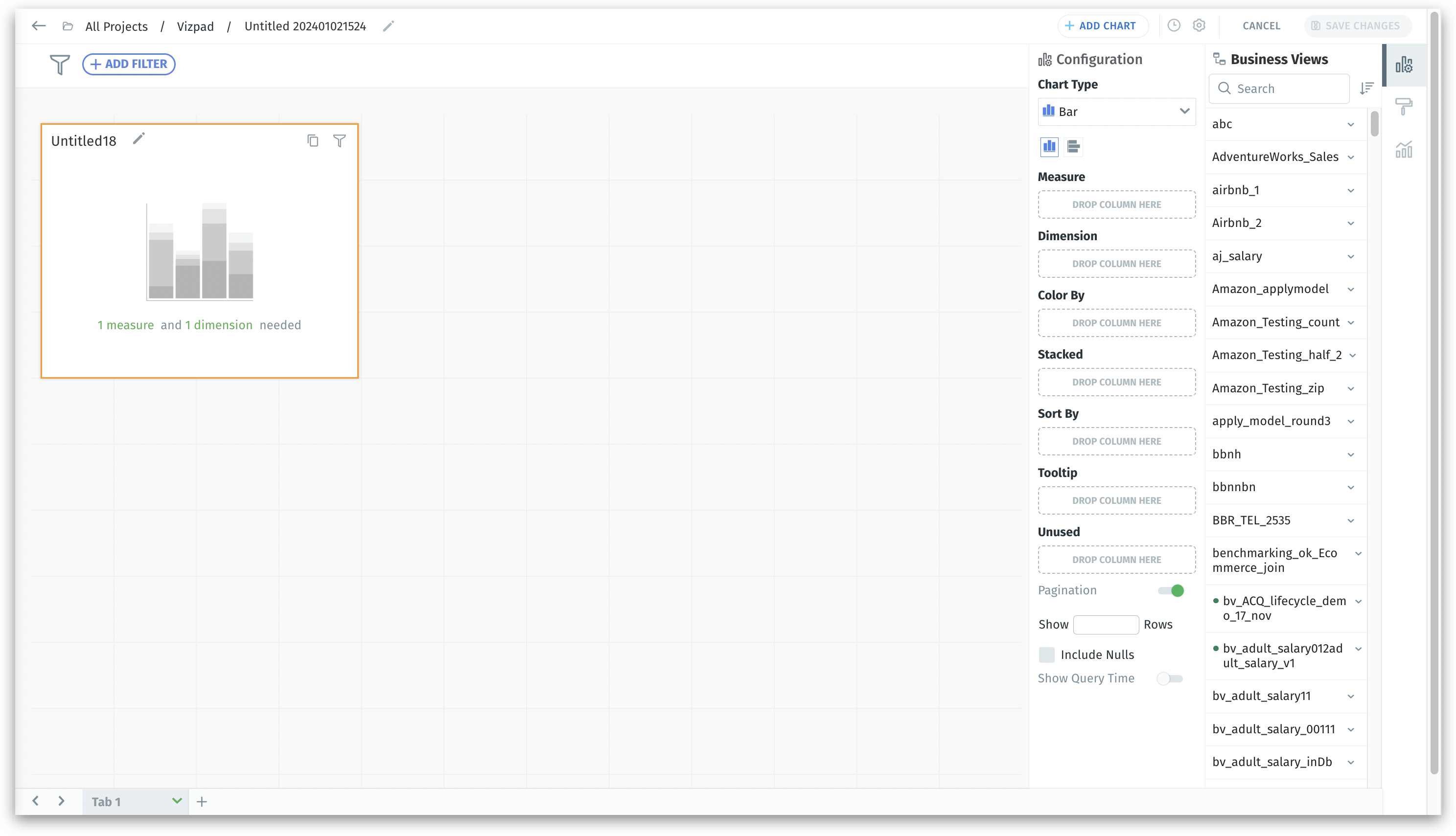
Click on Explore on the left pane. The existing Vizpads will be displayed. Select any required Vizpad that needs to be edited, and you will be able to view the screen shown below:

<figure><img src="https://977923713-files.gitbook.io/~/files/v0/b/gitbook-x-prod.appspot.com/o/spaces%2FJHwf1QFuv1BRPzfSnL2Z%2Fuploads%2Fc2ACUf9BFcshWoun4Gcj%2FFrame%2039%20(1).png?alt=media&#x26;token=37778cf0-1dec-43c6-a3fe-e88a8a91434d" alt="" width="375"><figcaption><p>Editing an existing Vizpad</p></figcaption></figure>

Both of the above screens are similar except for the presence of charts in an existing Vizpad. Let's break down the components found on the above screen.

{% hint style="warning" %}
To ensure secure and controlled access, only users with the appropriate permissions are authorized to create and/or edit Vizpads.
{% endhint %}

1. **Vizpad name**

Displays the current location within the Vizpad as "**All Projects / Vizpads / \[Vizpad Name]**". To rename the Vizpad, click on the pencil icon adjacent to the Vizpad name. Click on **<-** to go back to the page that displayed all existed Vizpads.&#x20;

{% hint style="warning" %}
Unsaved changes in a Vizpad will be lost if you navigate away before saving. Always save your Vizpad to retain any edits made.
{% endhint %}

2. **Add chart**

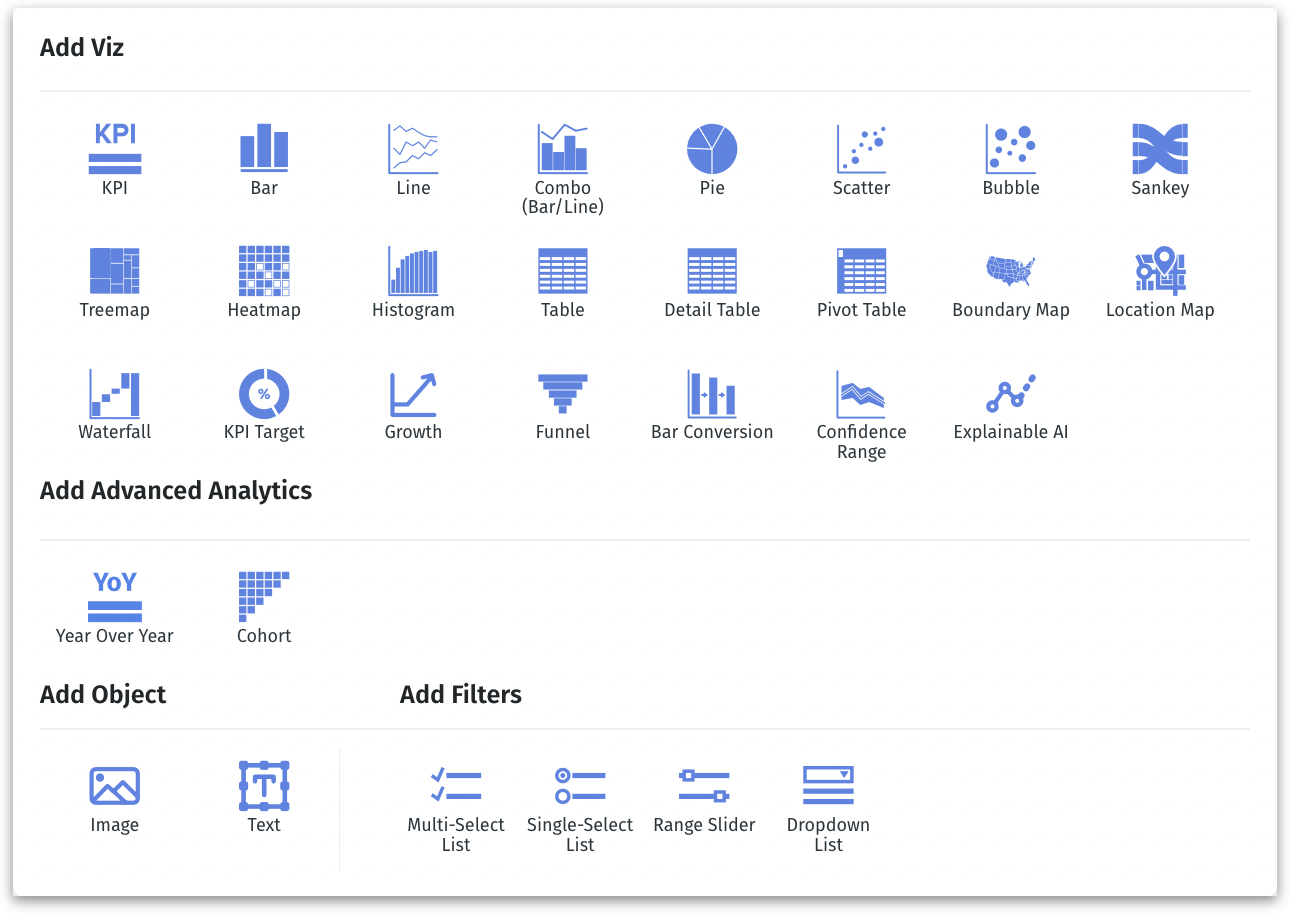
Click this button to include various chart types in a Vizpad. Tellius supports a comprehensive range of charts, including standard, advanced, and customizable objects like images and text, alongside control filters such as single-select, multi-select, range sliders, and dropdown lists.&#x20;

The following window will be displayed on clicking the **Add Chart** button:

<figure><img src="https://977923713-files.gitbook.io/~/files/v0/b/gitbook-x-prod.appspot.com/o/spaces%2FJHwf1QFuv1BRPzfSnL2Z%2Fuploads%2FasoJPqmGXWftLmIvzm71%2Fimage.png?alt=media&#x26;token=473eadb6-0a95-44d9-adef-e2ba6ad0946e" alt="" width="375"><figcaption><p>Adding a new chart</p></figcaption></figure>

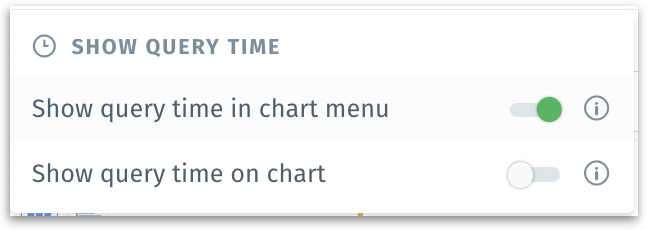
3. **Show query time**

Enabling the toggle will display the time taken to load each chart within the Vizpad, visible on top of each chart and/or within the menu of each chart. For more details, check out [this page](https://help.tellius.com/tellius-documentation/time-taken-to-load-a-chart#vizpad-level).

<figure><img src="https://977923713-files.gitbook.io/~/files/v0/b/gitbook-x-prod.appspot.com/o/spaces%2FJHwf1QFuv1BRPzfSnL2Z%2Fuploads%2F3Mh9ZVEG81REyLYgRUve%2Fimage.png?alt=media&#x26;token=0cf9c215-b742-49aa-8e83-c1c653c88c4e" alt="" width="324"><figcaption><p>Show query time window</p></figcaption></figure>

**Settings menu**

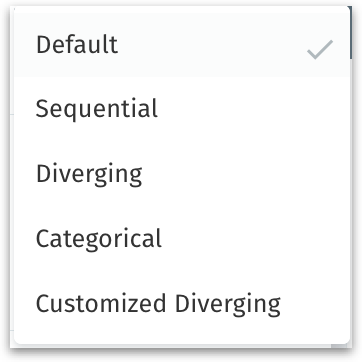
**Vizpad Color:** Customize the overall color scheme of your Vizpad by selecting from a pre-defined palette. The following options will be displayed:

<figure><img src="https://977923713-files.gitbook.io/~/files/v0/b/gitbook-x-prod.appspot.com/o/spaces%2FJHwf1QFuv1BRPzfSnL2Z%2Fuploads%2FaeZDCvcHkKvPqTTn5wnA%2Fimage.png?alt=media&#x26;token=3d5470e3-679a-4b02-885a-dc2931f5ffff" alt="" width="181"><figcaption><p>Vizpad color options</p></figcaption></figure>

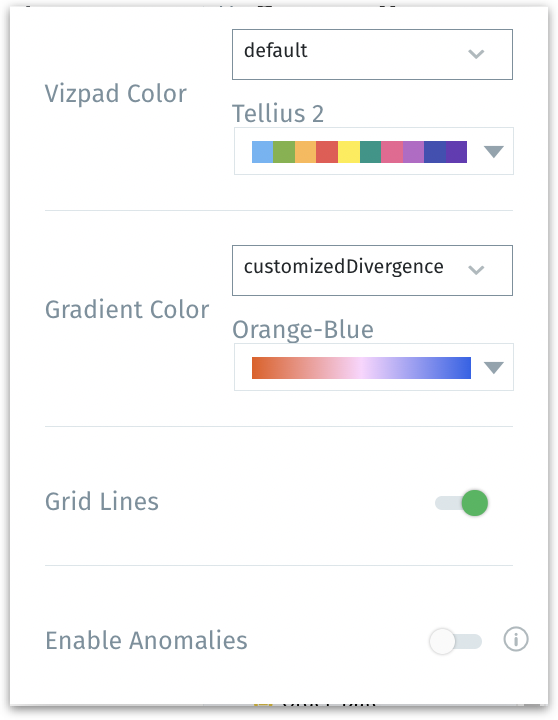
**Gradient Color:** For charts that require a color gradient, such as heat maps or gradient scales, you can select a two-tone gradient under "Gradient Color". Choose from the options below to view different color palettes.

<figure><img src="https://977923713-files.gitbook.io/~/files/v0/b/gitbook-x-prod.appspot.com/o/spaces%2FJHwf1QFuv1BRPzfSnL2Z%2Fuploads%2F3WlVi6FASoSmoKn8H4Lw%2Fimage.png?alt=media&#x26;token=4a89990e-e225-48b2-b9e7-7ffe42c85113" alt="" width="177"><figcaption><p>Gradient color options</p></figcaption></figure>

{% hint style="info" %}
**Gradient color** is a gradual blend between two or more colors, often used to represent a range of values or to denote intensity, whereas **Vizpad color** refers to the overall color theme of the Vizpad.
{% endhint %}

**Grid Lines:** This toggle allows you to turn on or off the grid lines in your charts. Grid lines can help guide the eye and improve the readability of charts, but they can be disabled if a cleaner look is desired.

**Enable Anomalies:** When this option is enabled, data points that are considered anomalies will be highlighted in line charts. Anomalies are data points that deviate significantly from the standard data patterns and could indicate important insights or errors.

<figure><img src="https://977923713-files.gitbook.io/~/files/v0/b/gitbook-x-prod.appspot.com/o/spaces%2FJHwf1QFuv1BRPzfSnL2Z%2Fuploads%2F6IkwzCDWykjylsB9135s%2Fimage.png?alt=media&#x26;token=26018bd9-a675-46ab-856b-fb1712d4d32a" alt="" width="279"><figcaption><p>Settings options</p></figcaption></figure>

4. **Save changes**

Click on **Save changes** to retain the changes made in the Vizpad. Else, click on Cancel to revert.

{% hint style="info" %}
Please note that changes will be reflected in the Vizpad only after you click on **Save changes**.
{% endhint %}

5. **Add filter**

This is a global filter and any filter set up here will get reflected across all the charts (Viz) in the Vizpad. Click on the button to begin setting up filters, and all the columns of active Business Views used in the Vizpad will be displayed. For more details, check out the Filters section on [this page](#creating-a-new-vizpad).

<figure><img src="https://977923713-files.gitbook.io/~/files/v0/b/gitbook-x-prod.appspot.com/o/spaces%2FJHwf1QFuv1BRPzfSnL2Z%2Fuploads%2Fg1LcxGtQARSLlxktne8Z%2Fimage.png?alt=media&#x26;token=1ccc00e2-47e2-439b-a282-2f614d74a8a8" alt="" width="252"><figcaption><p>Adding global filter</p></figcaption></figure>

5. **Business View legend**

The Business View used in each chart in a Vizpad can be identified using the legend displayed near the 👁️ icon. Each color represents a different Business View used in the Vizpad.

<figure><img src="https://977923713-files.gitbook.io/~/files/v0/b/gitbook-x-prod.appspot.com/o/spaces%2FJHwf1QFuv1BRPzfSnL2Z%2Fuploads%2FnEcURNDFY0w1mwAAMFIp%2Fimage.png?alt=media&#x26;token=748a879d-5f33-4ed5-acf5-48fdb9eb2fbc" alt="" width="110"><figcaption><p>Business View legend</p></figcaption></figure>

The colors can be shown or hidden when you click on the 👁️ icon. When you hover over the circle of color (in the top right corner of a chart/Vizpad), the name of the associated Business View will be displayed in the tooltip.

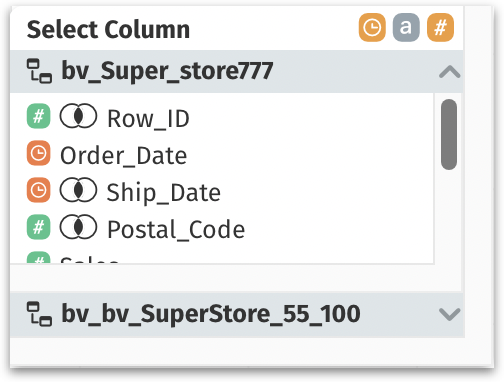
7. **List of Business Views**

This section displays the list of existing Business Views. You can search for the required Business View and sort the order of display (ascending/descending) based on Business View names.

The Business View that was used to create the first chart in a Vizpad becomes the default Business View, and it’s represented with a ⭐ near its name.

When you select a chart, only the associated Business View is enabled.

The Business Views used for the Vizpad will be listed under **Active BVs**. All the other available Business Views listed under **Other BVs** are disabled since you’ll be able to add columns to a chart from only one active Business View.&#x20;

<figure><img src="https://977923713-files.gitbook.io/~/files/v0/b/gitbook-x-prod.appspot.com/o/spaces%2FJHwf1QFuv1BRPzfSnL2Z%2Fuploads%2FbxOquRupmdToYZreE6lL%2Fimage.png?alt=media&#x26;token=6d19442d-9f9b-4f57-a4f2-3a249fe7e44a" alt="" width="195"><figcaption><p>List of Business Views</p></figcaption></figure>

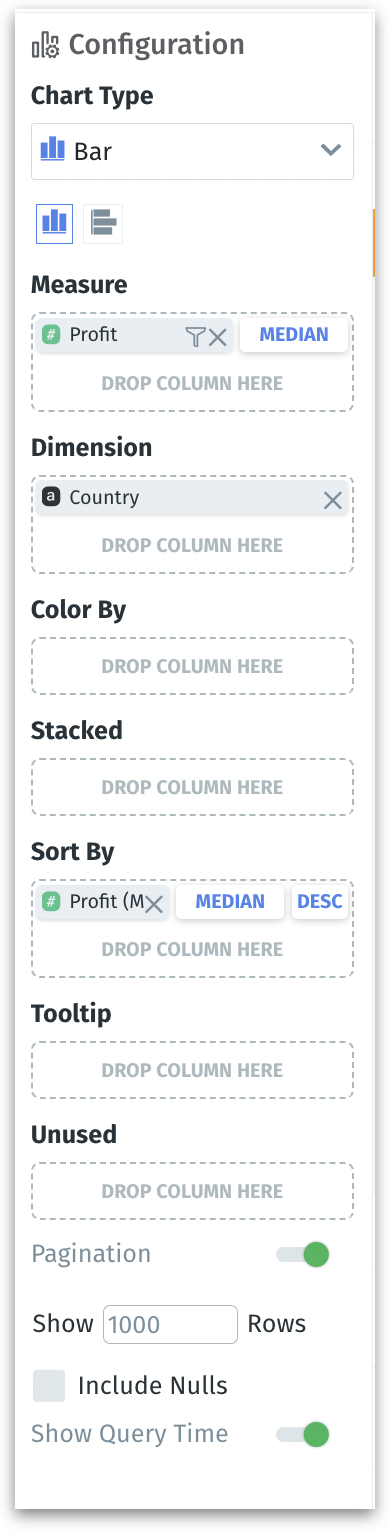
8. **Configuration**

Here, you can build charts by dragging and dropping (or double-clicking on) the required columns from the selected Business View. Enhance the charts further by applying aggregation and filters in multiple fields.

For more details, check out [this page](https://help.tellius.com/tellius-documentation/search/know-your-charts-in-tellius/building-charts-from-configuration-pane).

<figure><img src="https://977923713-files.gitbook.io/~/files/v0/b/gitbook-x-prod.appspot.com/o/spaces%2FJHwf1QFuv1BRPzfSnL2Z%2Fuploads%2FwfBKi824gdM7UNmEuir0%2Fimage.png?alt=media&#x26;token=787691f7-9d6b-4cd6-ae05-273bd504f4bb" alt="" width="196"><figcaption><p>Configuration pane with multiple fields</p></figcaption></figure>

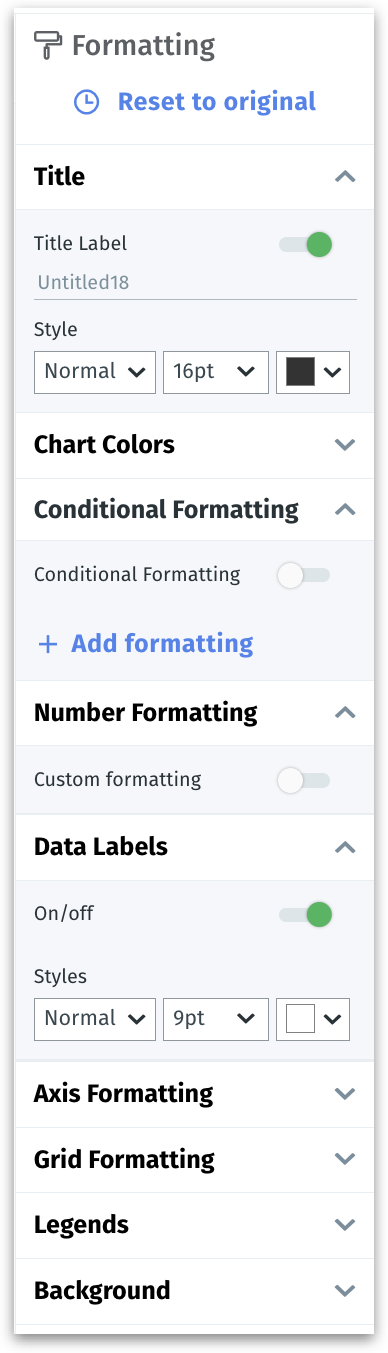
9. **Formatting**

The charts can be customized with a variety of formatting options in this section. Adjust colors, modify font styles and sizes, and explore additional formatting features for your charts. For more details, check out [this page](https://help.tellius.com/tellius-documentation/search/know-your-charts-in-tellius/formatting-charts).

<figure><img src="https://977923713-files.gitbook.io/~/files/v0/b/gitbook-x-prod.appspot.com/o/spaces%2FJHwf1QFuv1BRPzfSnL2Z%2Fuploads%2F4J2Te3d43730W0Xohasa%2Fimage.png?alt=media&#x26;token=74a3006e-bd3e-40c7-8fc3-ccc2a574a919" alt="" width="194"><figcaption><p>Formatting pane</p></figcaption></figure>

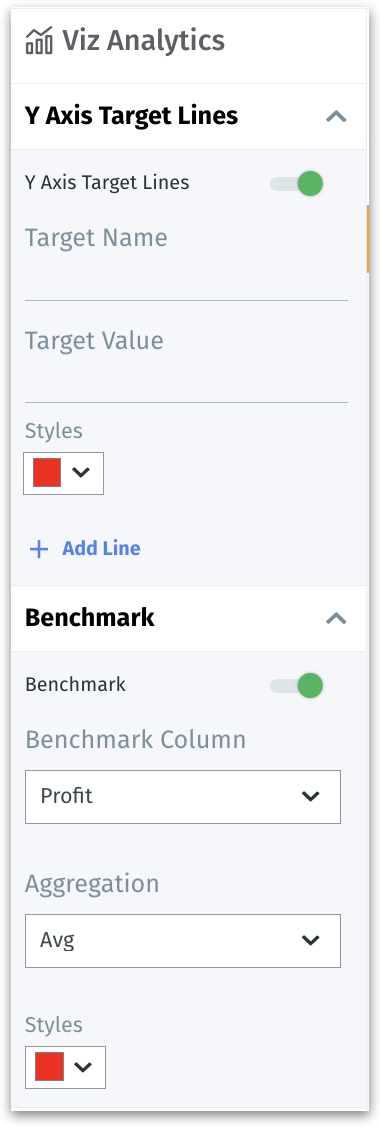
10. **Advanced Analytics**

This tab is applicable only for selected charts. Here, you can apply Y-axis target lines and benchmark for the charts. For more details, check out [this page](https://help.tellius.com/tellius-documentation/search/know-your-charts-in-tellius/advanced-analytics).

<figure><img src="https://977923713-files.gitbook.io/~/files/v0/b/gitbook-x-prod.appspot.com/o/spaces%2FJHwf1QFuv1BRPzfSnL2Z%2Fuploads%2FcqwRTch2x9r15gtyuboH%2Fimage.png?alt=media&#x26;token=de3f5ac8-732d-4e32-844c-da740c71c953" alt="" width="190"><figcaption><p>Advanced Analytics</p></figcaption></figure>

11. **Chart canvas**

This is the canvas where every chart (Viz) added will be displayed. The charts can be resized and arranged in the layout as per your preferences. A tab of a Vizpad can have a maximum of 25 Viz.

12. **Tabs**

Here, you can navigate the multiple tabs of a Vizpad. A Vizpad can have a maximum of 10 tabs.

Click on the dropdown of a tab to clone or rename it. Click on the "**+"** icon to add a new tab.

<figure><img src="https://977923713-files.gitbook.io/~/files/v0/b/gitbook-x-prod.appspot.com/o/spaces%2FJHwf1QFuv1BRPzfSnL2Z%2Fuploads%2FFma1unz6mkkdeEzLFEb8%2Fimage.png?alt=media&#x26;token=0a091e01-5a7d-4dfe-8605-264d4eade416" alt="" width="299"><figcaption><p>Tabs in a Vizpad</p></figcaption></figure>

<br>