> For the complete documentation index, see [llms.txt](https://help.tellius.com/llms.txt). Markdown versions of documentation pages are available by appending `.md` to page URLs; this page is available as [Markdown](https://help.tellius.com/tellius-documentation/vizpads-explore/date-picker-in-filters.md).
# Date picker in filters
Use the date picker in Tellius filters to apply preset ranges, custom date periods, and time slicers for flexible, accurate time-based analysis.
### **Why time slices?**
With our custom time slice picker, you can visualize data for different time slices (e.g., calculate percentage change or absolute change). These time slices can either be 3 weeks over 3 weeks change or last 3 weeks compared to the same 3 weeks last year. Support for such custom time ranges allows users to define their own **Time Period** and compare the data for different time frames as required. Also, scroll down to know how to customize the calendar view.
### **Where to find the time slices?**
Time slices can be created for any date range filter under **Explore** and **Discover** tabs.
In **Release 4.0**, the date picker has been dramatically redesigned to enhance the user experience.
### **Date picker under Explore tab**
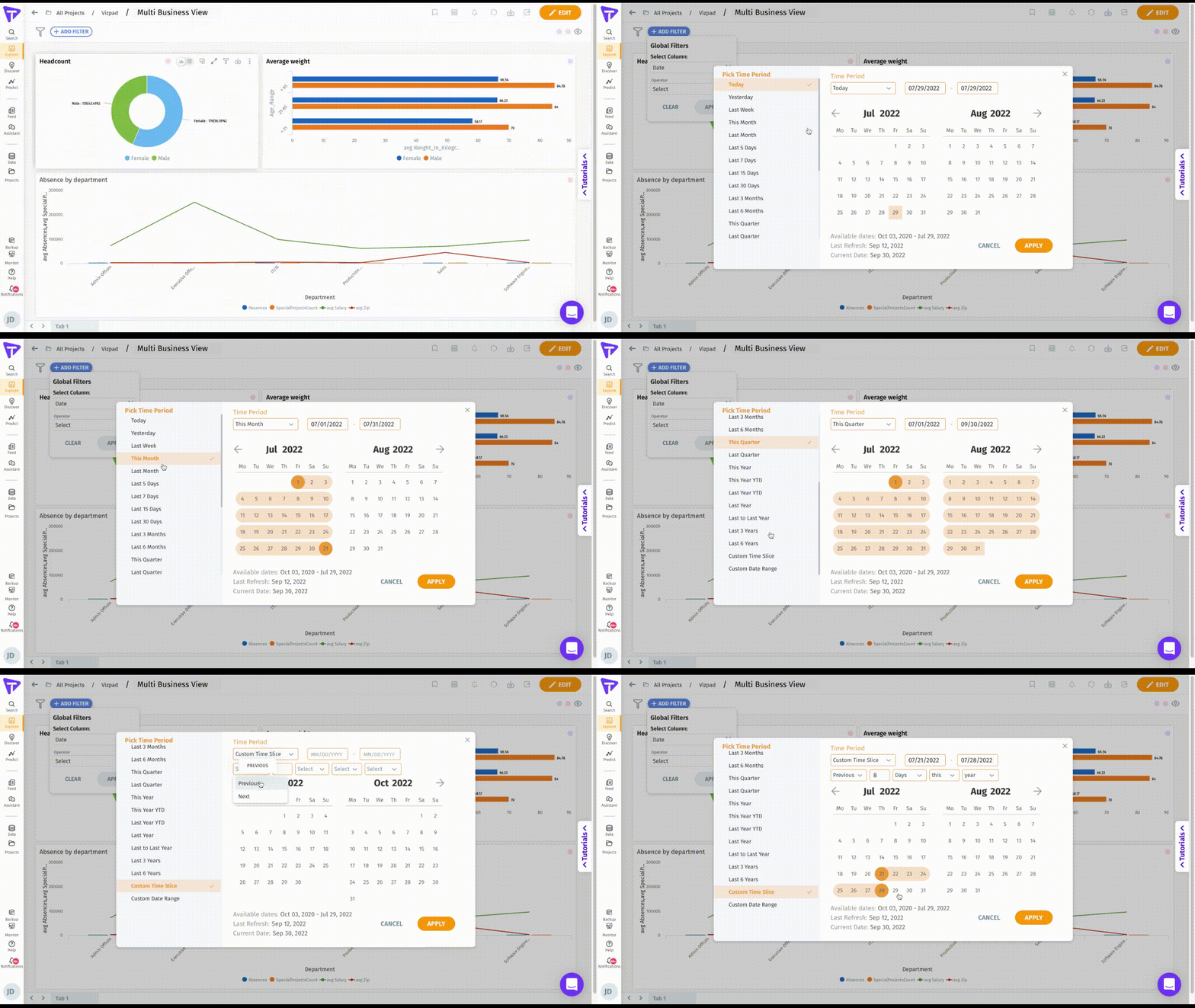
When you filter using a date-based column, the following window appears:
Date picker window
1. The left pane **Pick Time Period** displays a list of pre-defined date ranges. Select the required date range.
2. The **Time Period** displays the exact ‘From’ and ‘To’ dates in MM/DD/YYYY format.
3. The corresponding range will be highlighted accordingly and displayed on the calendar.
{% hint style="info" %}
If you select any of the preset date ranges from **Pick Time Period**, you won’t be able to manually interact with the calendar or apply changes to the **Time Period** fields.
{% endhint %}
4. If you select **Custom Date Range** in the left pane, you can manually change the **Time Period** fields. Alternatively, you can interact with the calendar to select the required dates, and the **Time Period** fields will be updated accordingly.
Custom date range
5. **Custom Time Slicer** allows you to create a custom time period instead of date ranges.
6. Select **Custom Time Slicer** in the left pane; you can find another row of fields added under **Time Period**.
7. Click on each field to view the corresponding dropdown list, where you can select the required time slice. The dates on the calendar will be highlighted accordingly.
8. Using **Custom Time Slicer**, you can select *previous/next ‘n’ number of days/weeks/months/quarters/years* that exist in *this/last/last to last year*.
Custom time slicer
9. Below the calendar, you can find the following details:
* **Available dates:** The available date range according to the selected Business View.
* **Last refresh:** The date on which the dataset from the Business View was last refreshed.
* **Current date:** The current system date.
Date picker window in action
---
# Agent Instructions
This documentation is published with GitBook. GitBook is the documentation platform designed so that both humans and AI agents can read, navigate, and reason over technical content effectively. Learn more at gitbook.com.
## Querying This Documentation
If you need additional information that is not directly available in this page, you can query the documentation by asking a question.
Perform an HTTP GET request on the following URL with the `ask` and `goal` query parameters:
```
GET https://help.tellius.com/tellius-documentation/vizpads-explore/date-picker-in-filters.md?ask=&goal=
```
`ask` is the immediate question: it should be specific, self-contained, and written in natural language.
`goal` is what the user is ultimately trying to achieve, the reason they need the answer. Sharing it helps GitBook give you a better, more relevant answer. A goal is most helpful when it describes the outcome the user wants rather than restating the question. For example, with `ask=how do I create an API token`, a goal like `automate deployments from our CI pipeline` lets GitBook tailor the answer to that use case.
The response will contain a direct answer to the question and relevant excerpts and sources from the documentation.
Use this mechanism when the answer is not explicitly present in the current page, you need clarification or additional context, or you want to retrieve related documentation sections.