> For the complete documentation index, see [llms.txt](https://help.tellius.com/llms.txt). Markdown versions of documentation pages are available by appending `.md` to page URLs; this page is available as [Markdown](https://help.tellius.com/vizpads-explore/actions-in-view-mode/exporting-charts-and-vizpads.md).
# Exporting charts and Vizpads
While Vizpad-level export ships the entire Vizpad in one file, you can also export a single chart or table on its own. Vizpad-level exports can be done in both **Edit** mode and **View** mode, whereas individual chart/table level export can be done only in **View** mode.
### Exporting an individual chart
Exporting an individual chart is useful when you only need to share one visualization. Useful if you want to attach a specific KPI to an email, or pull the underlying data into Excel for further analysis.
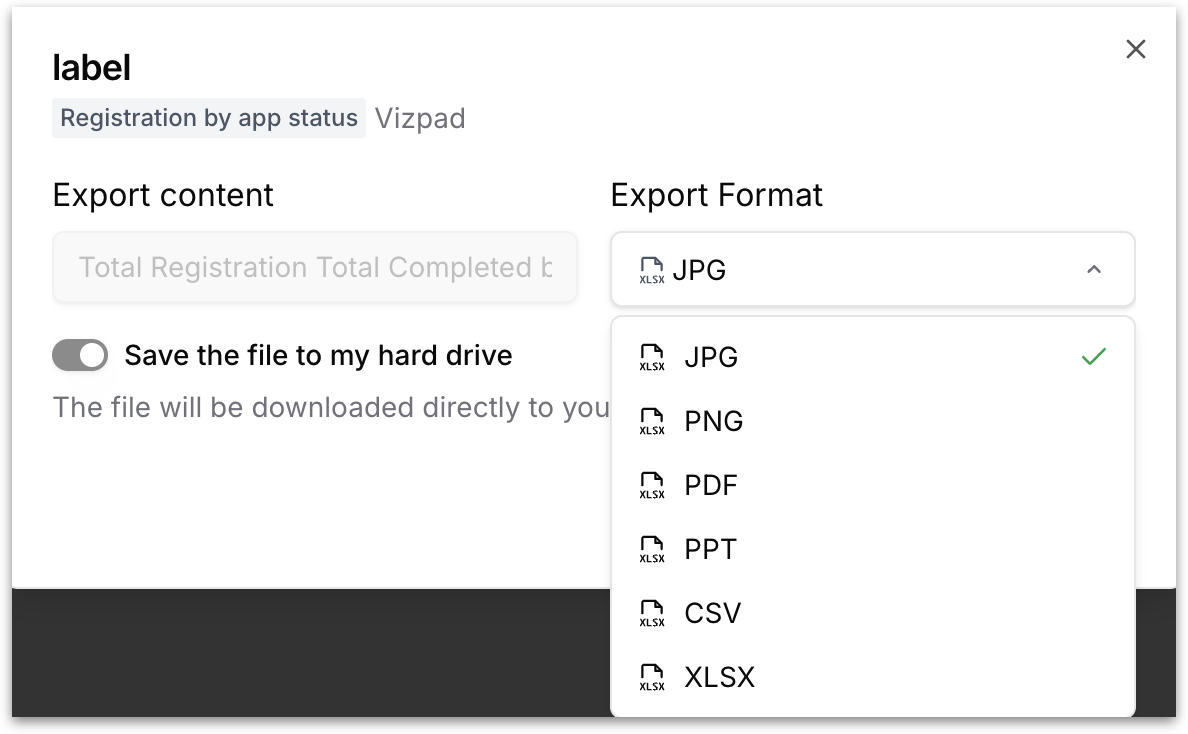
To export an individual chart, hover over the chart, click the **three-dot menu** in its top-right corner, and select **Export**. The following dialog will be displayed:
* **Export content:** A read-only label showing which chart is being exported, so you can confirm you have the right one selected.
* **Export Format:** Pick the file format. For visual charts, the available options are: JPG, PNG, PDF, PPT, CSV, and XLSX.
{% hint style="danger" icon="table-cells" %}
If the chart is in **Data/Detailed** view mode, then only CSV, Excel, and PPT options will be displayed.
{% endhint %}
* **Save the file to my hard drive:** By default, the file is downloaded directly to your device the moment you click **Export**.
* Click **Export as \[Format]** to download the file.
### Exporting an individual table
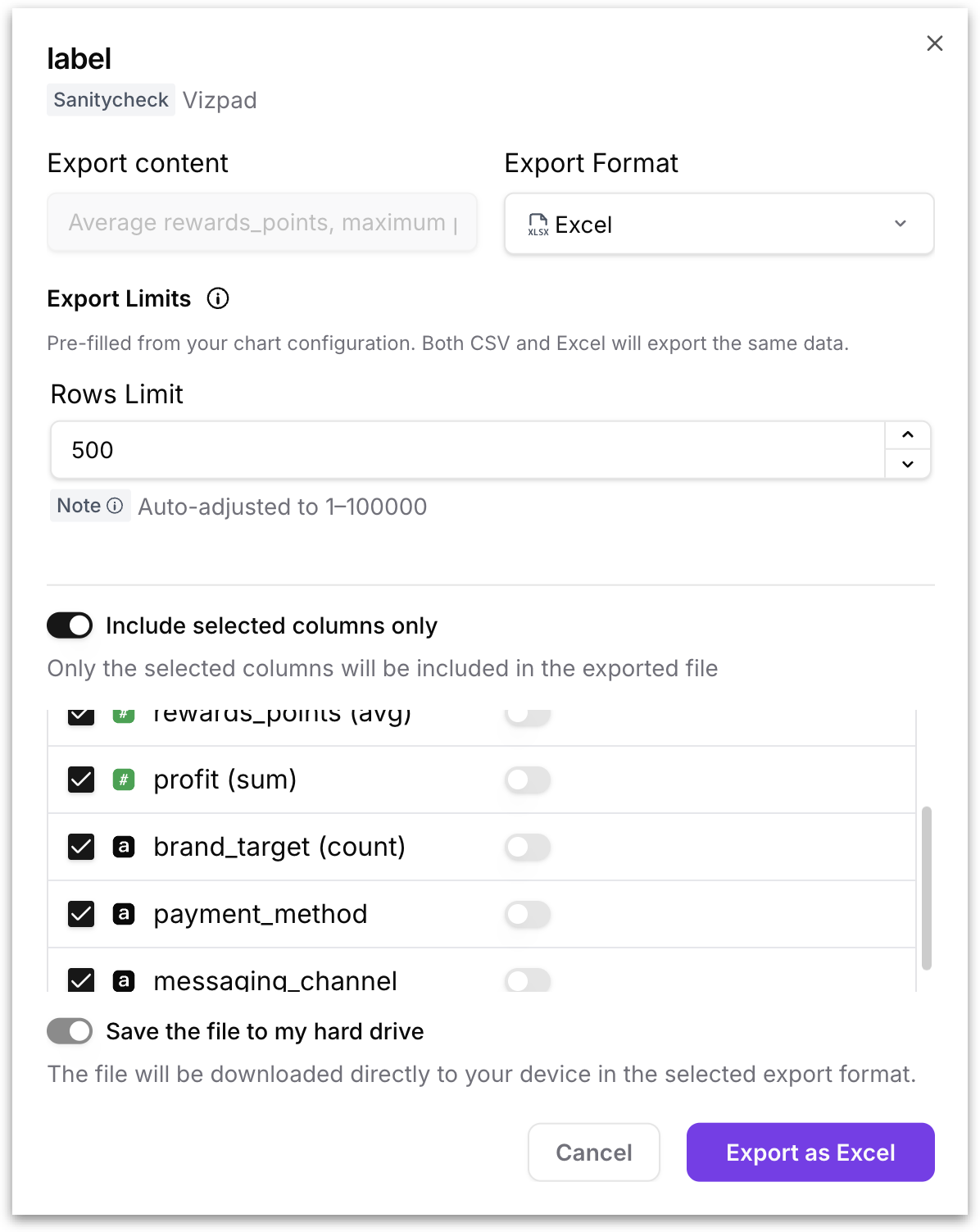
When you export a table, the dialog shows a few additional fields tailored to tabular exports:
* **Export content:** A read-only label confirming which table is being exported.
* **Export Format:** Tabular exports can be done in **CSV, Excel, and PPT** formats.
* **Export Limits:** Pre-filled from the chart's configuration. The setting controls how many rows are written to the export, and applies identically whether you choose CSV or Excel.
* **Rows Limit:** The maximum number of rows to include in the export. Tellius auto-clamps this to a 1-100,000 range. Increase the limit when you need a fuller dataset. Larger files might take a bit longer to download.
* **Include selected columns only:** When enabled, only the columns you've selected on the table are included in the exported file. When disabled, every column from the table's underlying query is included. Click on **Select All** to select all the columns.
* **Include Metadata:** Each column comes with an option to include its metadata (toggle on/off).
{% hint style="info" icon="file-spreadsheet" %}
The exported Excel file contains an additional sheet which lists metadata of included columns (if opted-in). Metadata includes **Display name, Description, Synonyms**, and **Aliases set**.
{% endhint %}
* **Save the file to my hard drive:** By default, the file is downloaded directly to your device the moment you click **Export**.
* Click **Export as \[Format]** to download the file.
{% hint style="success" icon="table-pivot" %}
* Use **Excel format** for sharing internally with business teams.
* Use **CSV** for loading into pipelines or systems that process raw data.
* Set **row limits** for faster downloads or sampling large datasets.
{% endhint %}
### Exporting a Vizpad
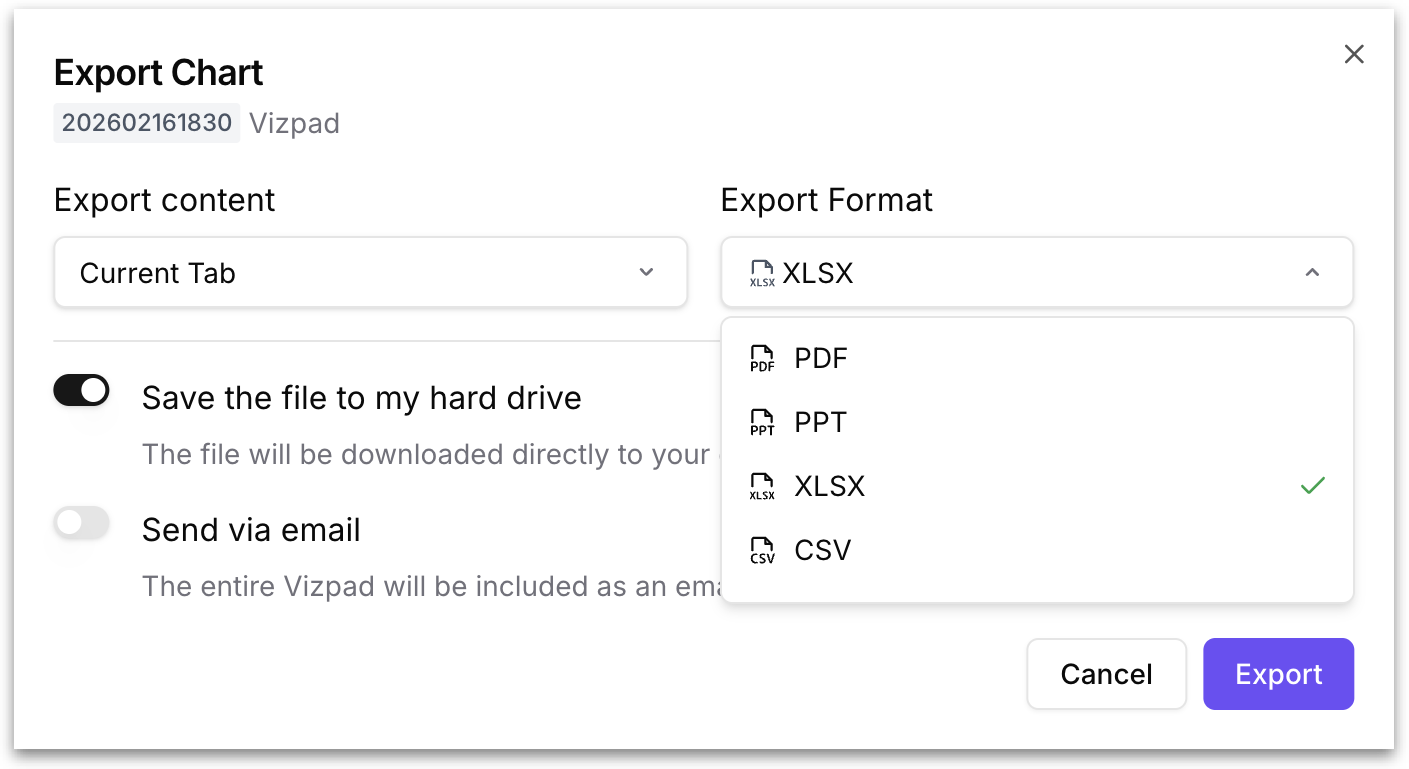
To export a Vizpad, click on the three-dot menu in the View/Edit mode and choose **Export.** This opens the following window, which lets you configure exactly what to export, in which format, and how to deliver it.
The dialog header displays the Vizpad name for reference, confirming which Vizpad you are about to export.
#### Export Content
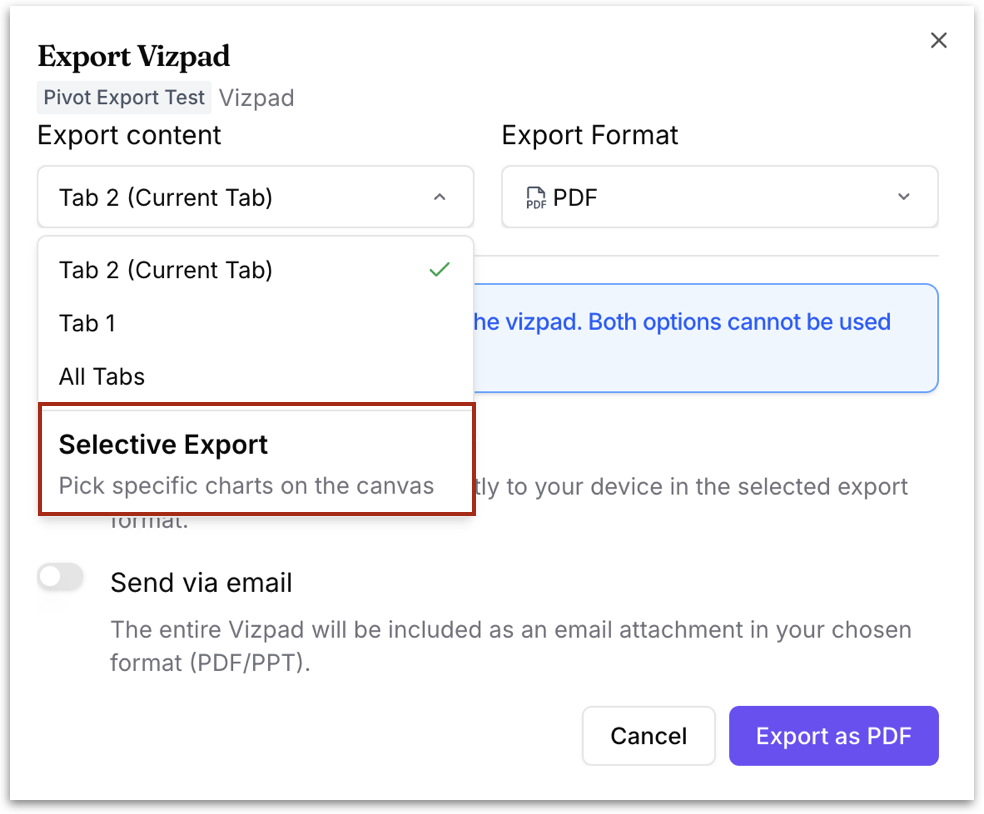
This dropdown controls the scope of the export.
**Current Tab** exports only the tab you are currently viewing. All charts, tables, and visualizations on that tab are included in the export.
**All Tabs** exports every tab in the Vizpad in a single file. Each tab's content is included sequentially.
**Selective** lets you choose specific individual charts or tables to include in the export, rather than exporting an entire tab or the full Vizpad. Use this when you only need a subset of the content. For example, a few charts to drop into a presentation, or one table to share with a colleague. Choosing this option opens the **Selective Chart Export** panel, described below.
#### Export Format
This dropdown controls the file format of the export. The available formats are:
**PDF** exports the Vizpad content as a PDF document. Charts and tables are rendered visually as they appear on screen, preserving the layout and formatting.
**PPT** exports the Vizpad content as a PowerPoint presentation. Each chart is placed on a separate slide, making it ready to incorporate into presentations and stakeholder decks without additional formatting work.
**XLSX** exports the underlying data from the charts and tables as an Excel workbook (.xlsx). Each chart's data is placed on a separate sheet within the workbook. Sheets are named using the chart title and include column headers.
**CSV** exports the underlying data from the charts and tables as CSV files. When exporting multiple charts (via Current Tab or All Tabs), the export produces a ZIP file containing one CSV per chart.
#### Delivery Method
Below the content and format selections, two delivery options are available. You can enable one or both.
**Save the file to my hard drive:** When this toggle is enabled, the exported file is downloaded directly to your device in the selected export format. This is the default delivery method and is the fastest way to get the file onto your local machine.
**Send via email:** When this toggle is enabled, the entire Vizpad is included as an email attachment in your chosen format. Use this when you want to share the export directly with recipients.
When **Send via email** is enabled in the Export Chart dialog, the following additional fields appear for configuring the email delivery.
* **Email Address:** The primary recipient's email address.
* **Cc, Bcc:** Click the "Cc, Bcc" button to expand the carbon copy fields. Provide the email address in the CC and BCC fields as required.
* **Subject:** The subject line of the notification email. Enter a descriptive subject that helps recipients understand what the attachment contains.
* **Email Message:** The body text of the email that accompanies the attached Vizpad file. Use this to provide context, highlight key findings, or add any notes.
* **Attachment Name:** The file name for the attached Vizpad export. By default this will use the Vizpad name, but you can override it with a custom name. The file extension is determined by the Export Format you selected in the previous step (PDF, PPT, XLSX, or CSV).
Click **Export & Send** to generate the export and deliver it to the specified recipients, or click **Cancel** to discard.
#### Selective Export
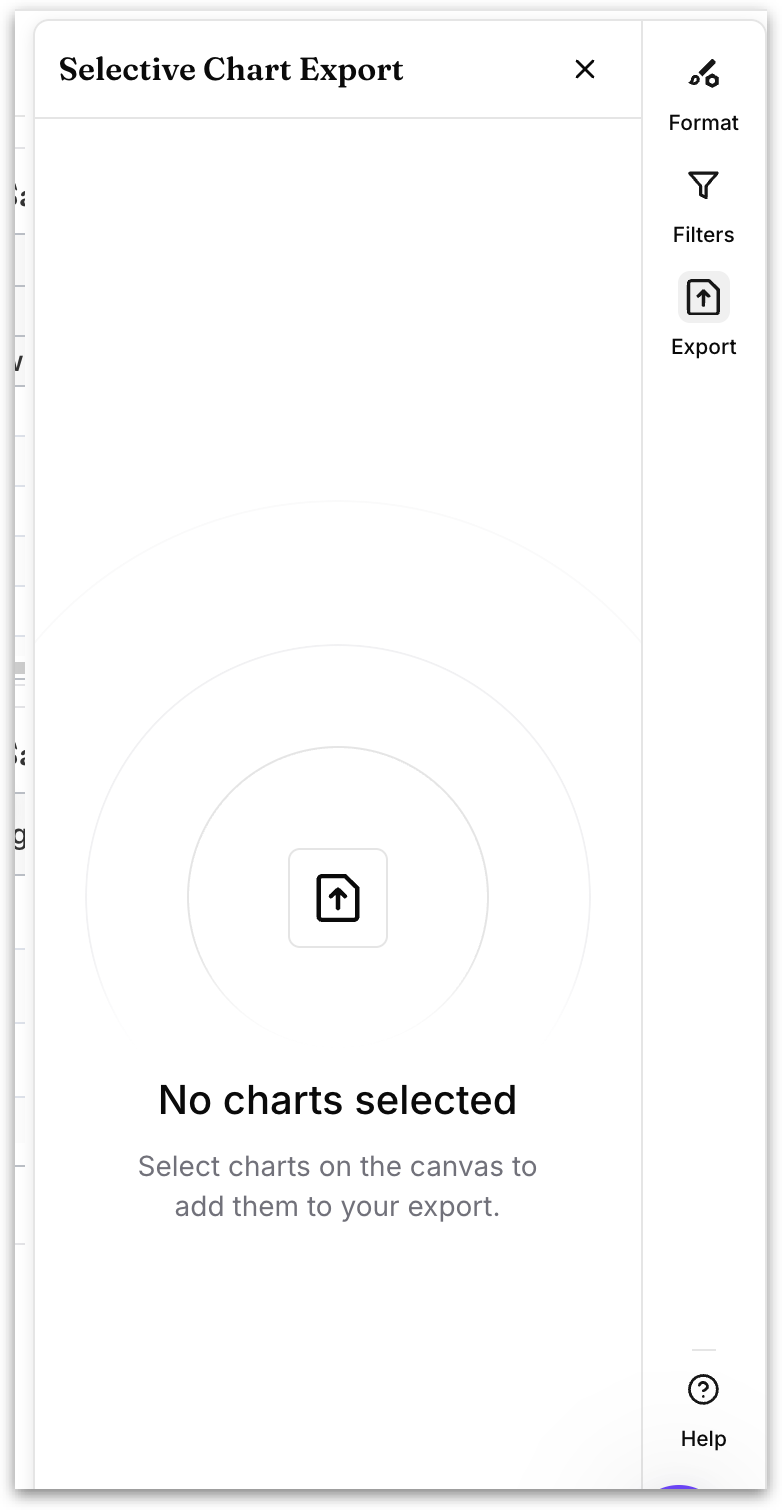
* Choose **Selective Export** from the **Export content** dropdown. The **Selective Chart Export** panel opens at the side of the screen. Until you pick anything, it reads **"No charts selected"** and prompts you to select charts on the canvas to add them to your export.
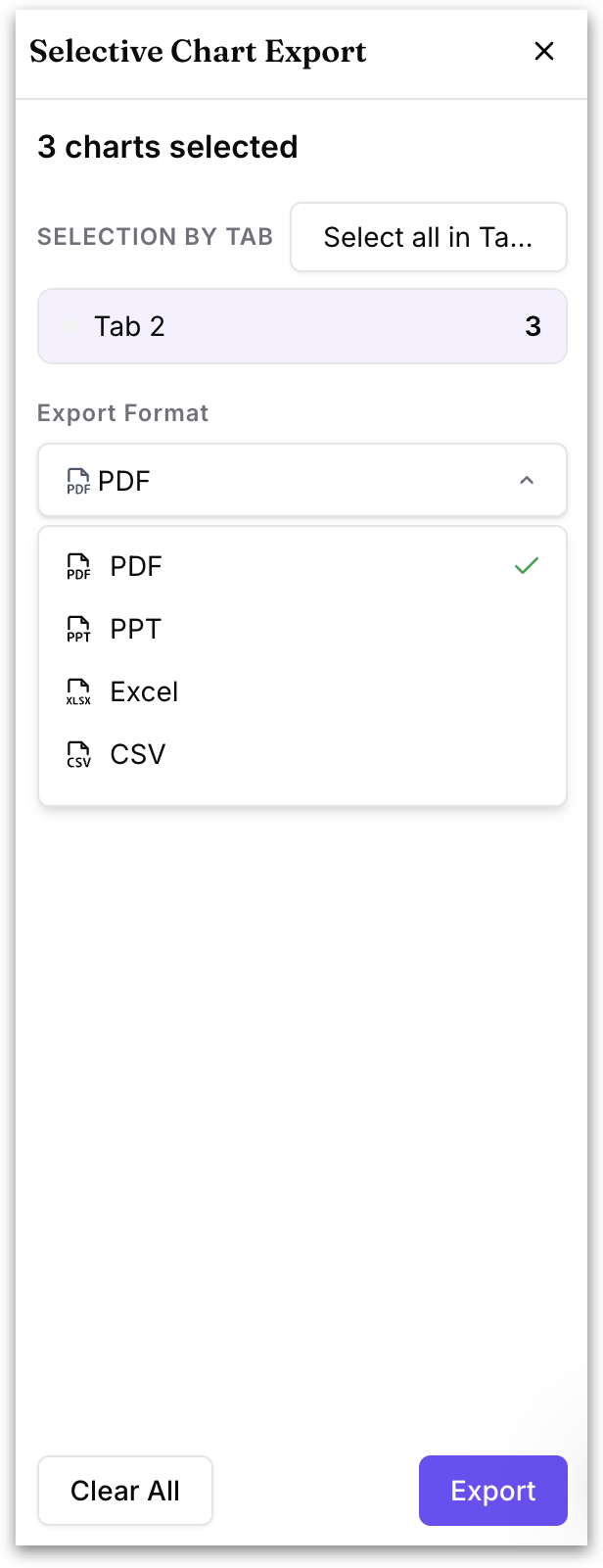
* Click charts on the Vizpad to add them. As you select, the panel updates to show how many charts are selected.
* Selected charts are grouped by the tab they belong to, with a count next to each tab name, so you can see how your selection is distributed across the Vizpad. Use **Select all in Tab** to add every chart on a tab at once.
* Pick the file format for the export. The available options are **PDF**, **PPT**, **Excel**, and **CSV**. Formats that don't apply to the charts you selected are not offered — for example, CSV and Excel are unavailable for image and text charts, which have no underlying tabular data.
* Click **Export** to generate the file, or **Clear All** to clear your selection and start again.
{% hint style="info" %}
Your selection is kept until you complete or cancel the export, and it persists if you close and reopen the panel. While a **Selective Export** is running, other export options and view switching are paused so the export can finish cleanly.
{% endhint %}
### **Export Guardrails**
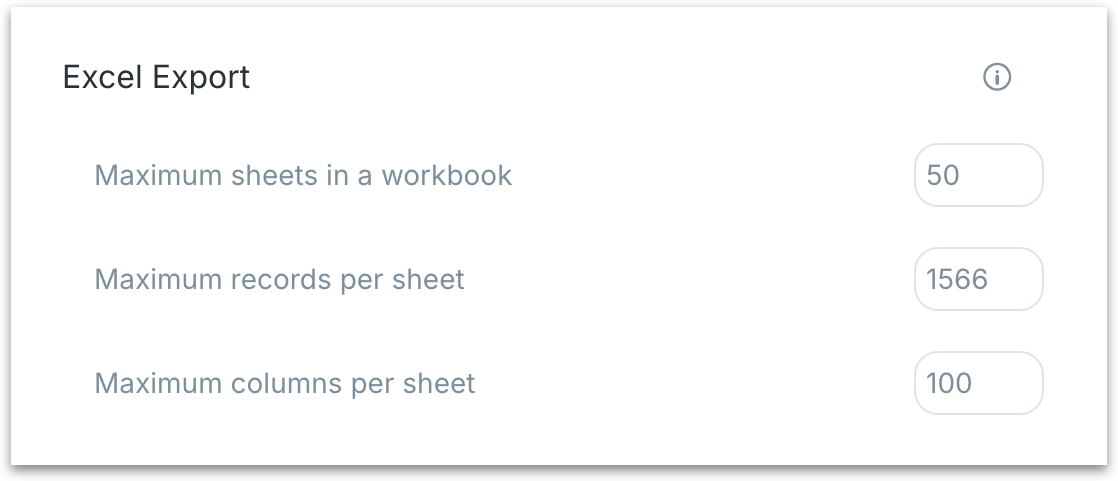
To keep exports fast and manageable, admins can configure export limits under **Settings → Application Settings → Vizpad → Excel Export**. The configurable guardrails are:
* **Maximum sheets in a workbook:** The maximum number of sheets allowed in a single Excel export.
* **Maximum records per sheet:** The maximum number of rows that a single sheet can contain.
* **Maximum columns per sheet:** The maximum number of columns that a single sheet can contain.
If any of these limits are reached during an export, Tellius truncates the remaining data and documents the truncation in the README.
---
# Agent Instructions
This documentation is published with GitBook. GitBook is the documentation platform designed so that both humans and AI agents can read, navigate, and reason over technical content effectively. Learn more at gitbook.com.
## Querying This Documentation
If you need additional information that is not directly available in this page, you can query the documentation by asking a question.
Perform an HTTP GET request on the following URL with the `ask` and `goal` query parameters:
```
GET https://help.tellius.com/vizpads-explore/actions-in-view-mode/exporting-charts-and-vizpads.md?ask=&goal=
```
`ask` is the immediate question: it should be specific, self-contained, and written in natural language.
`goal` is what the user is ultimately trying to achieve, the reason they need the answer. Sharing it helps GitBook give you a better, more relevant answer. A goal is most helpful when it describes the outcome the user wants rather than restating the question. For example, with `ask=how do I create an API token`, a goal like `automate deployments from our CI pipeline` lets GitBook tailor the answer to that use case.
The response will contain a direct answer to the question and relevant excerpts and sources from the documentation.
Use this mechanism when the answer is not explicitly present in the current page, you need clarification or additional context, or you want to retrieve related documentation sections.