> For the complete documentation index, see [llms.txt](https://help.tellius.com/llms.txt). Markdown versions of documentation pages are available by appending `.md` to page URLs; this page is available as [Markdown](https://help.tellius.com/whats-new/release-7.0.md).
# Release 7.0
Tellius 7.0 introduces AI Teammates. Until now, you worked with Kaiya by asking a question or setting up a routine. Now you can hand off the work itself. Give an AI Teammate a goal, like explaining why a region missed plan, and it keeps working in the background, gathers what it needs from your data and your team, and comes back with results. It works on your governed business data and sees only what you're allowed to see. You make the call.
AI Teammates are in beta. Every customer on Tellius 7.0 gets the Unified Interface: one Kaiya chat for questions, Deep Insights, Missions, Apps, data setup and connected apps. Missions can also keep their results from run to run, and Apps and Missions move between Tellius environments as files.
Read on to find more:
* **Unified Interface.** Ask, investigate, build an App or a Mission, set up data and connect apps, all in one conversation.
* **AI Teammates (beta).** Hand off a goal to an AI Teammate that owns that area of work. Start from your Chief of Staff, and work with your AI Teammates in Tellius, Slack or Teams.
* **Also new.** Kaiya chat that keeps up with you, connected apps set up your way, the Mission pane, email delivery for Mission schedules, Mission results kept from run to run, export and import of Apps and Missions, Settings for Missions and Apps, pausing schedules and alerts, Kaiya usage shown as cost, custom roles, voice mode and custom skills.
* **Tellius Mobile is coming.** A new Tellius app for iPhone, iPad and Android.
Further detail on the rest of the release follows below.
## **🚀 New features**
### **Unified Interface**
Everything you do in Tellius now starts from one Kaiya chat. Ask a question, run a Deep Insight, build an App or a Mission, set up data and connect apps in the same conversation, without switching pages.
* **Questions, Deep Insights, Apps and Missions in one place.** Ask a question, dig into the why, then turn the answer into an App or a Mission without leaving the conversation.
* **Set up data in the chat.** Ask Kaiya to connect a datasource. It asks only for what it needs to sign in, one question at a time, and passwords and keys go into a secure form, never into the chat. You can also connect from the datasource panel beside the chat.
* **Python and finished files.** Kaiya runs Python on query results and on files you attach, and creates PowerPoint, PDF, Word, Excel and CSV files.
* **Works with your connected apps.** Kaiya reads from the apps you connect and asks for your approval before it changes anything in them. See **Tellius as an MCP client** below.
* **Follows up on its own.** When finishing a task depends on something that hasn't happened yet, such as data arriving or a person replying, Kaiya schedules a check, tells you when it runs and when it stops, and picks the work back up.
### **AI Teammates (beta)**
AI Teammates take on ongoing work for you and your team. Kaiya chat answers when you ask. An AI Teammate takes a goal, plans the work, keeps going in the background, gets what it needs from your data and from the people involved, and comes to you only for decisions. Each AI Teammate owns an area of work, such as competitive research or regional sales, and keeps its own context. AI Teammates are in beta, and administrators choose which roles can use them on the **Roles** page. Coming next: AI Teammates that proactively spot work for you and suggest what to take on.
{% embed url="" %}
* **Start from your Chief of Staff.** **Chief of Staff**, at the top of the **Teammates** section in the left navigation, is the entry point for all your Tellius work. Ask there the way you'd ask a colleague, do the work in the same conversation, and ask it to start a new AI Teammate when an area of work needs its own owner. When you come back, it starts with what landed while you were away, what needs you, and what's quiet. Anything waiting for your answer or approval is listed above the message box.
* **Give a goal, get results.** For a "why", a deep dive or something to watch over time, your Chief of Staff hands the work to the AI Teammate that owns that area, or starts one, and writes it a goal and a plan. The AI Teammate investigates in rounds, checks its numbers and leaves a briefing, and your Chief of Staff answers your follow-ups from it. Open the AI Teammate to see its goal, its plan and what it found.
* **Work that carries on while you're away.** An AI Teammate can watch something or produce it on a schedule, and its briefings land in your conversation with your Chief of Staff.
* **Context that carries over.** Each AI Teammate keeps its own context. Your Chief of Staff reads across all of them and passes context between them when a piece of work needs it. Every AI Teammate answers from the same governed data, context models, skills and memories as Kaiya chat.
* **A browser of its own.** For a website with no connector, such as a portal behind a sign-in, an AI Teammate can work in its own browser, which runs on Tellius's servers. You can watch it live and take control.
* **Passwords and keys kept safe.** When a site or system needs a password or a key, you enter it in a secure form. It is stored in a vault and never appears in the chat.
* **Works in Slack and Teams.** Chat with your Chief of Staff in a Slack DM or a Teams chat, without opening Tellius. It can tell you what's pending in your channels. When a colleague asks in a channel, an AI Teammate answers in the thread. With your OK, it follows up with co-workers for updates or answers and brings them back to you.
* **Your AI Teammates at a glance.** The **Teammates** section of the left navigation lists your Chief of Staff first, with a count of everything waiting on you, then each AI Teammate, with a count or a dot while it works. When the navigation is collapsed, the **Teammates** icon opens the same list. On the Chief of Staff page, **Show profile and tasks** opens a panel with the work in progress. **Artifacts**, **Permissions** and the channels linked to the conversation, such as Slack and Teams, are in the **⋮** menu on the Chief of Staff page.
* **Names that fit your team.** Ask your Chief of Staff to rename an AI Teammate or change its goal, and it does so in place, keeping the AI Teammate's history, schedules and links. You can also give your Chief of Staff a name of your own, and the navigation and its page show it.
Every question your Chief of Staff or an AI Teammate asks runs under your own Business Views and row-level policies, and anything that would change a connected system, such as sending an email or posting a message, waits for your approval. **Always allow** on an approval card lets it make that kind of change from then on, and **Permissions** in the chat box lists what you always allow, with **Revoke**. In Slack and Teams, it asks for your approval before it posts for you. See [AI Teammates](https://help.tellius.com/kaiya/ai-teammates).
{% hint style="info" %}
**Your Chief of Staff or a new chat?** Ask your Chief of Staff when the question builds on earlier work, needs follow-up, or may take a while. Start a new chat for a quick, standalone question you don't want it to keep track of.
{% endhint %}
{% hint style="success" %}
**A Mission or an AI Teammate?** Build a Mission when the same steps should run the same way every time, such as a weekly cost report: its steps are fixed and every run can be audited. Give an AI Teammate a goal when the work needs thinking and planning, such as finding an anomaly and working out why. An AI Teammate can also run a Mission as part of its work, so you get both.
{% endhint %}
### **Kaiya chat that keeps up with you**
* **Queue your next message.** While Kaiya answers, you can send your next message straight away. It shows **Queued** and starts when the current response finishes. Stopping also cancels queued messages.
* **Stop with Esc.** Press Esc, or select **Stop response**, to stop Kaiya while it works.
* **Follow the steps as Kaiya works.** The status line opens by default and lists Kaiya's steps so far, including the one running now. Select it to collapse or expand the list.
* **Paste an image.** Press Ctrl+V (Cmd+V on a Mac) in the message box or the home page ask box to attach an image from the clipboard, such as a screenshot. It is checked and limited the same way as a file you attach.
* **A title bar for each conversation.** A conversation shows its name above the messages, with a menu to **Rename** it in place, **Transfer ownership** (administrators only), **Mark as Favorite** and **Delete** it, with **Undo**. **Share** is a button at the right of the title bar, including in conversations where you built a Mission or an App.
* **One card style.** Apps, Missions, skills, files, Business Views and context models appear in an answer as cards with the same layout. A file card shows its type and version, and its download icon shows a spinner while the file downloads.
### **Tellius as an MCP client**
Tellius 6.4 already brought Microsoft 365 by product, with a switch for each product such as Outlook Mail, Microsoft Teams and SharePoint; the **Connected apps** panel in the composer, with **Browse all** for the **Connectors** directory and **Connect all** for Google Workspace; more built-in connectors, such as Jira, GitHub, Granola, Read AI, Gong and Snowflake; and the **MCPs** table where administrators set up every connector. See [Release 6.4](https://help.tellius.com/whats-new/release-6.4). Tellius 7.0 adds:
* **Connect from the chat.** Ask Kaiya what you can connect, and the composer's **Connectors** menu opens with every connector, connected ones first. Administrators can also configure and turn on connectors from the chat, in the same dialogs as Settings.
* **Approve once or always.** Before Kaiya changes something in a connected system, the approval card offers **Allow**, **Deny** and, when Kaiya can offer a standing approval, **Always allow**. **Permissions** in the chat box lists what you always allow, and **Revoke** stops one from Kaiya's next call.
{% embed url="" %}
See [Tellius as an MCP client](https://help.tellius.com/kaiya/tellius-mcp-server/tellius-as-an-mcp-client).
### **Missions**
* **The pane header.** Once a run has checked the draft, **Publish** appears beside the version selector. The **More actions** menu holds **Run mission**, which runs the published version in the same conversation, **View briefing**, **Create Schedule**, **Share access**, **Transfer ownership**, **Duplicate** and **Delete**, with the same rules as the Mission's page. **Run mission** works for any published Mission, however the pane was opened, and asks you to confirm first.
* **The same menu everywhere.** The Mission's Briefing page and the Mission panel in Kaiya chat offer the same menu items, in the same order.
* **The same report on every run.** When Kaiya builds a Summary, Rich Summary or Export step, it writes a Python program for it, shown in the step's **CODE** section. Every run, from **Run** or from a schedule, executes that program, so the report keeps the form you approved.
* **Schedules deliver by email.** A Mission's schedule emails each run's briefing. When you turn on **Email** without adding anyone, your own address is filled in. See [Scheduling Missions](https://help.tellius.com/kaiya/kaiya-missions/scheduling-missions).
* **Triggers.** On the **Triggers** tab, the **From Kaiya Chat** card collapses and expands with an arrow.
* **Clearer tooltips.** When you can't delete a Mission shared with you, the tooltip says only the Mission owner can delete it. **Remix** on a Mission or an App says it creates your own copy in a new conversation, so you can edit and publish it.
* **Run history stays tidy.** Deleting the conversation of a Mission run also deletes the runs recorded in it.
{% embed url="" %}
### **Keep results in an internal datasource**
A Mission can now keep its results from run to run in an internal datasource, a storage space that Tellius manages. An App can read those results, and an App's buttons can write to it, for example to record a note or an approval. Several Missions and an App can share data this way without a data warehouse.
* **Set up in the conversation.** Ask Kaiya to keep the data, for example "Keep each run's coverage counts so I can see the history in an App." Kaiya always asks before it creates an internal datasource, and offers to reuse one you already have that fits.
* **Postgres or ClickHouse.** Kaiya recommends an engine and says why. Postgres suits many small changes, such as notes, approvals and statuses. ClickHouse suits large result sets that a Mission writes and an App analyzes.
* **Your choice of history.** Keep every run, with each row stamped with its run time, or only the latest run.
* **Only published runs store rows.** While you build and check a draft, the step reports what it would have written, so test runs don't fill your history.
* **Writes need confirmation.** Every App button that writes asks the person using the App to confirm, and they write with their own access.
* **Sharing and remixes.** Sharing a Mission or an App shares its internal datasources with write access. When you remix one, Kaiya asks whether the copy gets its own datasource or keeps writing to the original's.
{% hint style="success" %}
**Internal datasource or a connected warehouse such as Snowflake?** Use a connected warehouse when the results belong with the rest of your company's data or other tools need to read them. Use an internal datasource when the data only serves this use case, such as run history, notes, statuses or approvals.
{% endhint %}
### **Export and import Apps and Missions**
Move an App or a Mission to another Tellius environment, or keep a copy of it, as a file.
* **Export from the chat.** Choose **Export** for an App or a Mission, or ask Kaiya. Kaiya packs the App or Mission into a zip file to download, with a list of every source it reads, such as Business Views, context models, internal datasources, connected apps and document workspaces. No data travels.
* **Import by attaching the file.** Select **Import** on the Kaiya Apps or Kaiya Missions page, or ask Kaiya, and attach the zip file in Kaiya chat in the other environment. Kaiya saves the App or Mission as a new one, or as a new version when one is already open in the conversation.
* **Matched by name, checked by running.** Kaiya matches each Business View, connected app and document workspace by name in the new environment, and asks you when it can't tell which one to use. It then runs the Mission or previews the App, and reports anything that didn't run cleanly. See [Export and import Apps and Missions](https://help.tellius.com/kaiya/export-and-import-apps-and-missions).
### **Settings for Missions and Apps**
Missions and Insight Apps keep the values their steps read on every run, such as a threshold or a weighting factor. A **Settings** tab shows these values for the version on screen, each with its description and an editor that fits its type, such as a number, a toggle or a list.
* **Change a value without editing code.** Edit a value and apply it. Kaiya checks the new value and sets it on that version only, so each version keeps its own values, and a new draft starts with the values of the version it came from.
* **Where to find it.** In the Mission pane and the App panel beside Kaiya chat, and on the Insight App page. See [Settings for Missions and Apps](https://help.tellius.com/kaiya/settings-for-missions-and-apps).
{% hint style="success" %}
**Settings tab or a request in the chat?** Use the **Settings** tab to adjust a value that already exists, such as raising a threshold. Ask Kaiya in the chat when you want to change what a step does, or add a new value.
{% endhint %}
### **Pause and resume schedules and alerts**
Pause a scheduled job and resume it later, without deleting it or setting it up again. **Pause** and **Resume** appear for the same people who can delete the job, and a paused job shows **Paused**.
* **Scheduled Jobs.** Under **Notifications → Scheduled Jobs**, a job's actions menu has **Pause** or **Resume**. See [Notifications and jobs](https://help.tellius.com/getting-started/notifications-and-jobs).
* **Scheduled Missions.** The schedule's owner finds **Pause** or **Resume** beside **Edit** and **Delete**.
* **Vizpad refreshes.** In a Vizpad's **Scheduled Refreshes** dialog, beside **Edit** and **Delete**.
* **Alerts.** Under **Feed → Manage Feed**, for each alert.
* **Paused means paused.** A paused job doesn't run on its schedule or when someone runs it from Kaiya. If you ask Kaiya to run a paused schedule, it tells you it is paused and asks whether to resume it.
{% hint style="info" %}
**Pause or unschedule?** Pause when you want the job back later with the same settings, for example over a holiday or while the data is being fixed. Unschedule when you no longer need it.
{% endhint %}
### **Kaiya usage shown as cost, for everyone**
* The **Monthly Usage** tab shows total cost, cost by area and by model. Administrators see the whole workspace. Everyone else sees only their own usage, labeled **Your Cost**.
* The new **Usage** tab, for administrators, shows cost and active users across all users for the dates you choose, the last 30 days by default, with days in your own time zone. Search for a user to see their cost per day as a chart and a table, then select a day to see that day's chats, most expensive first, each with **Copy link**.
* On the **Model Pricing** tab, Super Users can add a model, set its input, cached input, cache write and output rates per million tokens, and add other names for the same model. Rates take decimals, such as 0.003.
* Current Anthropic and OpenAI models come with list-price rates, marked **Default**, and other models your workspace uses are priced from OpenCode's price list when a Super User opens **Model Pricing**. Rates you save are marked **Custom** and are never changed for you. Models reached through Snowflake Cortex, Bedrock, Vertex AI or Azure OpenAI stay for you to price.
* Models used in the last 30 days without a price are listed with their token counts, most used first. **Link to…** makes one a synonym of a priced model, and **Set price** prices it in place.
* On the **Limits** tab, **Per-user limits** lists the highest spenders first and sorts across all users.
{% embed url="" %}
{% hint style="warning" %}
**Check your caps after upgrading.** When a model gets **Default** rates, its usage since the start of the month is costed too, so month-to-date spend can rise at once and reach a cap. Open **Monthly Usage** and **Limits** after the upgrade, and adjust the caps if you need to.
{% endhint %}
### **Custom roles**
* The **View effective access** dialog shows each module's level for a user, grouped by module heading in two columns, with a count at each level. Select a level to make its modules stand out, and point to a module to see which roles and groups grant it. Open it from **My Profile**, beside **Roles in effect**, or from a user's row menu on the Users page.
* Building an App in Kaiya chat, saving a new version of it or changing its code needs **Full Access** to **Apps**. Renaming or deleting someone else's App also works with **Content management**. A role with **Read Access** still opens Apps, and their data refreshes keep running. In the chat, a card for an App or a Mission that the role doesn't include stays visible and says so.
* Running a published Mission with **Run**, and emailing its report, needs **Read Access** to **Missions**. Creating, publishing or scheduling one needs **Full Access**, and Kaiya checks your role before it starts building, so a role that can't create a Mission or an App finds out at the start rather than after the work.
* A new **AI Teammates** module, labeled **Scout** in the role editor, decides who can work with the Chief of Staff and AI Teammates. After the upgrade, only Super User holds it. See [Custom roles](https://help.tellius.com/settings/users-and-access/custom-roles).
### **Voice mode**
* **Do more by voice.** Voice mode can do the same work as typing: build Apps, create, publish and run Missions, and export files. It also works when **App** or **Mission** is selected for a new chat.
* **Progress your way.** When longer work starts, Kaiya asks how you want to hear about it: every step, every so often (from 10 seconds to 10 minutes, and only when something new happened), or only when it's done. Say so at any time to change it. Updates cover real milestones, and when a step is taking longer, Kaiya says so. If a step failed or didn't finish, Kaiya says so first, then gives the findings. When something needs your approval, Kaiya tells you what to confirm on screen.
* **Several requests at once.** Ask for up to three things. Each becomes its own turn in the chat, in the order you asked, and a request made while longer work runs waits its turn.
* **Context kept.** Kaiya builds on the answers before, also after you switch from typing to voice, mute the microphone, start voice mode again, or the connection drops. An answer that arrives while the connection is down is spoken once it's back.
* **Transcript.** What you said appears on the right, and what Kaiya said on the left.
* **Dictate keeps listening.** Dictate keeps listening through pauses until you stop it.
### **Custom skills**
* **Every change asks first.** Kaiya shows each change on a card and saves it only after you select **Approve** on the bar under the card or at the foot of the skills panel. A delete asks with a red **Delete skill** button. Saved changes apply from your next question.
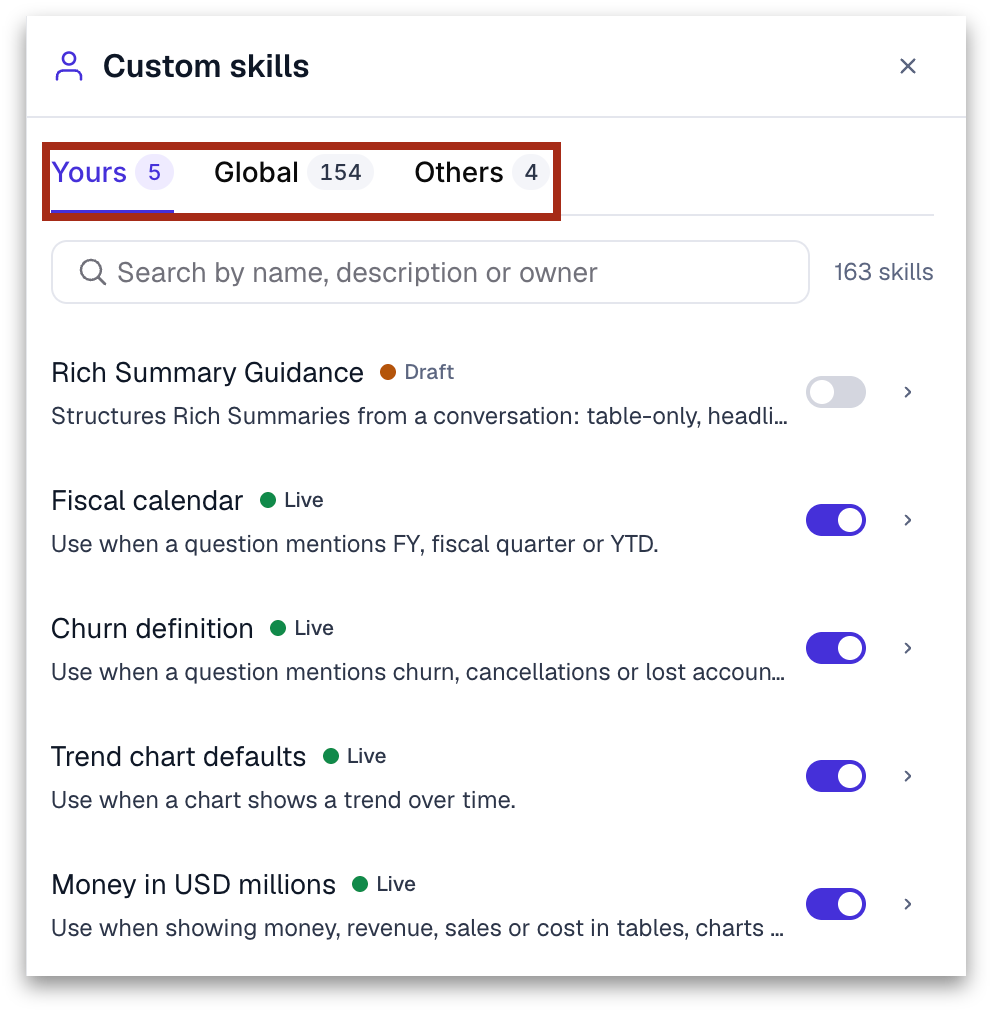
* **Skills beside the chat.** The skills panel has **Yours**, **Global** and **Others** tabs. Open a skill to publish or unpublish it, edit it with Kaiya, open it in Skills, make it global or delete it. When an answer used both kinds, **Skills in this answer** switches between custom and domain skills.
### **Tellius Mobile is coming**
A new Tellius Mobile app for iPhone, iPad and Android is on its way. Ask Kaiya about your data, read the briefings your Missions send, and work with your Missions and Apps from your phone or tablet. Your conversations are the same ones you see on the web, so you can start a question at your desk and finish it on the move. See [Tellius Mobile](https://help.tellius.com/getting-started/tellius-mobile).
## 📈 Enhancements
### **Kaiya**
1. Describe Memory uses a plain text box, and its example shows as a grey hint until you type.
2. The tour button on the Apps, Agent Library, Mission and Home pages shows **Take a tour** when you point to it.
3. Kaiya tables and chart tooltips use the Business View's number format.
4. The **?** help icons in Settings open the matching page on help.tellius.com.
5. Every question asked from the Home page starts a new chat, and **Search anything** in the Home header (⌘K) opens global search. See [Tellius Home Page](https://help.tellius.com/getting-started/tellius-home-page).
### **Administration**
1. The Microsoft Teams setup steps in **Settings → Integrations** follow the current Teams Developer Portal.
2. Slack and Teams bots use the Tellius address set on their integration tab for **View in Tellius** and account-link links. It is filled in from your browser's address, and administrators can change it. See [Slack Integration](https://help.tellius.com/settings/administration/slack-integration).
## **🛠️ Minor fixes**
### **Kaiya**
1. Ensured that the cursor stays in view when you add a new line with Shift+Enter.
2. Ensured that declining an approval ends Kaiya's turn, instead of leaving the reply at **Working…**.
3. Ensured that **Stop** also stops a response that is still getting ready.
4. Earlier messages in a conversation load when the latest answer doesn't fill the chat window.
5. When you select **Deny** on a permission request, such as deleting a skill, Kaiya doesn't ask again for the same action.
6. The footer of a clarification question, with its keyboard hints, **Skip** and **Submit**, fits narrow chat panels.
7. An App's preview shows beside the conversation when a colleague continues a conversation shared with them.
8. The **Connected apps** list in the composer is aligned.
### **Deep Insights**
9. Deep Insights check that every item named in the question, such as each product, is included in the analysis.
### **Missions**
10. Mission runs do less repeated work: steps that are ready at the same time run together.
11. Searching for a Mission by name when you set up a schedule works the same way as elsewhere in Tellius.
12. When you start a Mission with **Run**, its request shows in the chat while the run is going, not only when it finishes.
### **Apps**
13. Ensured that a copied App opens its own version.
### **Vizpads**
14. Long Vizpad titles are shortened in the Vizpad header and in the **Scheduled Refreshes** dialog, so the controls beside them stay visible.
15. Long Vizpad titles end with an ellipsis instead of making the page scroll sideways.
16. New charts follow the **Include NULL** default set in Settings.
17. With **Include Nulls** off, pivot row and column totals, the advanced pivot grand total and the interactive table total leave out the hidden NULL rows.
18. Pivot totals of measures with a quick calculation show **-**, and the advanced pivot grand total loads.
19. A pivot with a moving calculation works when the other date axis is weekly or daily.
### **Data**
20. When the connected data source account, such as a Snowflake account, is temporarily locked, a chart shows **Data connection unavailable** and asks you to contact your data source administrator.
21. Improved how the dataset list loads, so the page appears sooner, and a message explains when the list can't be loaded.
22. In Kaiya Architect, switching between datasets in the YAML view works smoothly.
23. Saving a change to a context model shows one confirmation.
### **Administration and access**
24. Ensured that each model call is counted once in Kaiya Cost, which can change usage totals.
25. Creating a role with a name that's already in use shows a message saying so.
26. When an LLM configuration doesn't pass validation, the settings page shows the reason.
27. You can share a Vizpad and other content with an administrator, so it appears in their lists.
### **Interface**
28. When your connection drops, a notice says you're offline and that Tellius is showing what was already loaded, and another tells you when you're back online.
29. Pages load normally after a Tellius update, and when the browser's stored data needs to be refreshed.
30. After a signed embed link was opened in the same browser, exports work in a normal Tellius tab, and a tab that needs you to sign in shows the login page instead of an error page.
---
# Agent Instructions
This documentation is published with GitBook. GitBook is the documentation platform designed so that both humans and AI agents can read, navigate, and reason over technical content effectively. Learn more at gitbook.com.
## Querying This Documentation
If you need additional information that is not directly available in this page, you can query the documentation by asking a question.
Perform an HTTP GET request on the following URL with the `ask` and `goal` query parameters:
```
GET https://help.tellius.com/whats-new/release-7.0.md?ask=&goal=
```
`ask` is the immediate question: it should be specific, self-contained, and written in natural language.
`goal` is what the user is ultimately trying to achieve, the reason they need the answer. Sharing it helps GitBook give you a better, more relevant answer. A goal is most helpful when it describes the outcome the user wants rather than restating the question. For example, with `ask=how do I create an API token`, a goal like `automate deployments from our CI pipeline` lets GitBook tailor the answer to that use case.
The response will contain a direct answer to the question and relevant excerpts and sources from the documentation.
Use this mechanism when the answer is not explicitly present in the current page, you need clarification or additional context, or you want to retrieve related documentation sections.