Type natural language queries to explore data, get real-time visual results, and refine insights with interactive tokens, auto-suggestions, and voice input.
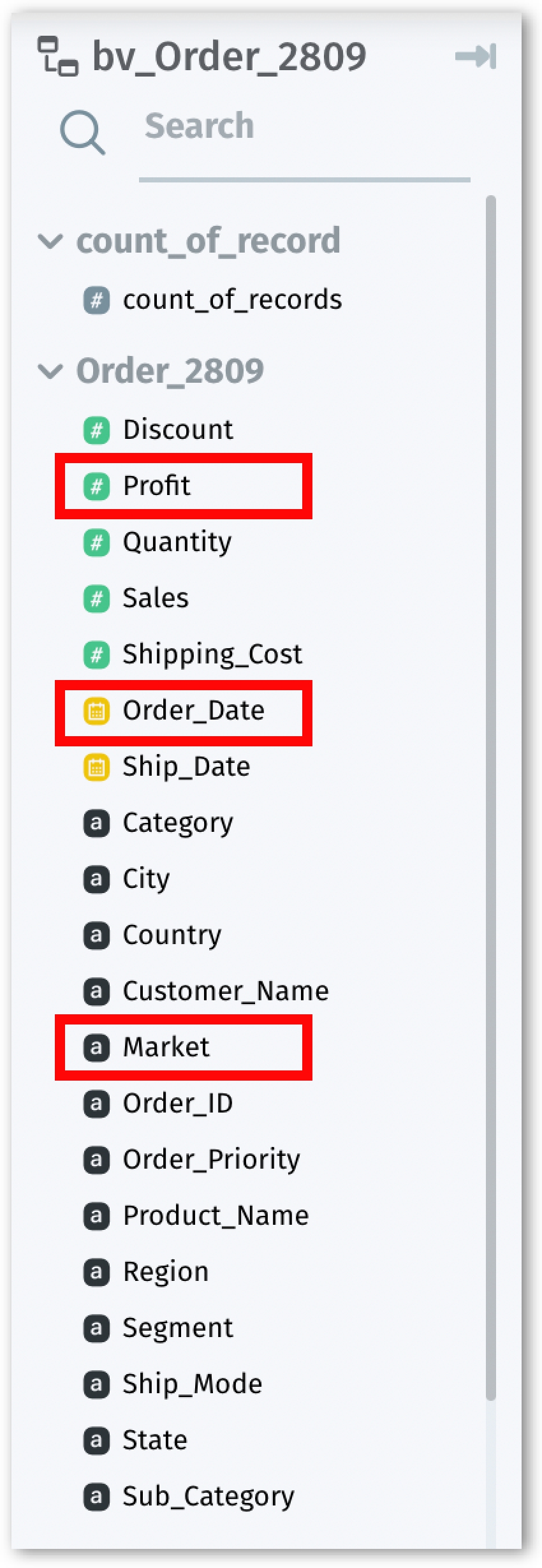
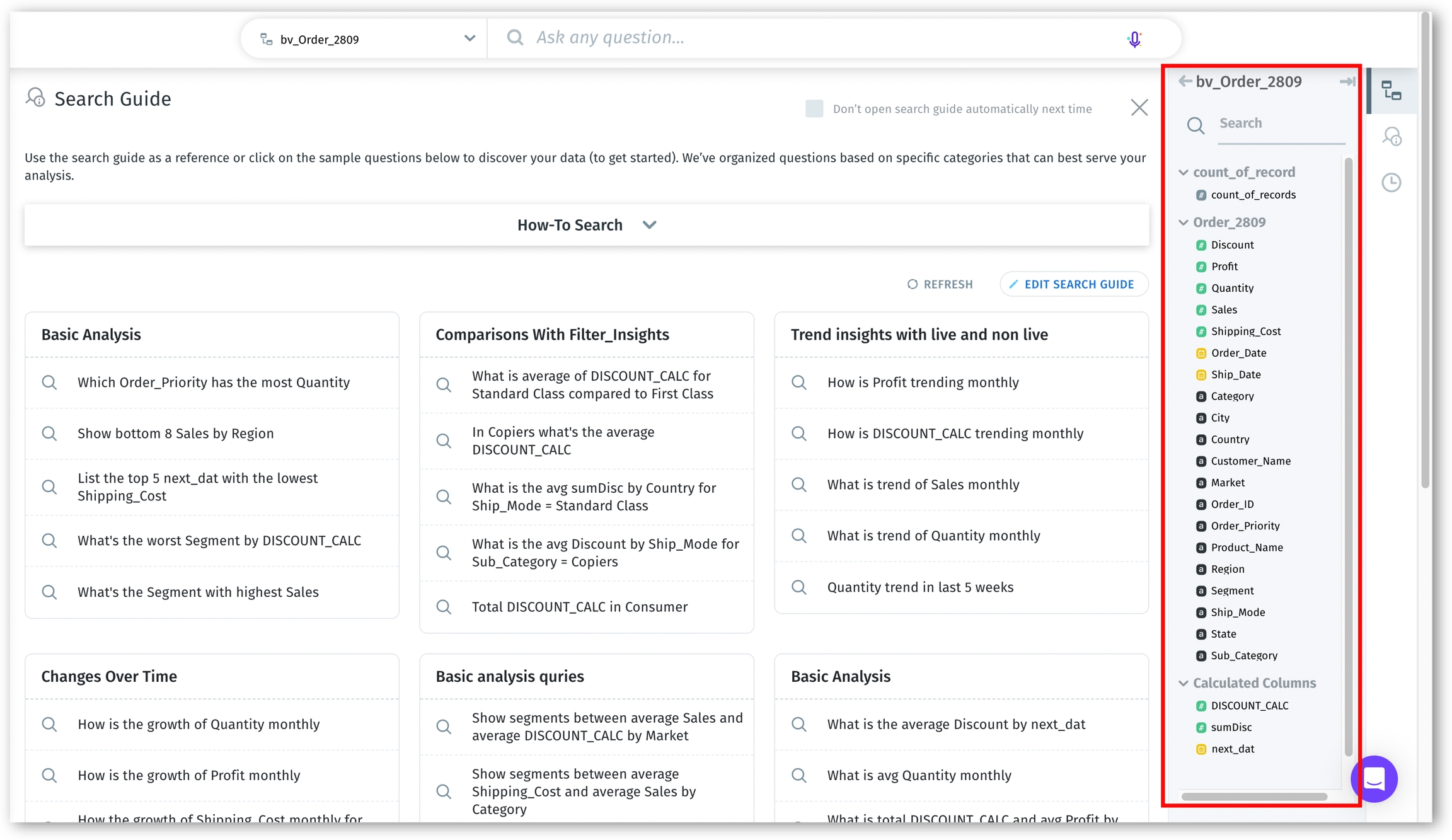
Once you select the Business View, the columns of the chosen Business View are displayed in the right pane. This visibility is crucial for formulating queries that are specific and relevant to your data.
After selecting the Business View, type your query in natural language. Use keywords that closely match the columns and values in the selected Business View for accurate results.
If you're finding it challenging to begin with a query, check out our Search Guide. It offers a curated collection of ready-to-use queries, designed to get you started.
In Tellius, a search query is a string of keywords in natural language, accompanied by interactive elements, which you can type or input via voice into the search bar to visualize real-time results. Tellius translates this query into an SQL command to retrieve the results from your dataset.
Consider the query: "Show me monthly profit by market".
The keywords "monthly", "profit", and "market" are identified as tokens and highlighted in different colors for easy identification.
"Profit" and "market" are columns within your Business View, as can be verified in the Business View panel.
The "monthly" resolution is derived from the "Order_date" column, indicating the time frame for your query.
When you hover over these highlighted tokens, you'll notice they are clickable, unlike other parts of the query (e.g., "Show me") which only display a text cursor.
Each token has a small 'x' in its top right corner and clicking on this 'x' removes the token from your query.
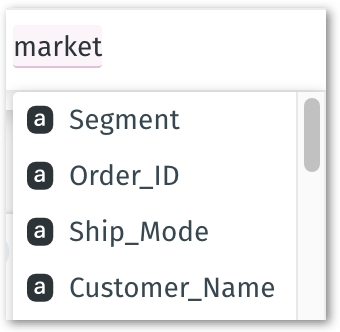
As you type the search query, get suggestions for the next word or phrase.
As you type, watch the results dynamically update on the canvas.
For example, start with "Show me total profit" and then extend to "Show me total profit by city in 2022" to see how results evolve with each word.
Once you have your results, you can easily clear the current search query by clicking the "x" icon near the microphone in the search bar. This allows you to start a new query.