> For the complete documentation index, see [llms.txt](https://help.tellius.com/llms.txt). Markdown versions of documentation pages are available by appending `.md` to page URLs; this page is available as [Markdown](https://help.tellius.com/tellius-5.6/data/preparing-your-business-views/custom-calendars-for-live-connections.md).
# Custom Calendars for Live Connections
Mapping custom calendars at the datasource level
Tellius supports **Custom Fiscal Calendars** at the datasource level, making them fully compatible with live-mode querying for **Snowflake, Redshift, BigQuery,** and **Spark SQL.**
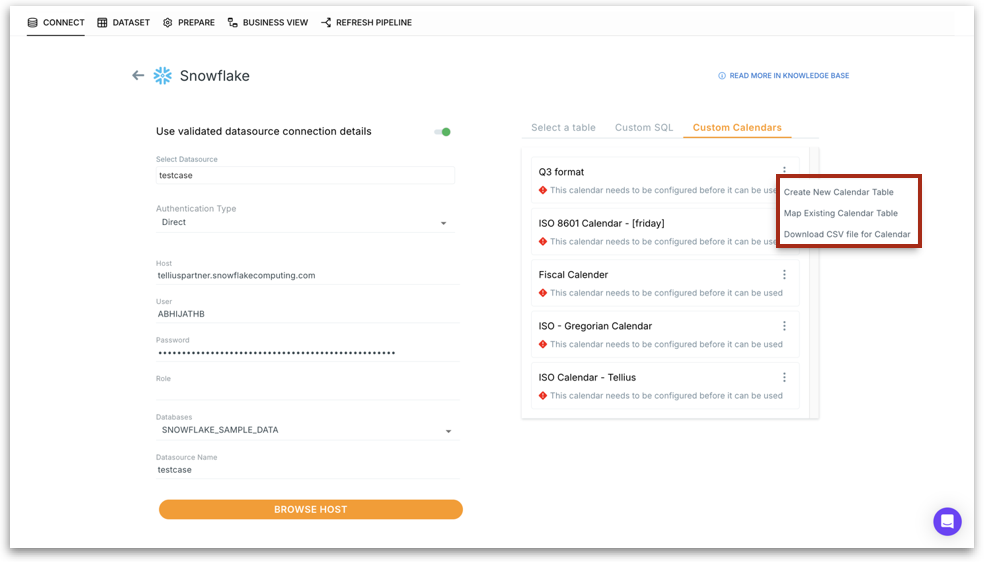
When configuring your **Snowflake, Redshift, BigQuery,** and **Spark SQL** connection to view and manage available fiscal or custom calendar options. Under **Data → Connect → Custom Calendars**, you'll see a list of predefined calendars (e.g., ISO 8601, Gregorian, Q3 format, Fiscal Calendar).
Tellius stores custom calendar data in table format within the live data source, enabling accurate filtering and joins directly in your warehouse. This new configuration flow makes it easy for users—especially data owners—to apply fiscal calendars without any dependency. You can:
* **Create**: If you have write access, Tellius will generate and save a new calendar table directly into your data source.
* **Map**: If your calendar table already exists (manually created or loaded from CSV), simply point Tellius to it—no write access required.
* **Upload from CSV**: Download a ready-made CSV template, populate it with your fiscal logic, and load it into your database to use with the **Map** option.
Custom Calendars in live mode
Click on the three dot menu to configure your custom calendar in three ways:
### **1. Create New Calendar Table**
* Automatically generates a new calendar table in your connected database.
* Tellius creates a table with the expected structure (dates, fiscal weeks/months/years).
* You must have **write access** to the selected database. Use this option if you don’t already have a calendar table.
* Once created and populated, Tellius will automatically link the calendar if you have write access.
* If you don’t have write access, you’ll need to manually map the table using the **Map Existing Calendar Table** option.
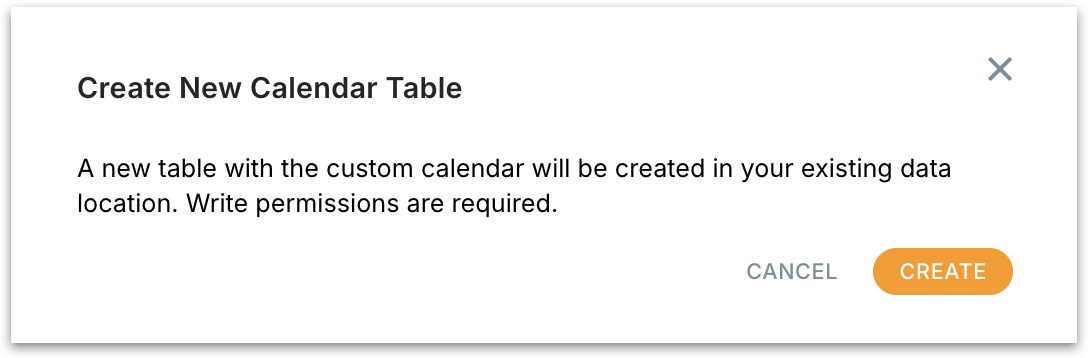
* You’ll see the following message stating that a table will be created in your existing data location.
Creating new calendar table
### **2. Map Existing Calendar Table**
If you don’t have write access to your data source—or you’ve already created a fiscal calendar table—use this option to link it directly in Tellius instead of building a new one.
#### **Prerequisites**
1. Go to **Settings → Application Settings → Time Configuration** and download the calendar CSV template.
2. Fill in your fiscal calendar details in the CSV file (e.g., fiscal year start, weeks, months).
3. Save this file as a table in your data warehouse (e.g., Snowflake, Redshift, BigQuery).
{% hint style="info" %}
Ensure the `date` column is of **timestamp** data type. This is required for accurate time-based filtering.
{% endhint %}
#### **Mapping the table in Tellius:**
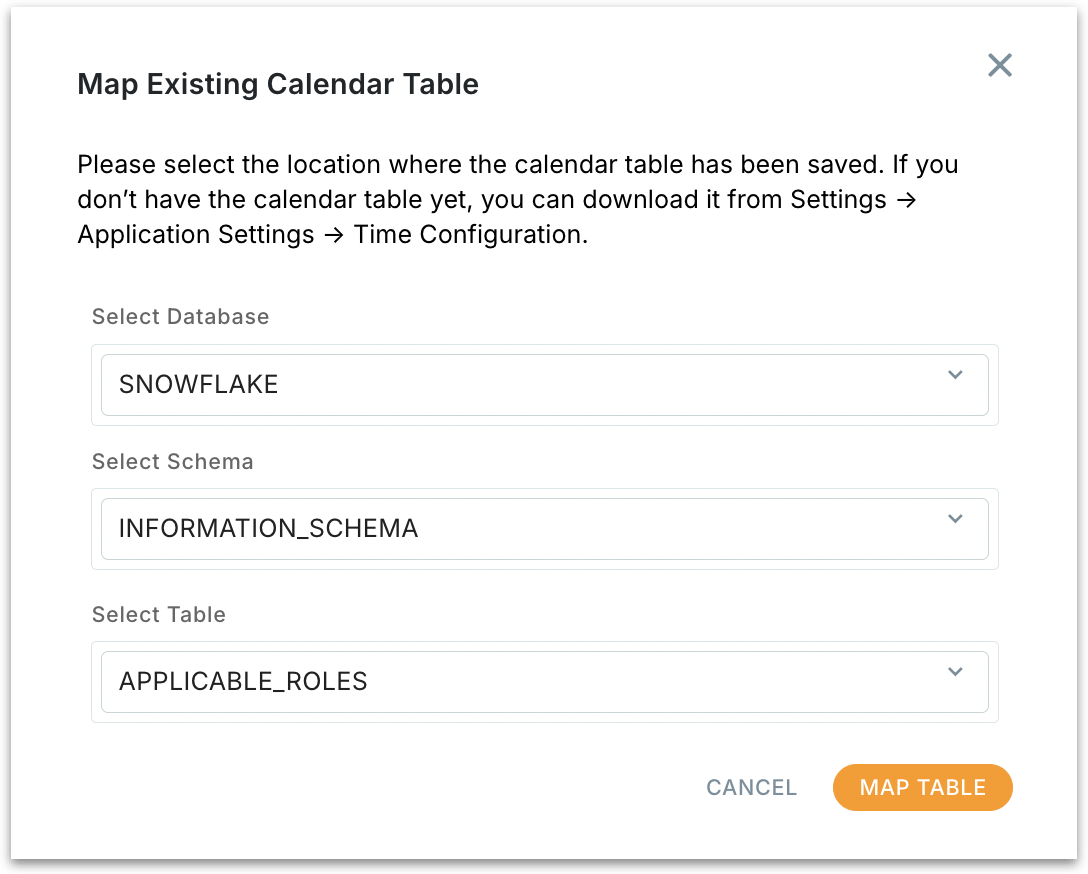
1. Select the relevant **database**, **schema**, and **table** from dropdowns.
2. Click on **Map Table** to connect the table.
3. Tellius now knows where to look for your fiscal calendar logic.
Map existing calendar table
### **3. Download CSV File for Calendar**
Clicking **"Download CSV File for Calendar"** directly downloads a pre-filled calendar table in CSV format. Useful if you prefer offline editing or want to migrate fiscal data from spreadsheets.
#### **After mapping or creating the calendar**
* If you create a new calendar table, the calendar will appear in the list with an **“Automatic”** tag, indicating it was Tellius-generated.
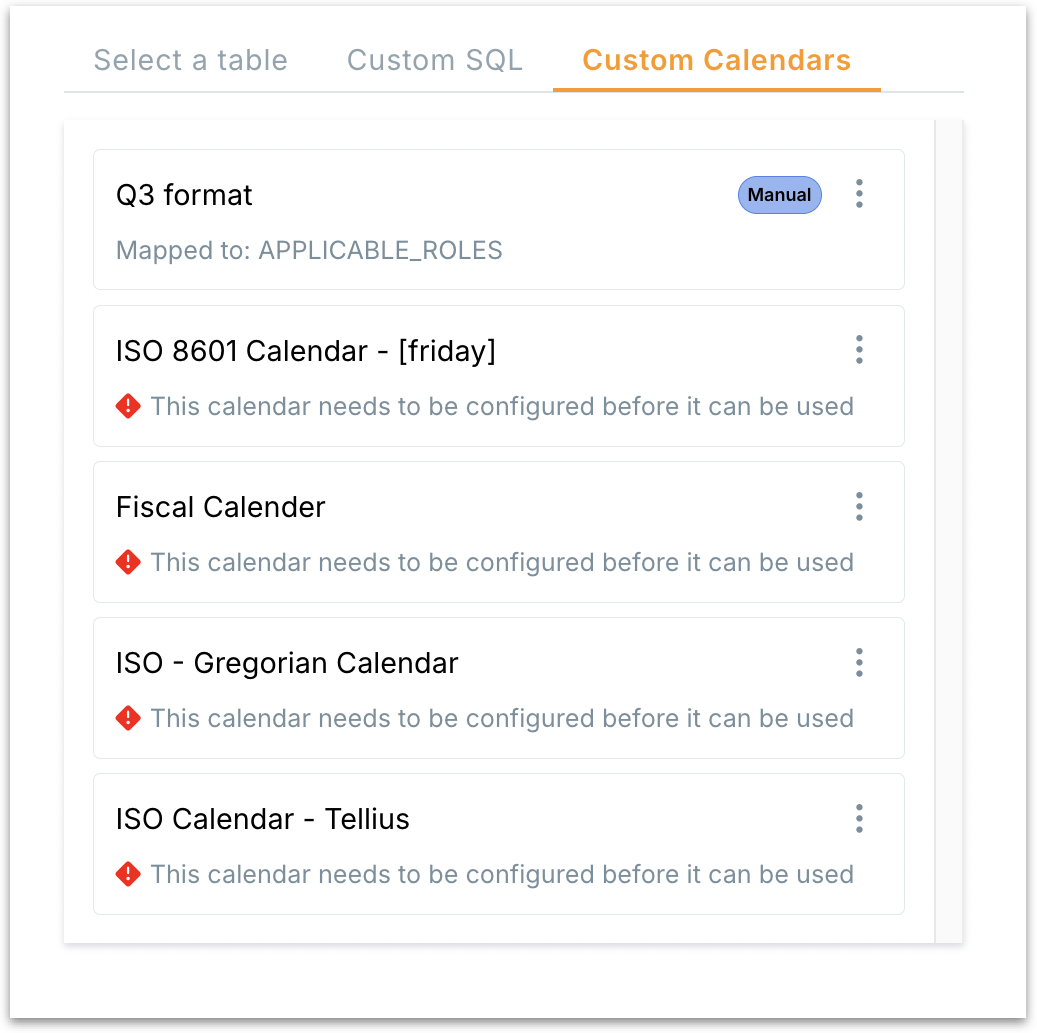
* If you map an existing calendar table, it will show up with a **“Manual”** tag, indicating it was linked manually to an existing dataset.
Custom Calendars
* Calendars not yet configured will display a warning: *“This calendar needs to be configured before it can be used.”*
* If the calendar table becomes unavailable, Tellius will fall back to a standard ISO calendar.
---
# Agent Instructions
This documentation is published with GitBook. GitBook is the documentation platform designed so that both humans and AI agents can read, navigate, and reason over technical content effectively. Learn more at gitbook.com.
## Querying This Documentation
If you need additional information that is not directly available in this page, you can query the documentation by asking a question.
Perform an HTTP GET request on the following URL with the `ask` and `goal` query parameters:
```
GET https://help.tellius.com/tellius-5.6/data/preparing-your-business-views/custom-calendars-for-live-connections.md?ask=&goal=
```
`ask` is the immediate question: it should be specific, self-contained, and written in natural language.
`goal` is what the user is ultimately trying to achieve, the reason they need the answer. Sharing it helps GitBook give you a better, more relevant answer. A goal is most helpful when it describes the outcome the user wants rather than restating the question. For example, with `ask=how do I create an API token`, a goal like `automate deployments from our CI pipeline` lets GitBook tailor the answer to that use case.
The response will contain a direct answer to the question and relevant excerpts and sources from the documentation.
Use this mechanism when the answer is not explicitly present in the current page, you need clarification or additional context, or you want to retrieve related documentation sections.