> For the complete documentation index, see [llms.txt](https://help.tellius.com/llms.txt). Markdown versions of documentation pages are available by appending `.md` to page URLs; this page is available as [Markdown](https://help.tellius.com/kaiya/ask-across-your-documents-unstructured.md).
# Ask across your documents (Unstructured)
Ask questions across unstructured documents in Tellius to extract insights from text, PDFs, and files using AI-powered search, semantic understanding, and contextual answers.
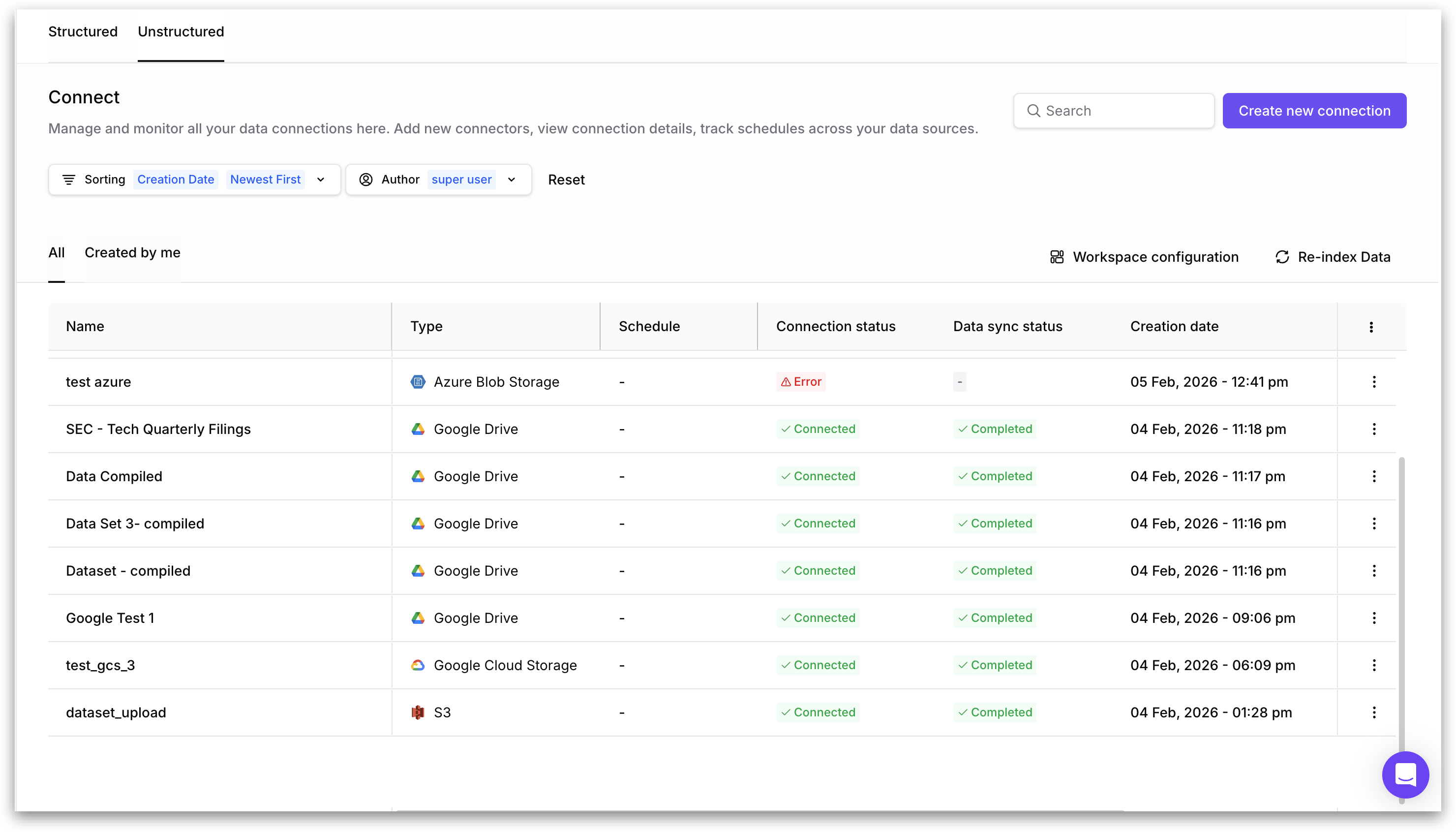
The **Unstructured** tab within the **Data → Connect** module is where you create, manage, and monitor connections to non-tabular data sources. While the **Structured** tab handles traditional database and warehouse connections, the Unstructured tab is purpose-built for file-based and document-based sources. These connections feed documents, PDFs, call transcripts, presentations, and other file-based content into Kaiya's unstructured analysis engine.
Once connected and synced, the files from these sources are indexed and made available to Kaiya for retrieval, search, and reasoning within Workspaces. This enables use cases such as analyzing sales call transcripts alongside CRM data, extracting insights from regulatory filings, or grounding Kaiya's answers in internal documentation and reports.
### Managing unstructured files
The search bar in the top-right corner allows you to filter the list of unstructured connections by name.
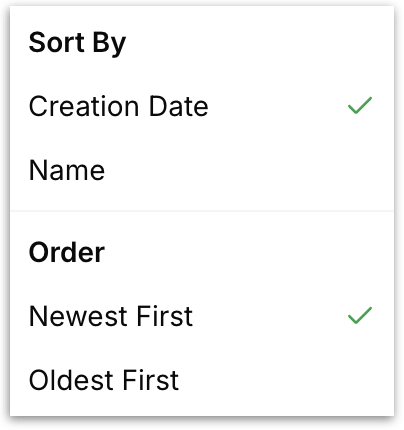
The sorting control below the search bar lets you sort the connections list by **Creation Date** and **Name** in either newest-first or oldest-first order.
The **Author** filter lets you narrow the list to connections created by a specific user. This is particularly useful in multi-user environments where multiple team members are setting up connections, and you need to find connections owned by a particular person.
The **Reset** button clears all active sorting and filter selections, returning the connections list to its default view.
**All/Created by Me:** These two sub-tabs filter the connections list by ownership.
* **"All"** shows every unstructured connection in the environment regardless of who created it.
* **"Created by me"** filters the list to show only connections that the currently logged-in user created.
### Connections Table
The main area displays a table listing all configured unstructured data connections. Each row represents a single connection and displays the following columns:
**Name:** The display name assigned to the connection when it was created.
**Type:** The connector type, indicating which external storage service this connection links to. Supported types include
* Google Drive
* Amazon S3
* Gong
* Azure Blob Storage
* Google Cloud Storage
* PDFs
**Schedule:** Displays the configured sync schedule for the connection. If no automatic sync schedule has been set, the connection syncs only when manually triggered. If a schedule is configured, it shows the recurrence pattern (for example, daily or weekly).
**Connection status:** Shows whether Tellius can currently reach the external data source.
* **"Connected"** shows that the credentials are valid and the source is reachable.
* **"Error"** indicates the connection has failed, typically due to expired credentials, revoked permissions, a misconfigured path, or the source being unreachable.
* **"Connecting..."** will be displayed when Tellius is trying to connect to the source.
**Data sync status:** Shows the status of the most recent data synchronization. **"Completed"** indicates all files from the source have been successfully pulled and indexed.
**Creation date:** The date and time when the connection was originally created, displayed in your local timezone.
### Row Actions (Three-Dot Menu)
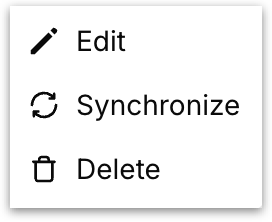
Each row in the connections table has a three-dot menu (⋮) on the far right. Clicking this menu reveals three actions that you can perform on that specific connection.
**Edit:** Opens the connection configuration for editing and update credentials.
**Synchronize:** Triggers an immediate, on-demand synchronization of the connection. When you click **Synchronize**, Tellius reaches out to the external data source, pulls any new or updated files, and indexes them for use in **Kaiya Workspaces**. Use this action when you have recently added new files to the source and want Kaiya to have access to them immediately without waiting for a scheduled sync. The **Data sync status** column will update to reflect the progress and completion of the sync operation.
**Delete:** Permanently removes the connection. Deleting a connection removes the link to the external data source and removes the indexed content from Kaiya's knowledge base. This action cannot be undone. Any **Workspaces** that were using files from this connection will no longer have access to that content.
### Re-index data
Re-indexing rebuilds the entire search index for all unstructured data across all connections. Specifically, it re-indexes all unstructured data that has been synced from your connections, regenerates automatic entities that Kaiya has extracted from the documents (such as people, organizations, dates, products, and other named entities), and deletes any manual entities that were previously created by users.
When you click on **Re-index data**, a confirmation dialog appears. Click on **Confirm** to continue.
#### When to re-index data?
Use **Re-index** after large-scale changes to your connected data sources, after modifying Workspace configurations, or if the index has become fragmented over time. Re-indexing is also appropriate after resolving connection errors that may have caused partial or failed syncs.
{% hint style="warning" %}
Re-indexing is a resource-intensive operation that processes all unstructured data in your environment. The time required depends on the total volume of documents across all connections. This operation cannot be undone. Any manual entities that your team has created will be permanently deleted and will need to be recreated after the re-index completes.
{% endhint %}
The **"Create new connection"** button in the top-right corner launches the workflow for adding a new unstructured data source. Check out [this](/kaiya/ask-across-your-documents-unstructured/how-to-connect-to-unstructured-data.md) page for more details.
---
# Agent Instructions
This documentation is published with GitBook. GitBook is the documentation platform designed so that both humans and AI agents can read, navigate, and reason over technical content effectively. Learn more at gitbook.com.
## Querying This Documentation
If you need additional information that is not directly available in this page, you can query the documentation by asking a question.
Perform an HTTP GET request on the following URL with the `ask` and `goal` query parameters:
```
GET https://help.tellius.com/kaiya/ask-across-your-documents-unstructured.md?ask=&goal=
```
`ask` is the immediate question: it should be specific, self-contained, and written in natural language.
`goal` is what the user is ultimately trying to achieve, the reason they need the answer. Sharing it helps GitBook give you a better, more relevant answer. A goal is most helpful when it describes the outcome the user wants rather than restating the question. For example, with `ask=how do I create an API token`, a goal like `automate deployments from our CI pipeline` lets GitBook tailor the answer to that use case.
The response will contain a direct answer to the question and relevant excerpts and sources from the documentation.
Use this mechanism when the answer is not explicitly present in the current page, you need clarification or additional context, or you want to retrieve related documentation sections.