> For the complete documentation index, see [llms.txt](https://help.tellius.com/llms.txt). Markdown versions of documentation pages are available by appending `.md` to page URLs; this page is available as [Markdown](https://help.tellius.com/kaiya/ask-across-your-documents-unstructured/workspace-configuration.md).
# Workspace Configuration
Configure your Tellius workspace by managing settings, permissions, and preferences to ensure secure access, optimize performance, and support scalable analytics.
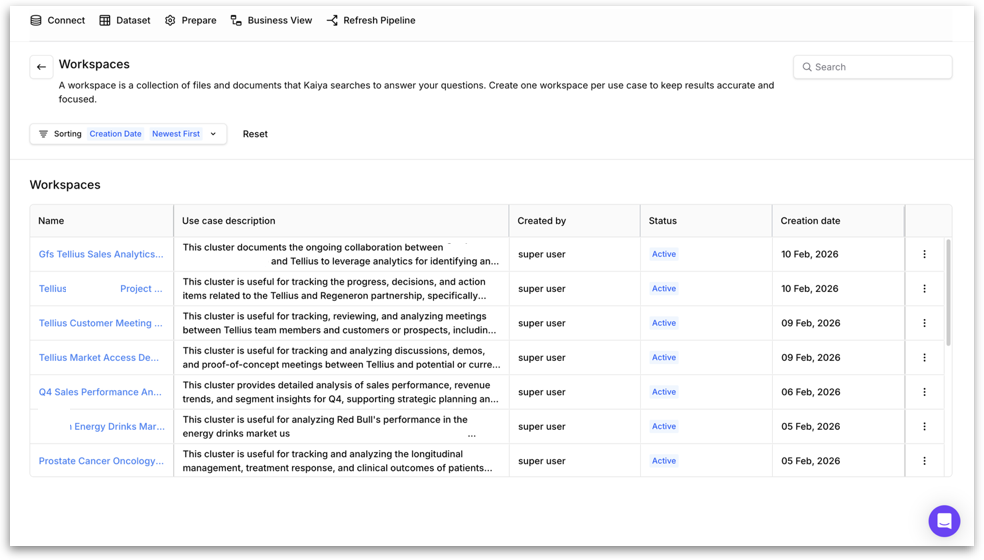
Clicking the **"Workspace configuration"** button opens the **Workspaces management** page. Workspaces are the organizational layer that sits between your unstructured data connections and Kaiya's conversational interface.
#### What is a Workspace?
A **Workspace** is a curated collection of files and documents that Kaiya searches to answer user questions. Each Workspace groups related unstructured content around a specific use case, project, or domain. It keeps Kaiya's retrieval scope focused and accurate. Instead of searching across every unstructured file in your environment, Kaiya searches within the relevant Workspace, which improves answer quality and reduces noise from unrelated documents.
#### When to create a Workspace?
Create one Workspace per distinct analytical use case or domain. For example, you might create separate Workspaces for sales call analysis, competitive intelligence documents, regulatory filings, or customer meeting notes. Please do not mix unrelated document types into a single Workspace.
#### Workspaces Table
The Workspaces page displays a table with the following columns:
**Name:** The display name of the Workspace. This is a clickable link that opens the Workspace for viewing and editing its contents and configuration.
**Use case description:** A text description of what the Workspace is used for. This describes the analytical purpose of the grouped documents.
**Created by:** The user who created the Workspace.
**Status:** The current operational status of the Workspace. **"Active"** indicates the Workspace is live and Kaiya can search its contents when answering questions.
**Creation date:** The date when the Workspace was originally created.
**Sorting and Search:** The **Workspaces** page includes the same sorting controls available on the main **Unstructured** connections page, allowing you to sort by **Creation Date** and **Name** in newest-first or oldest-first order. A **Search** bar is available to filter Workspaces by name.
#### Workspace Row Actions
Each Workspace row has a three-dot menu (⋮) on the far right with the following options:
**Open:** Opens the Workspace detail view, which provides full visibility into the Workspace's configuration, the files it contains, and the entities Kaiya has extracted from those files. **(Details, Files, and Entities)**
**Edit:** Opens the Workspace configuration for inline editing.
### Workspace Detail View
When you click **Open** on a Workspace, you are taken to the Workspace detail view. It is organized into three tabs: **Details**, **Files**, and **Entities**.
#### Details Tab
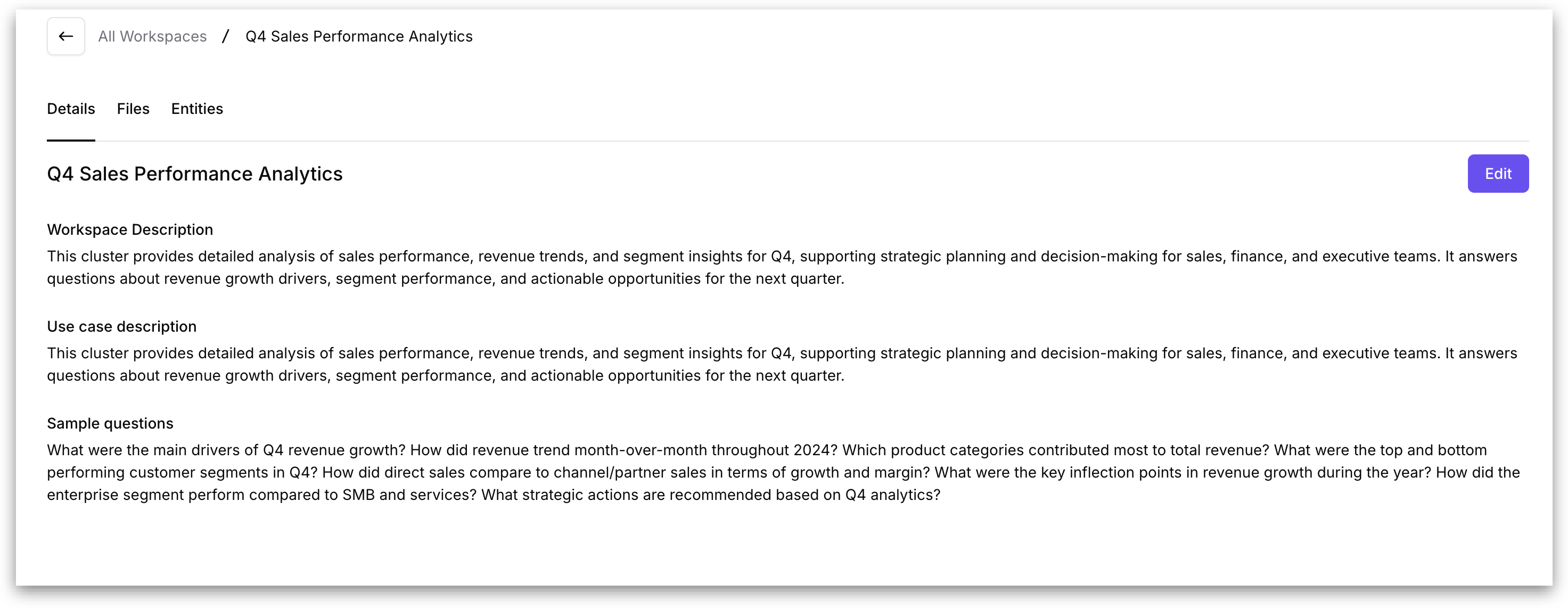
The Details tab provides the descriptive metadata for the Workspace. This is where you understand what the Workspace is for and how Kaiya interprets its purpose. An **Edit** button in the top-right corner lets you modify these fields directly.
**Workspace description:** A detailed description of the Workspace's purpose and scope. This tells administrators and users what the Workspace contains and what kinds of questions it is designed to answer.
**Use case description:** A description of the analytical use case the Workspace supports. When you ask Kaiya a question, Kaiya uses these descriptions to decide which Workspace (and therefore which set of documents) to search. A well-written use case description helps improve retrieval accuracy.
**Sample questions:** A set of example questions that this Workspace is designed to answer. Writing specific, representative sample questions improves Kaiya's ability to match incoming user queries to the right Workspace. These serve two purposes.
* They guide you on what kinds of questions you can ask against this Workspace's content.
* They help Kaiya calibrate the types of queries this Workspace is relevant for.
#### Files Tab
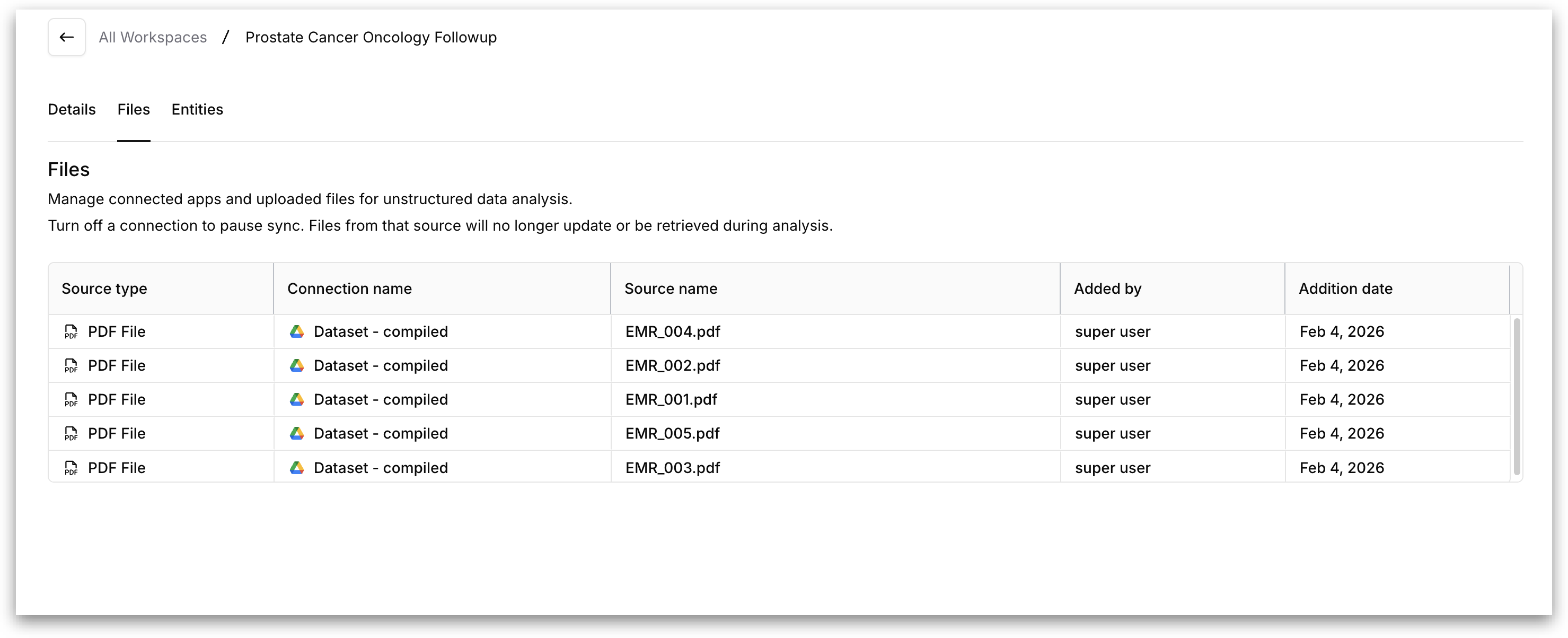
The Files tab shows every file that has been ingested into this Workspace from your connected unstructured data sources. This is where you see exactly what content Kaiya has access to when answering questions scoped to this Workspace.
If you need to temporarily stop a source from feeding into this Workspace without deleting the connection entirely, you can turn off the connection, and files from that source will stop updating and will not be used by Kaiya during analysis.
The Files table displays the following columns:
**Source type:** Identifies the nature of the file.
**Connection name:** The name of the unstructured data connection that this file was synced from. This maps back to the connections listed on the main **Unstructured** tab.
**Source name:** The original name or title of the file as it exists in the source system.
**Added by:** The user who added or synced this file into the Workspace.
**Addition date:** The date when the file was added to this Workspace.
#### Entities Tab
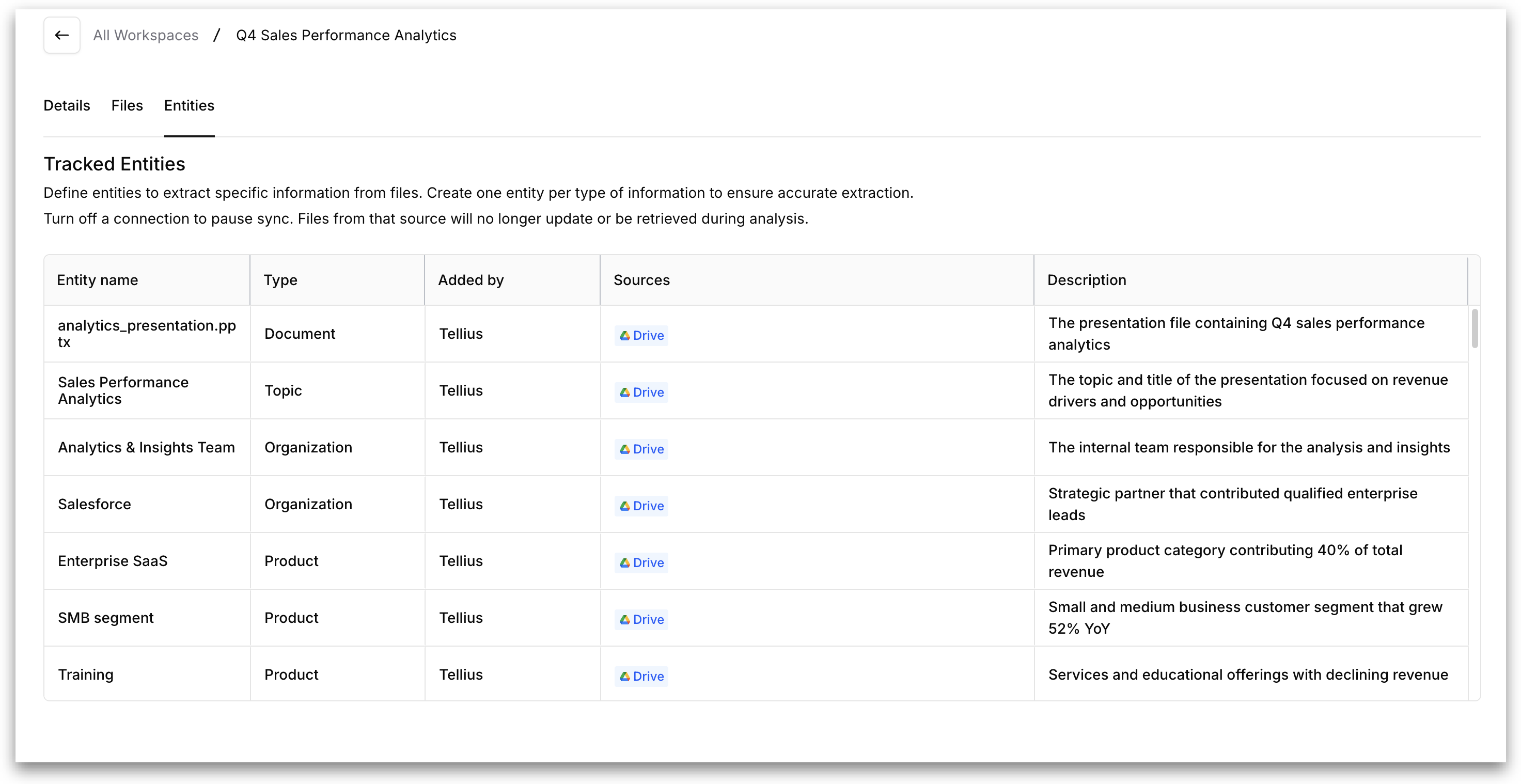
The Entities tab displays the tracked entities that Kaiya has extracted from the files in this Workspace. Entities are structured pieces of information (for example: people, organizations, technologies, and other named concepts) that Kaiya identifies and catalogs from unstructured content to improve its ability to answer questions accurately.
The entity system works on a one-entity-per-type principle. Each entity should represent a single, distinct person, organization, technology, or concept. This ensures that Kaiya extracts and tracks information about each entity cleanly without conflating it with other entities.
{% hint style="info" %}
The entity type helps Kaiya understand the role each entity plays when answering questions. For example, knowing that "Oracle" is a Technology rather than an Organization helps how Kaiya interprets references to it in context.
{% endhint %}
The Entities table displays the following columns:
**Entity name:** The name of the extracted entity. This is the specific person, organization, technology, or concept that Kaiya has identified across the Workspace's files.
**Type:** The category of the entity (whether it's a person, organization, product etc.)
**Added by:** Indicates who created or identified the entity. **"Tellius"** means the entity was automatically extracted by Tellius during indexing. Entities can also be manually created by users, in which case the user's name would appear here.
**Sources:** Shows which connected source the entity was extracted from. For example, "Gong" indicates the entity was identified from Gong call transcripts.
**Description:** A contextual description of the entity that explains its role or relevance within the Workspace. These descriptions are generated by Kaiya based on the content of the files and give you visibility into how Kaiya understands each entity's role.
---
# Agent Instructions
This documentation is published with GitBook. GitBook is the documentation platform designed so that both humans and AI agents can read, navigate, and reason over technical content effectively. Learn more at gitbook.com.
## Querying This Documentation
If you need additional information that is not directly available in this page, you can query the documentation by asking a question.
Perform an HTTP GET request on the following URL with the `ask` and `goal` query parameters:
```
GET https://help.tellius.com/kaiya/ask-across-your-documents-unstructured/workspace-configuration.md?ask=&goal=
```
`ask` is the immediate question: it should be specific, self-contained, and written in natural language.
`goal` is what the user is ultimately trying to achieve, the reason they need the answer. Sharing it helps GitBook give you a better, more relevant answer. A goal is most helpful when it describes the outcome the user wants rather than restating the question. For example, with `ask=how do I create an API token`, a goal like `automate deployments from our CI pipeline` lets GitBook tailor the answer to that use case.
The response will contain a direct answer to the question and relevant excerpts and sources from the documentation.
Use this mechanism when the answer is not explicitly present in the current page, you need clarification or additional context, or you want to retrieve related documentation sections.