> For the complete documentation index, see [llms.txt](https://help.tellius.com/llms.txt). Markdown versions of documentation pages are available by appending `.md` to page URLs; this page is available as [Markdown](https://help.tellius.com/kaiya/kaiyas-persistent-memory/how-to-create-a-new-memory.md).
# How to create a new memory
Learn how to add memories to Kaiya.
There are five ways to add memories to Kaiya. Two are manual (you create them directly) and the rest are conversational (Kaiya proposes them during interactions and you approve).
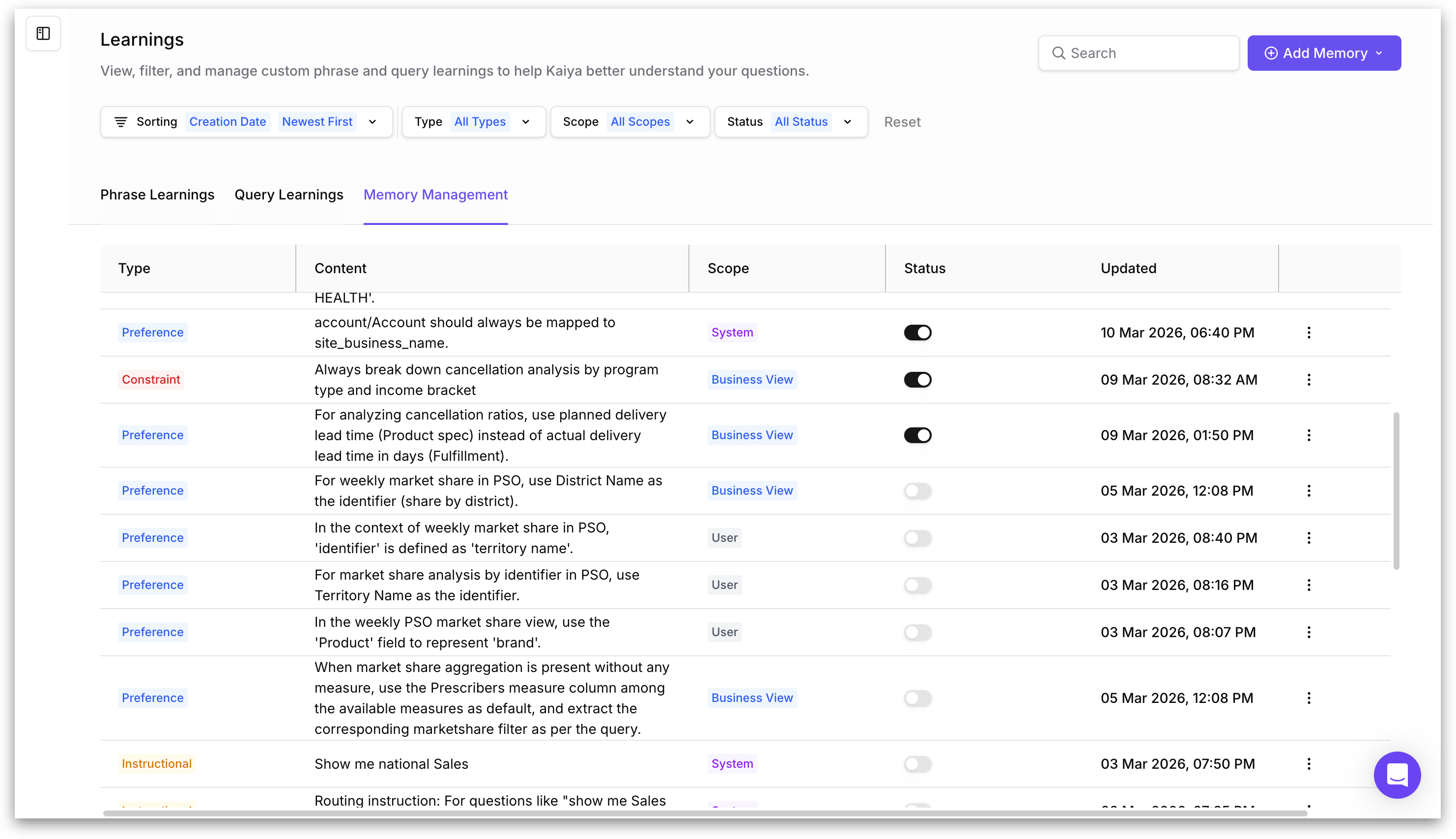
Under **Kaiya**, click to open the side panel and select **Manage Learnings** in the bottom. The following window will be displayed.
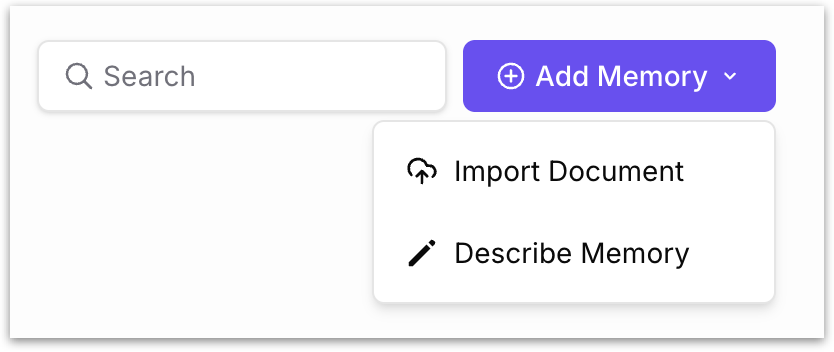
Click on **Add Memory** button. The following two options will be displayed.
### Import document
This method lets you upload a file containing business rules, data dictionaries, glossaries, or any reference material, and Kaiya extracts individual memory items from it automatically.
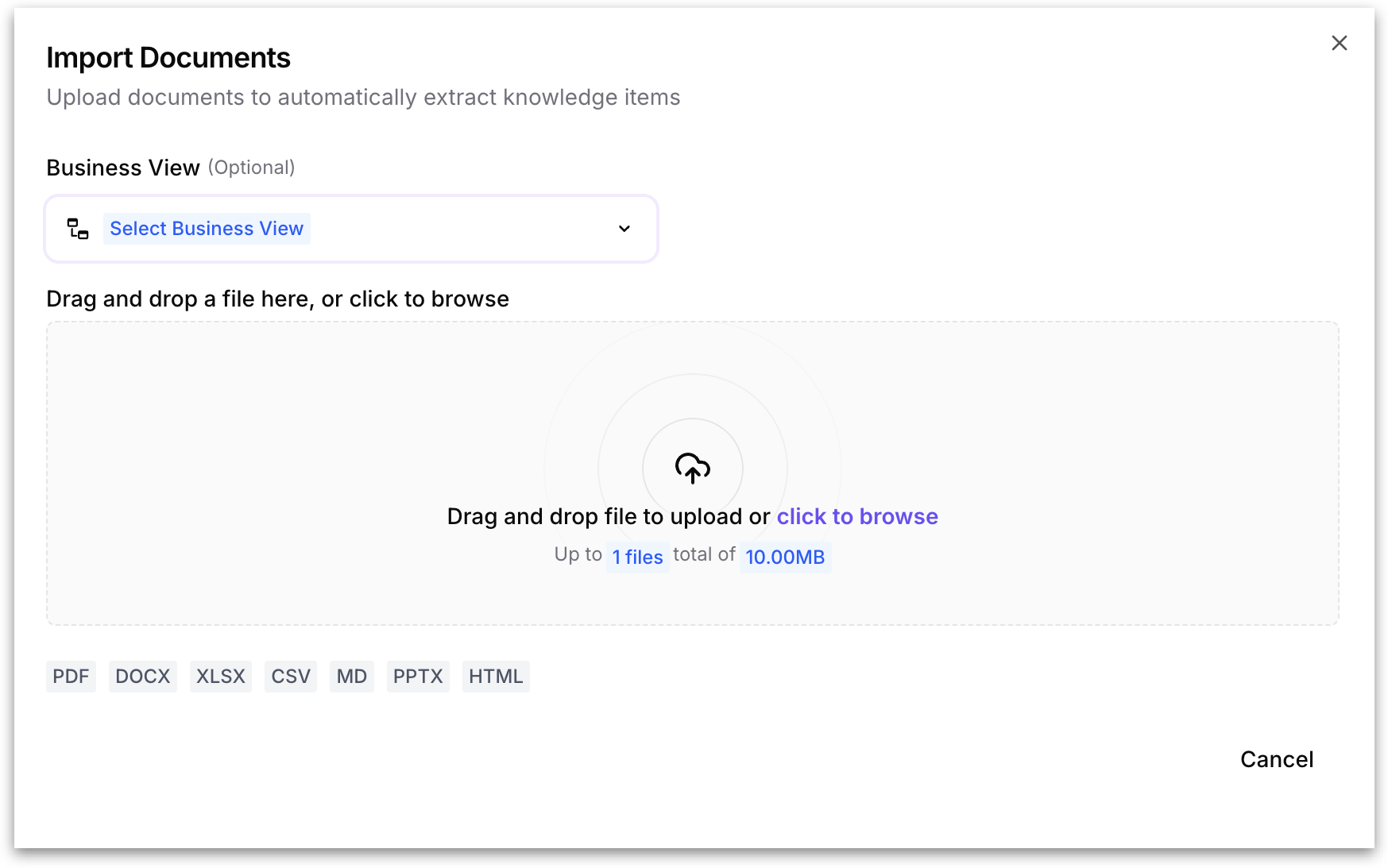
1. The following window will be opened.
2. Optionally, select a Business View from the dropdown at the top. This scopes the extracted memories to that BV. If left blank, the scope defaults based on the content.
3. Drag and drop a file into the upload area, or click to browse. The upload limit is 1 file up to 10 MB. Supported file types: PDF, DOCX, XLSX, CSV, MD, PPTX, HTML.
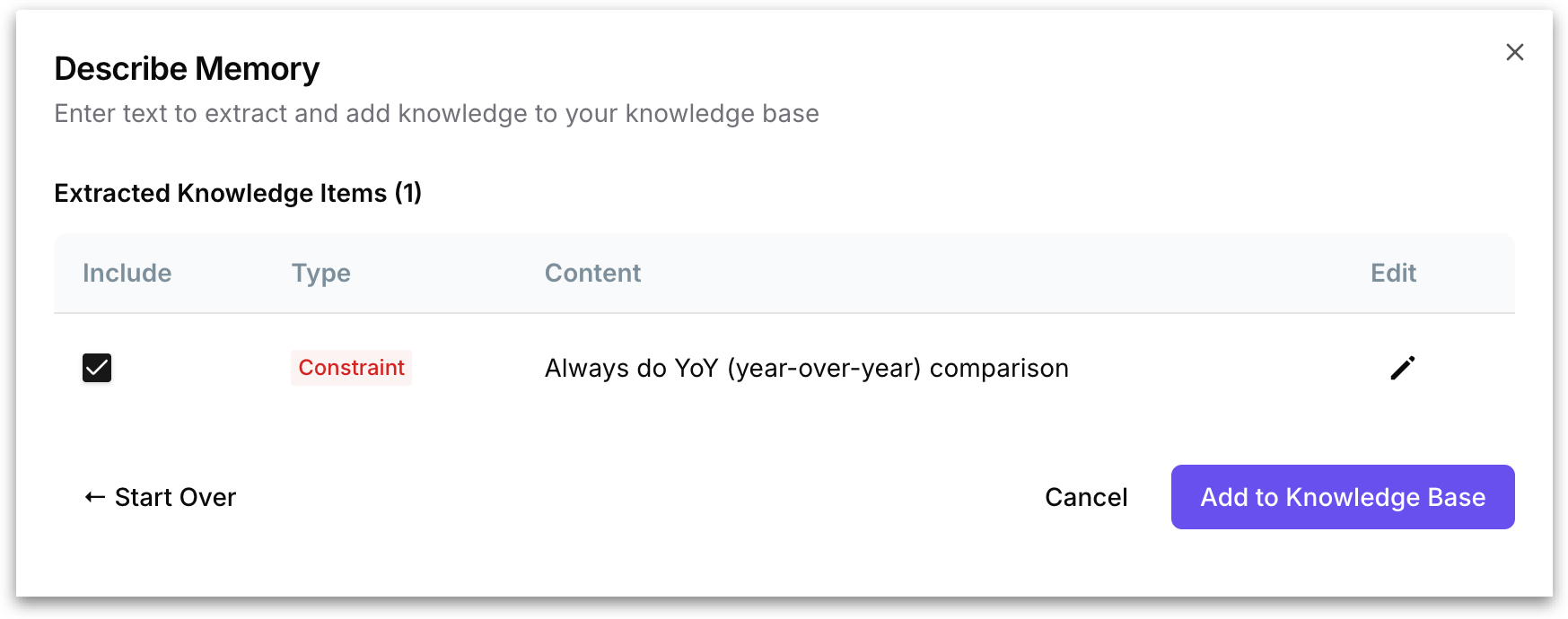
4. Kaiya parses the document and extracts individual knowledge items. Each item is displayed in a preview table with columns for **Include** (checkbox), **Type** (auto-classified), **Content** (the extracted text), and an **Edit** button.
5. Review the extracted items and edit individual items if needed.
6. Click **Add to Knowledge Base** to save all selected items.
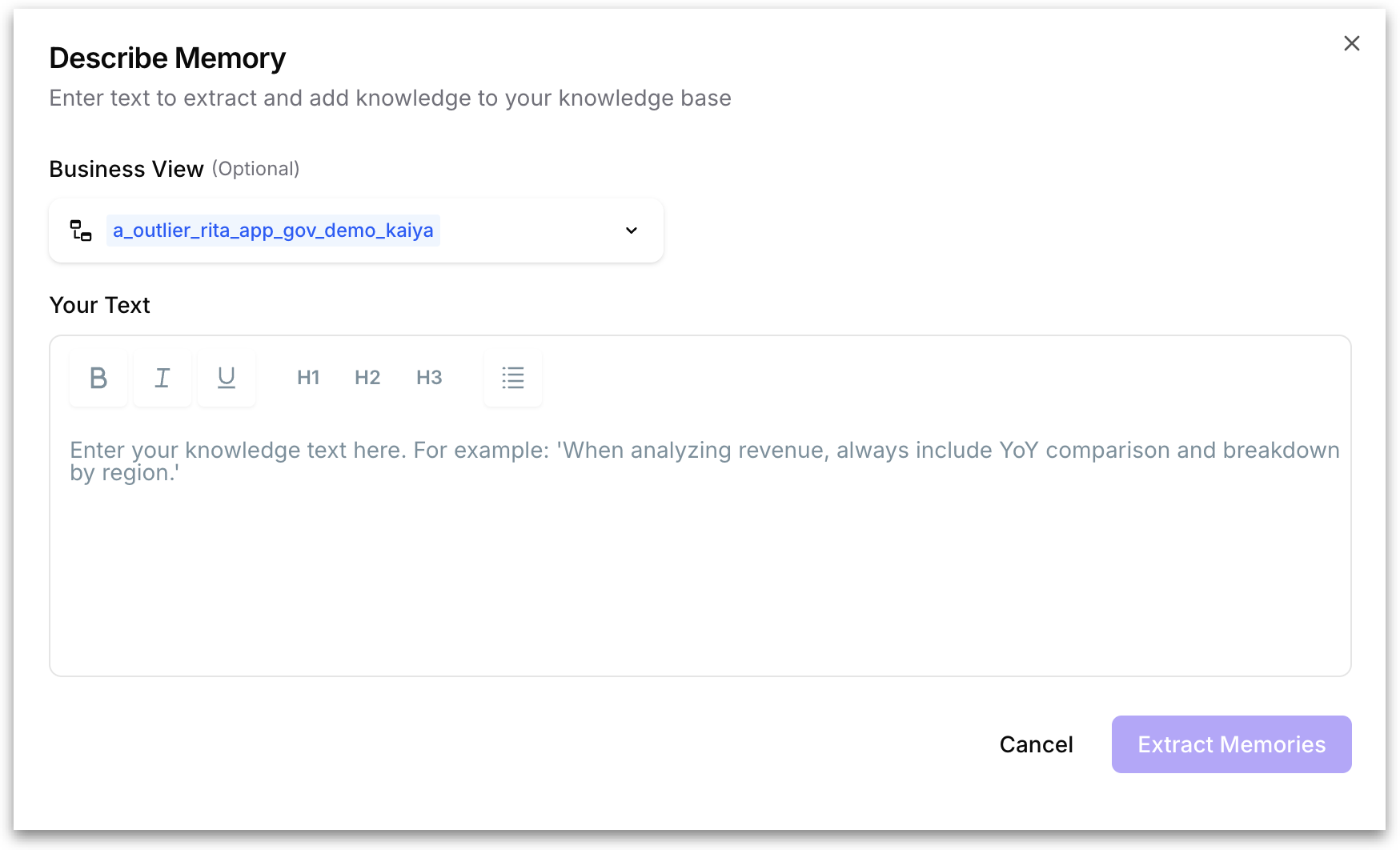
### Describe Memory
This method lets you type a memory directly in natural language, and Kaiya extracts structured knowledge items from your description.
1. A dialog opens with a Business View dropdown (optional) and a rich text editor labeled **"Your Text"** with formatting options. For example: "When analyzing revenue, always include YoY comparison and breakdown by region".
2. Type or paste your memory content into the editor. You can enter a single instruction or a longer block of text containing multiple rules.
3. Click **Extract Memories**. Kaiya parses your text and presents the extracted knowledge items in the same preview table as the Import Document flow (with **Include**, **Type**, **Content**, and **Edit** columns).
4. Review, edit if needed, and click **Add to Knowledge Base** to save.
### Clarification-based memories
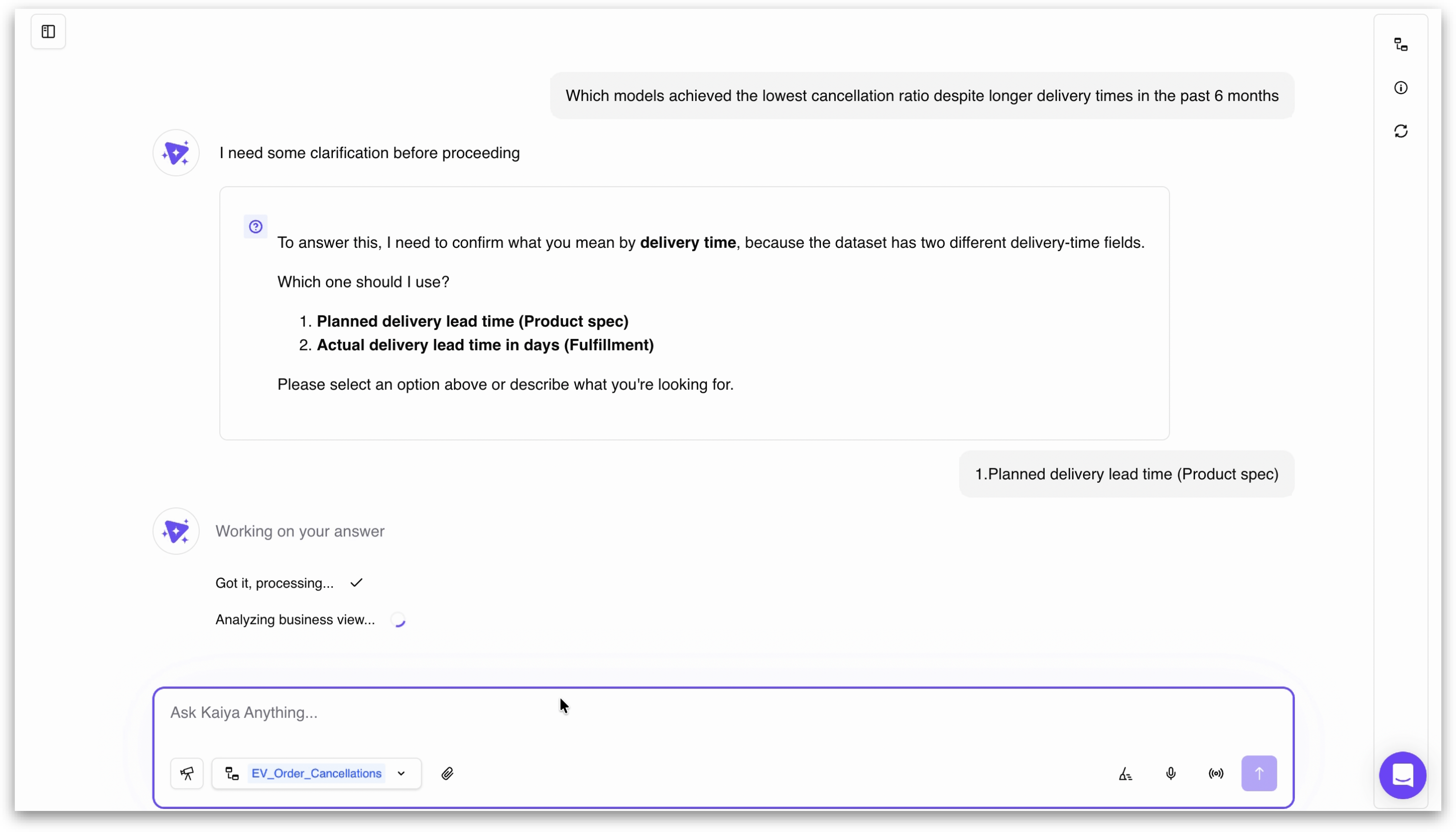
This is the most common way memories are created. When Kaiya encounters ambiguity in your question, it asks a clarification question with numbered options. Your response becomes a memory that Kaiya applies automatically in future conversations.
When your question references a term that maps to multiple columns or definitions in the Business View, Kaiya pauses and asks for clarification before proceeding. The clarification appears with "I need some clarification before proceeding" followed by numbered options. You select your choice by typing out your option.
#### **Kaiya asks whether to remember the clarifications**
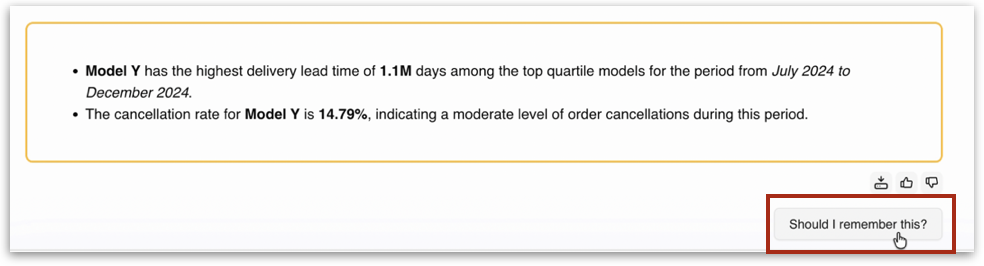
After Kaiya completes an analysis that involved one or more clarifications, a **"Should I remember this?"** button appears at the bottom of the analysis results, next to the thumbs up/down feedback icons.
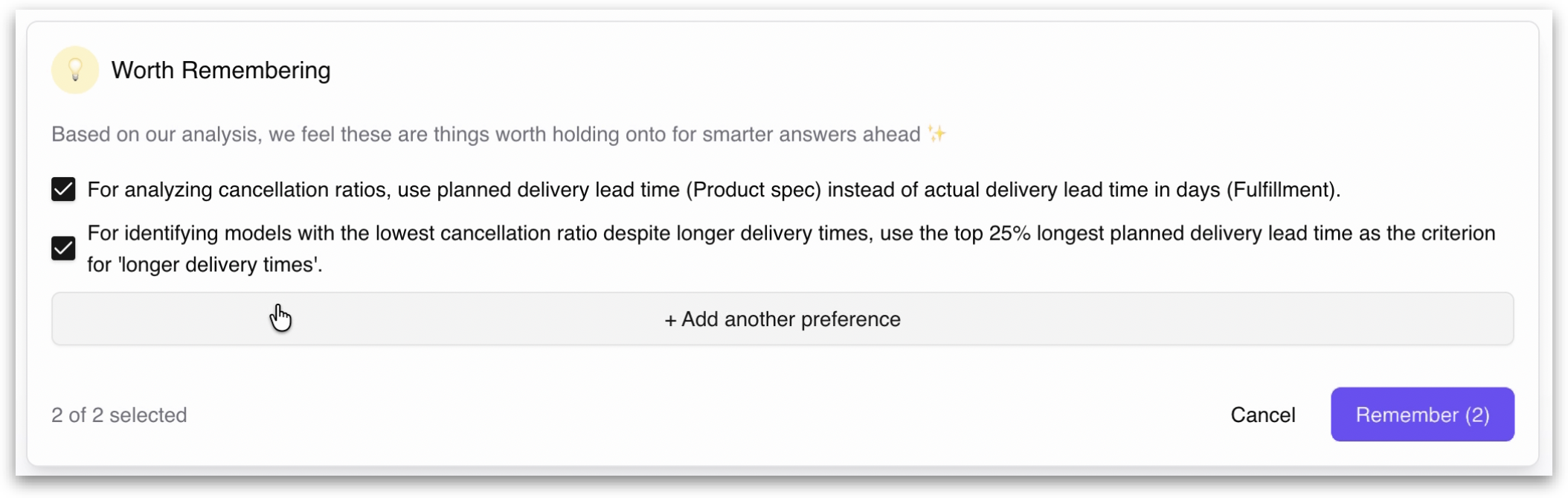
Clicking this button triggers the **"Worth Remembering"** prompt as follow, allowing you to save relevant clarifications and preferences from the current conversation.
* The prompt lists each clarification you made during the conversation as a checkbox item.
* You select which clarifications you want Kaiya to remember and deselect any you do not.
* There is also an **"Add another preferences"** section with a text input where you can type additional preferences beyond the ones Kaiya suggested.
Click **Remember** to save the selected items. Kaiya confirms with a *"Locked into Memory!"* banner. The memories are saved under **"Preference"** type.
### Workflow-based routing
When Kaiya routes a query to a specific workflow (for example, Deep Insight or text-to-SQL), and you correct that routing, Kaiya can persist the correction as a memory.
For instance, if Kaiya proposes sending your query to **Deep Insight** but you indicate it should be a direct SQL query, Kaiya asks whether you want to remember this routing preference. If you confirm, the correction is saved as an Instructional-type memory and applied automatically to similar queries in future sessions.
### Explicitly command Kaiya to "Memorize it"
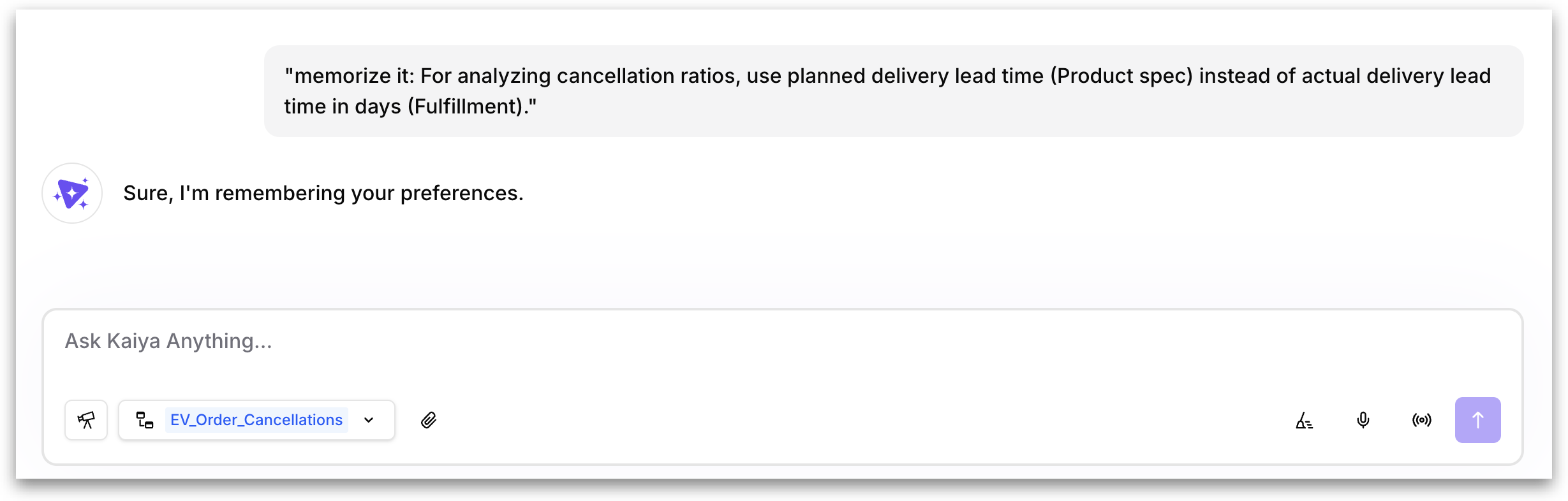
You can also create memories directly within a Kaiya conversation by using the "memorize it:" prefix in the chat input. Type "Memorize it:" followed by the statement you want Kaiya to remember. For example:
Kaiya saves the statement as a memory. Kaiya automatically classifies it as **Instructional** based on the content.
### Editing a Memory
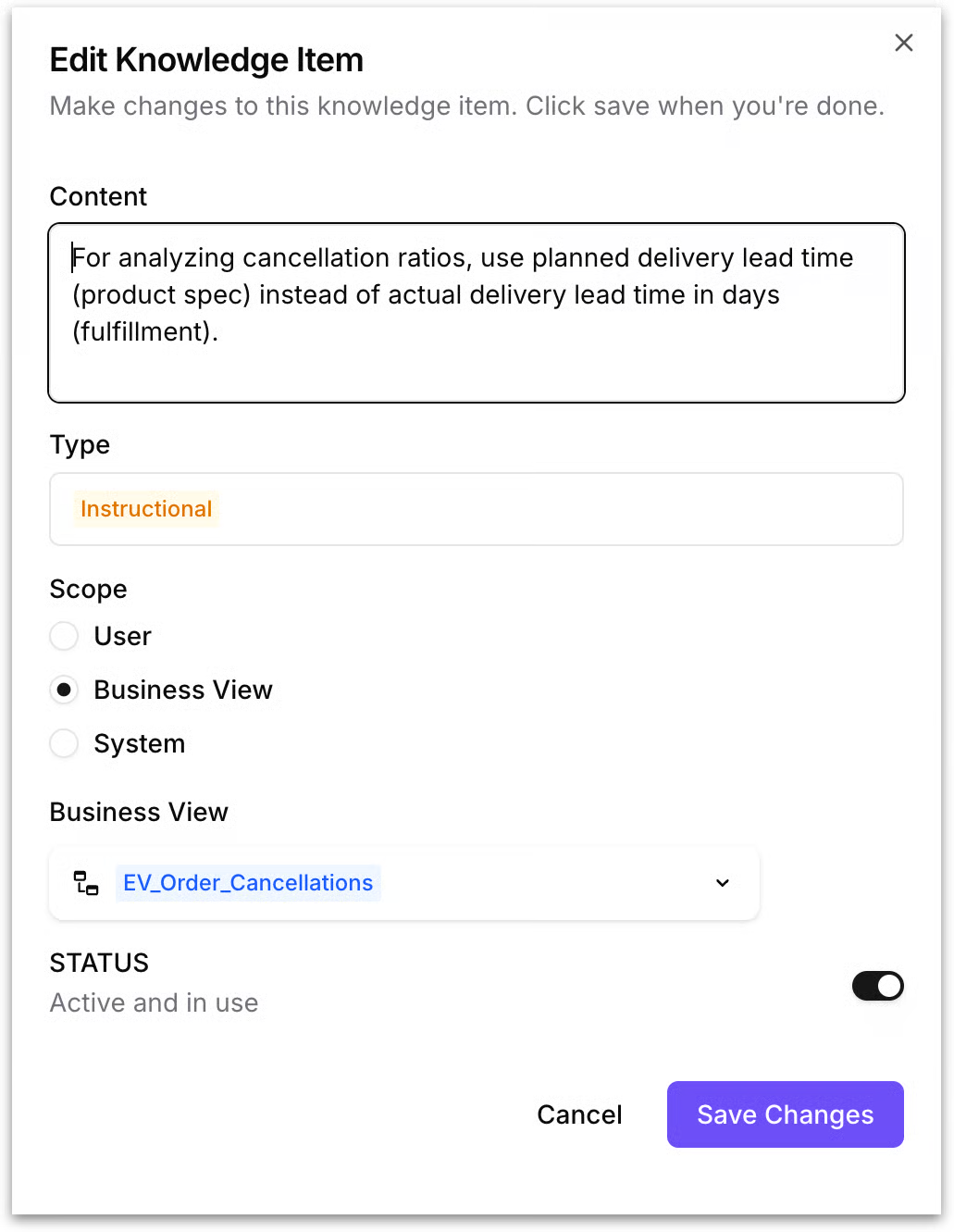
To edit an existing memory, click the three-dot menu on the memory row in the **Memory Management** table and select **Edit**. The following dialog opens:
* **Content:** A text area containing the memory text. You can modify the text directly.
* **Type:** A dropdown to change the memory type. Available options: Constraint, Preference, Fact, Instructional, Ontological, Procedural, Insight.
* **Scope:** Radio buttons to select User, Business View, or System.
* **Business View:** A BV selector dropdown that appears when the scope is set to Business View. Select the specific BV this memory applies to.
* **Status:** Toggle on to keep the memory active; toggle off to deactivate it without deleting.
Click **Save Changes** to apply your edits, or **Cancel** to discard.
{% hint style="info" icon="square-dashed-circle-plus" %}
When a new memory is being saved, whether from a conversation, manual entry, or document import, Kaiya runs a semantic similarity check against all existing memories. This prevents duplicate or near-duplicate entries from accumulating over time.
{% endhint %}
---
# Agent Instructions
This documentation is published with GitBook. GitBook is the documentation platform designed so that both humans and AI agents can read, navigate, and reason over technical content effectively. Learn more at gitbook.com.
## Querying This Documentation
If you need additional information that is not directly available in this page, you can query the documentation by asking a question.
Perform an HTTP GET request on the following URL with the `ask` and `goal` query parameters:
```
GET https://help.tellius.com/kaiya/kaiyas-persistent-memory/how-to-create-a-new-memory.md?ask=&goal=
```
`ask` is the immediate question: it should be specific, self-contained, and written in natural language.
`goal` is what the user is ultimately trying to achieve, the reason they need the answer. Sharing it helps GitBook give you a better, more relevant answer. A goal is most helpful when it describes the outcome the user wants rather than restating the question. For example, with `ask=how do I create an API token`, a goal like `automate deployments from our CI pipeline` lets GitBook tailor the answer to that use case.
The response will contain a direct answer to the question and relevant excerpts and sources from the documentation.
Use this mechanism when the answer is not explicitly present in the current page, you need clarification or additional context, or you want to retrieve related documentation sections.