> For the complete documentation index, see [llms.txt](https://help.tellius.com/llms.txt). Markdown versions of documentation pages are available by appending `.md` to page URLs; this page is available as [Markdown](https://help.tellius.com/kaiya/kaiya-conversational-ai/kaiya-responses.md).
# Kaiya responses
All about working with the responses generated by Kaiya
### Resulting chart
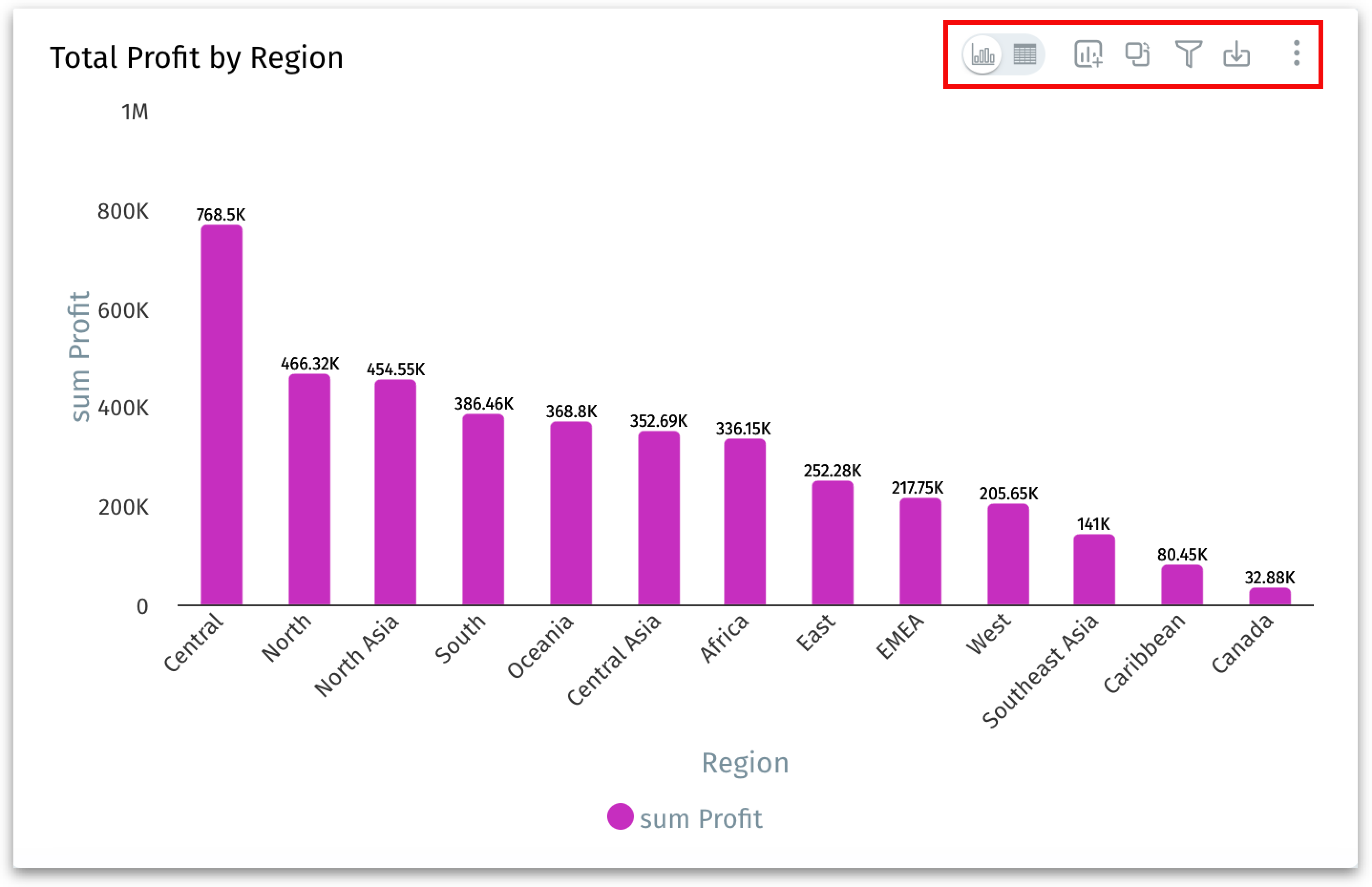
Example of a resulting chart
1. Click on the **View Data** toggle button to view the underlying table data of the chart. Alternatively, you can click on the three-dot submenu of a chart and select **Detailed view**.
2. Click on **Add to Vizpad** to add the chart to an existing or a new Vizpad. You can select from the list of available Vizpads displayed.
3. Click on **Switch Chart** to switch the chart to a different type. The list of applicable chart types will be displayed and you can select the required chart type. For more details, check out [this section](/search/know-your-charts-in-tellius/switching-to-another-chart.md).
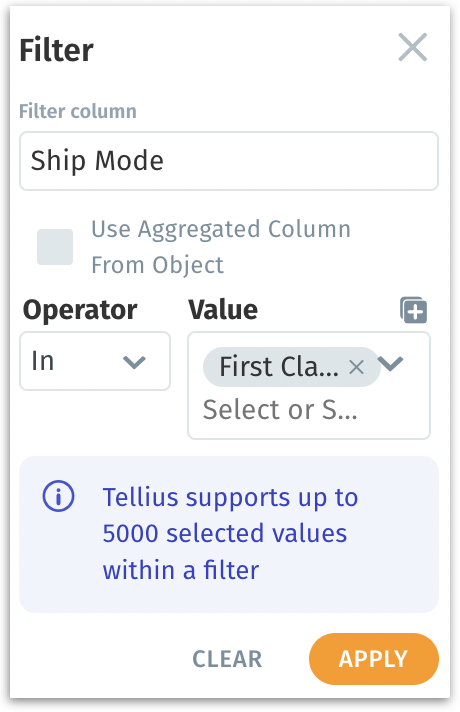
4. Click on **Filter** to apply filters to the chart.
Applying filters to a chart
5. Click on **Download** and select the required format in which you want the chart to be downloaded.
Download format
6. If you’re satisfied with the result, click on the **thumbs-up** button. It will be saved and your preferences will be saved for future queries.
7. If you’re not satisfied, click on the **thumbs-down** button. To remediate the results, click on **Fix it**. If you don’t want to resolve the issue, but only want to provide feedback, click on **Give feedback**.
{% hint style="warning" %}
The thumbs up/thumbs down feedback is available only in a live conversation and not in history. If the thumbs up or thumbs down is once clicked for a chart, it cannot be changed.
{% endhint %}
### Copy and Export Kaiya results
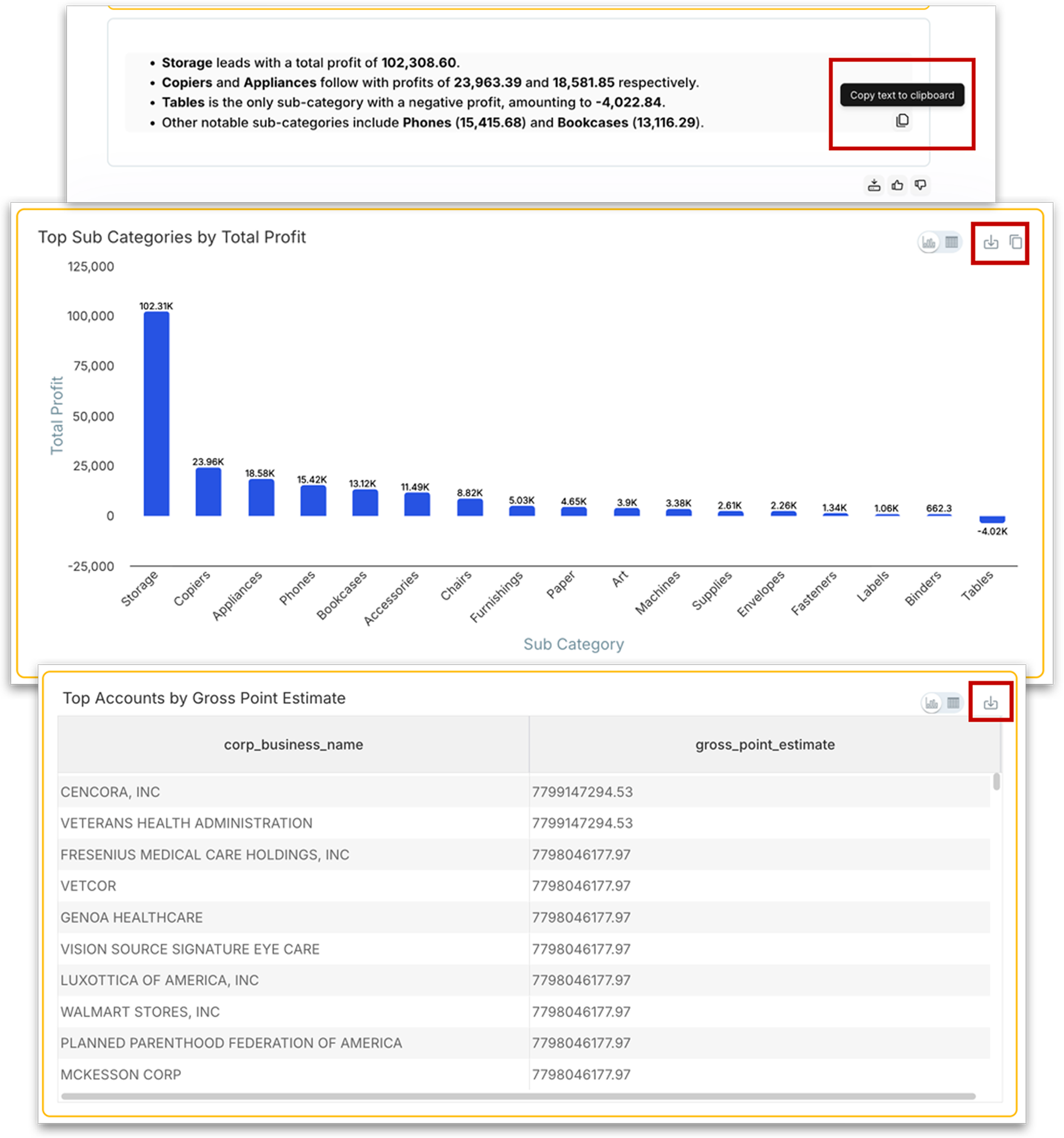
In addition to the existing download option, Kaiya provides flexible copy and export actions across all response types (text, charts, and tables) so you can reuse and share results without rework or screenshots.
**Copy to clipboard (per element):** You can copy individual elements from any Kaiya response directly to your clipboard. Text responses are copied as plain text, ready to paste into documents, emails, or chat messages. Charts and tables are copied as PNG images. This lets you grab exactly the piece of the response you need without exporting the entire result.
**Export (per element):** Individual charts can be exported as .png, .jpg, .pdf, or .csv files. Individual tables can be exported as .csv or Excel files. This lets you move data directly into spreadsheets or reporting tools.
**Export Result as Doc:** For complete sharing, Kaiya supports exporting the full result of a conversation response as a single editable Word document (.docx). The exported document contains all text, charts, and tables from the result, formatted with a clean, consistent layout. This is designed for turning Kaiya's analytical output into stakeholder-ready artifacts (reports, decks, and briefs) without manually stitching together multiple screenshots or exports.
### Reflection-based auto verification
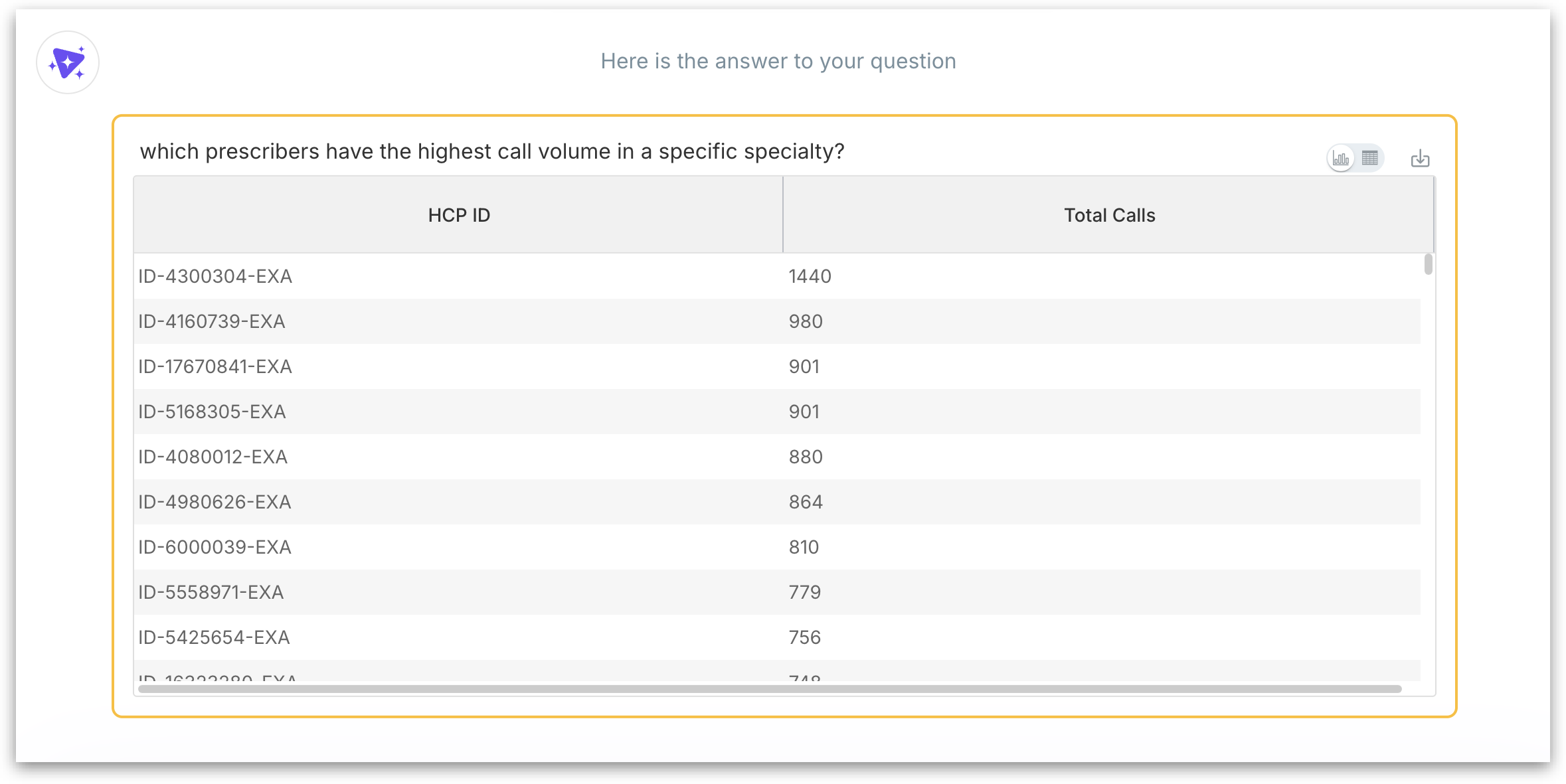
Kaiya is designed to get you to a usable answer as quickly as possible. When you ask a question, Kaiya begins executing the analysis and renders the first usable output (typically a data table) as soon as it is ready, even while it continues working on the remaining steps in the background (such as chart generation, formatting, and reflection-based validation).
As soon as the initial table appears, you can begin validating the direction of the answer, checking whether the right columns and filters were applied, or deciding on your next follow-up question.
* After Kaiya generates its initial results, a Reflection agent automatically reviews whether the output actually matches what you asked for.
* The Reflection agent checks for issues such as incorrect grain (the level of detail in the results does not match what was asked), missing constraints or filters that should have been applied based on your question, and partial coverage where only part of a multi-part question was addressed.
* If the Reflection agent identifies a mismatch, Kaiya adjusts the execution plan and re-runs the query or the specific step that produced the incorrect output. The final result you see reflects the corrected analysis.
For straightforward queries, reflection typically confirms the result is correct without any delay. For more nuanced questions (such as those involving multiple metrics, time comparisons, or conditional logic) reflection acts as a safety net that significantly improves first-attempt accuracy.
### Ask Kaiya to summarize conversations
Kaiya can generate a summary of the entire conversation thread on demand. This is designed to consolidate context across a long, multi-step exploration into a single, clean narrative that you can share or use as a reference.
**How to ask Kaiya to summarize?**
At any point during a conversation, type a prompt like "Summarize the entire conversation" or "Summarize what we learned and list the top drivers." Kaiya will process the full thread and generate a consolidated summary.
**What does the summary include?**
The summary incorporates relevant context from across the entire conversation, including results from **Deep Insights**, direct analytical queries, earlier summaries generated within the thread, and metadata queries. Kaiya synthesizes these into a single coherent narrative.
{% hint style="info" %}
This capability is most valuable at the end of a long investigative session where you have explored multiple angles, drilled into different segments, and generated several charts and tables.
{% endhint %}
The resulting summary can be copied or exported (using the copy/export capabilities described in [this](#copy-and-export-kaiya-results) section) and shared directly with stakeholders.
### Preamble
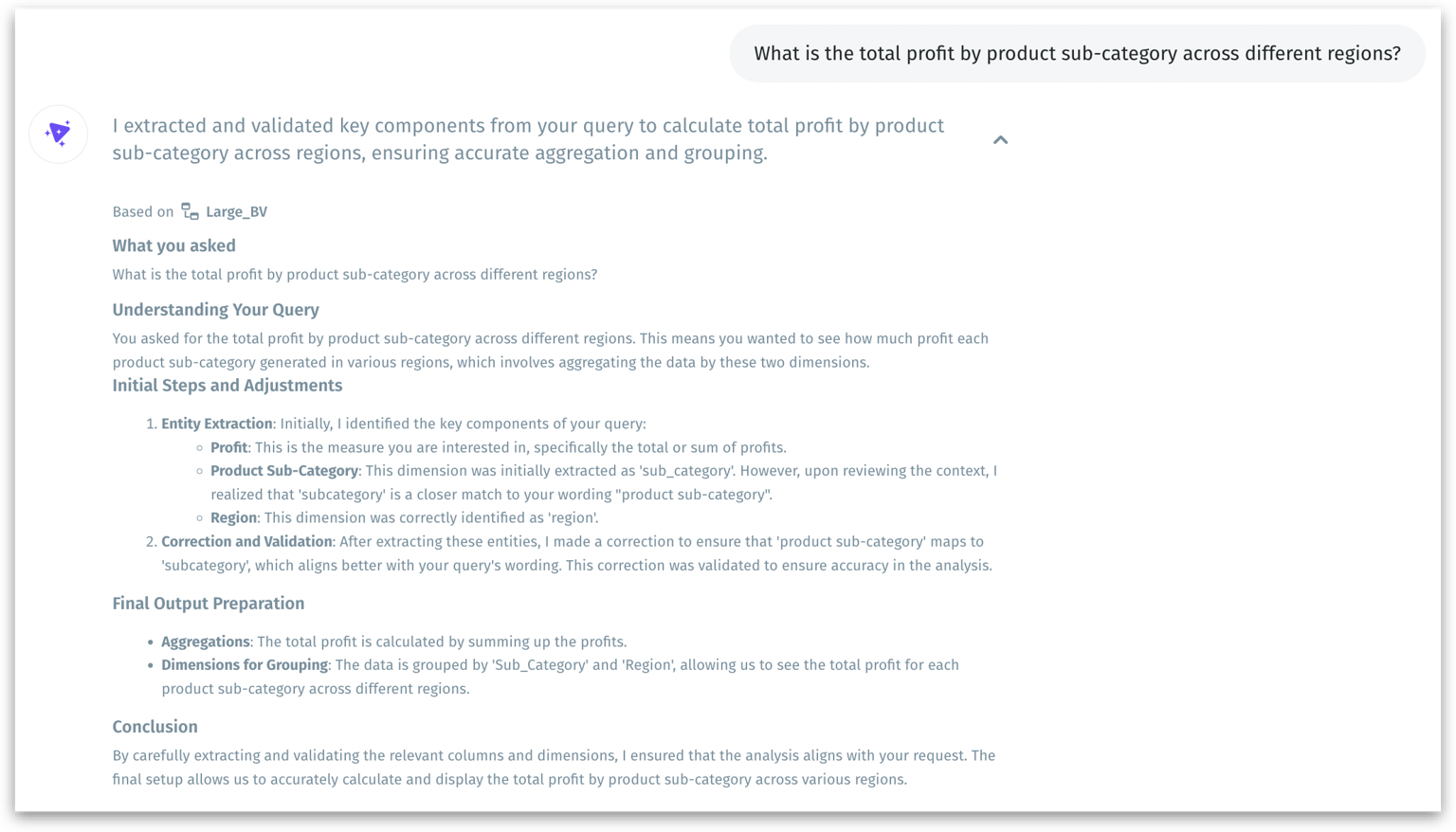
Kaiya includes a **Preamble,** a short, insightful explanation that appears before each response. This section breaks down exactly how your question was understood and how the answer was derived. It helps you build trust, learn the logic behind the response, and verify that Kaiya correctly interpreted your intent.
Preamble
It walks you through how Kaiya:
* Interprets your query
* Identifies key metrics, dimensions, and filters
* Selects the most relevant dataset
* Analyses and applies logic
* Validation & finalization
See exactly how data fields, filters, and groupings were mapped to your question. If you notice a mismatch in what was interpreted, adjust or rephrase your question.
With this preamble-first approach, Kaiya doesn’t just give you an answer—it helps you understand the reasoning behind it. This makes your analysis more reliable, traceable, and smarter with every question.
### Clarification questions
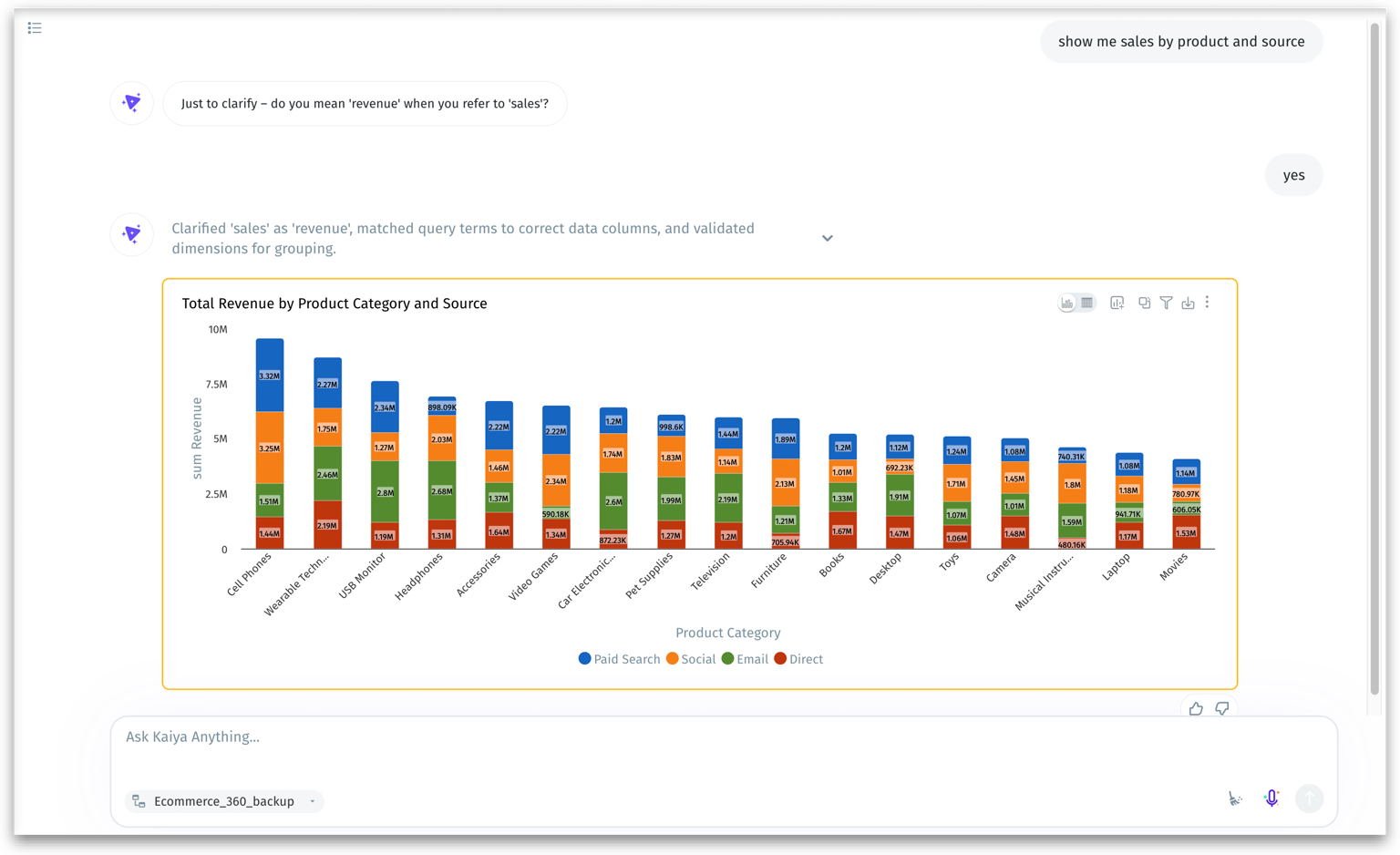
Kaiya is designed to get you the most accurate answers by making sure it understands your question correctly. Sometimes, the way you phrase a question might include words that could mean different things depending on context. In those cases, Kaiya will pause and ask you a clarification question before proceeding with the analysis.
Kaiya asking a clarification question
A clarification question is a smart prompt that Kaiya shows when your original question could be interpreted in multiple ways. For example, if you say:
*“Show me sales by product and cost”*
Cost could mean *“average cost”, “total cost”* etc. Kaiya might ask:
*“Just to clarify, did you mean to see ‘sales’ by ‘product id’ and ‘average cost’?”*
This ensures that Kaiya understands exactly what you’re looking for, before it selects columns, generates charts, or calculates results.
#### When Kaiya asks
* **Filters or dimensions are unclear.** *"Compare performance"* without specifying by-region, by-product, or by-period.
* **Aggregations or metrics are ambiguous.** *"Show me growth"* could mean period-over-period, a trend, or a rate.
* **Column names or values need confirmation.** When multiple columns could match what you asked for.
#### How to respond
When Kaiya asks a clarifying question, you have three options:
* **Pick from the options shown**, or supply the missing detail directly (for example, *"compare by region,"* *"use the revenue column"*).
* **Refine your question** to add context.
* **Ask a new question** to change direction entirely; Kaiya starts fresh.
After you respond, Kaiya runs the analysis with the disambiguated parameters and returns the result the same way as a direct question.
{% hint style="info" %}
Saved memories reduce future clarifications. When you respond to a clarification, Kaiya can offer to remember your choice as a Preference memory. The next time the same ambiguity comes up, Kaiya applies your saved preference automatically without asking.
{% endhint %}
Once you respond to the clarification prompt, Kaiya updates your request using the confirmed terms. This promotes transparency, improves trust, and helps you get more meaningful results from your data conversations.
---
# Agent Instructions
This documentation is published with GitBook. GitBook is the documentation platform designed so that both humans and AI agents can read, navigate, and reason over technical content effectively. Learn more at gitbook.com.
## Querying This Documentation
If you need additional information that is not directly available in this page, you can query the documentation by asking a question.
Perform an HTTP GET request on the following URL with the `ask` and `goal` query parameters:
```
GET https://help.tellius.com/kaiya/kaiya-conversational-ai/kaiya-responses.md?ask=&goal=
```
`ask` is the immediate question: it should be specific, self-contained, and written in natural language.
`goal` is what the user is ultimately trying to achieve, the reason they need the answer. Sharing it helps GitBook give you a better, more relevant answer. A goal is most helpful when it describes the outcome the user wants rather than restating the question. For example, with `ask=how do I create an API token`, a goal like `automate deployments from our CI pipeline` lets GitBook tailor the answer to that use case.
The response will contain a direct answer to the question and relevant excerpts and sources from the documentation.
Use this mechanism when the answer is not explicitly present in the current page, you need clarification or additional context, or you want to retrieve related documentation sections.